
I ran across a unique error today while testing a factory provisioning scenario with Workspace ONE Provisioning Tool. If you aren’t familiar with the tool or this specific scenario for deploying/enrolling devices, here’s a quick, high-level run down…
One option Workspace ONE provides to enroll Windows 10/11 clients during the Out-of-box-experience (OOBE) is product provisioning. This method takes advantage of Windows 10/11 product provisioning packages in order to deploy applications, settings and a customized OOBE experience. You would typically use the Windows Configuration Designer application to create these packages if Workspace ONE wasn’t in the mix. Once a package is created, it can either be manually executed on a Windows 10/11 device during the OOBE screens by plugging in a USB drive with the provisioning package staged on the USB drive or by implementing “Factory Provisioning” or “Drop-Ship Provisioning”. The latter method is a solution in which you setup a relationship with your client hardware OEM provider (Dell/HP/Lenovo), then send your provisioning package and associated unattend.xml file to the factory so they can stage the files on your devices during the image burn-in process.
I’m not going to go into detail on how to set this all up as a great resource for learning how to setup manual and factory provisioning with Workspace ONE already exists on the following VMware TechZone article: https://techzone.vmware.com/drop-ship-provisioning-workspace-one-operational-tutorial
If you are working with factory provisioning, one of the necessary steps in the article is to test your deployment package and unattend.xml file to make sure everything will work smoothly when your users run through the OOBE and setup their laptop for the first time. The Workspace ONE Provisioning Tool is leveraged to stage the provisioning package and unattend.xml files on a machine that is in Sysprep audit mode. (All the details regarding this process are in the TechZone article). You select your downloaded provisioning package and XML file you obtain from the Workspace ONE admin portal, then click the Apply Full Process button to re-seal the device and kick off OOBE. Again, the goal is to test the directory join (AD, AAD, Workgroup Join), application installations and general OOBE experience to ensure everything is working flawlessly before sending the configuration off to the OEM provider.
Now to the issue I encountered today… During the process of testing my factory provisioning package with the provisioning tool, I kept receiving an error message when specifying my unattend.xml file. The exact error the tool kept kicking back was “File does not appear to be a valid XML document”.

I tried a few simple steps first like regenerating the package multiple times and trying multiple devices. I even tried different versions of the provisioning tool. I was ultimately able to narrow down the issue to my Active Directory join settings by testing the package with the Workgroup deploy option instead of the AD join option. I compared my unattend.xml with a known working unattend.xml file (shoutout to the Notepad++ Compare plugin) and determined the issue must be the actual values of my directory settings, not the overall XML document structure!
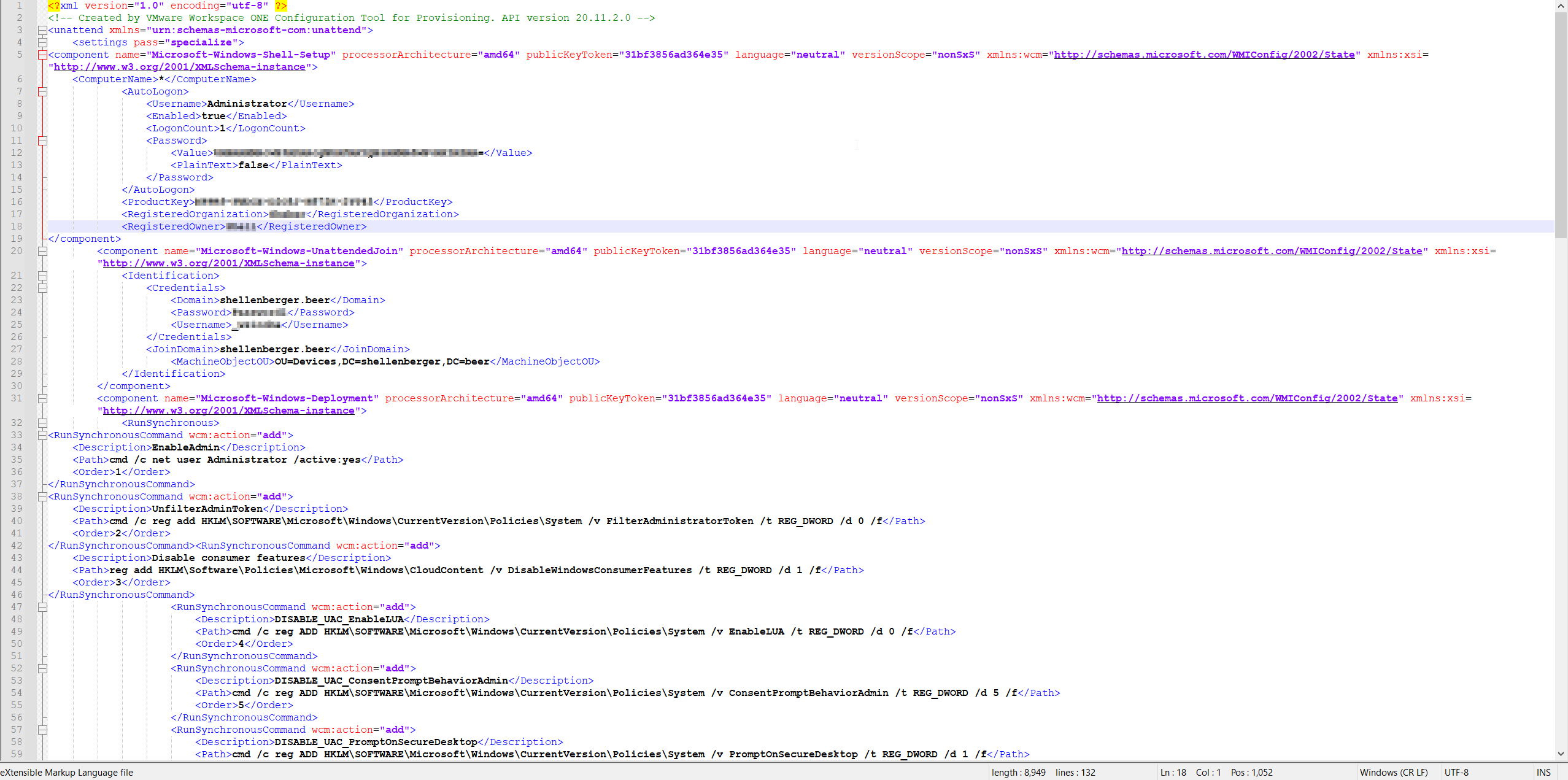
As it turns out, the provisioning tool must be looking for more common AD domain suffixes such as .com and .local when it verifies the XML file. It just so happens that my demo AD domain suffix is .beer which for some reason doesn’t play nice with the Workspace ONE Provisioning Tool’s XML file checks. Perhaps I may be the only one who ever runs across something like this as most organizations with Active Directory domains are likely using more common domain suffixes but just in case someone else encounters this issue, I hope it saves you the three hours I spent troubleshooting today!
 Mike Shellenberger's blog
Leave a comment