
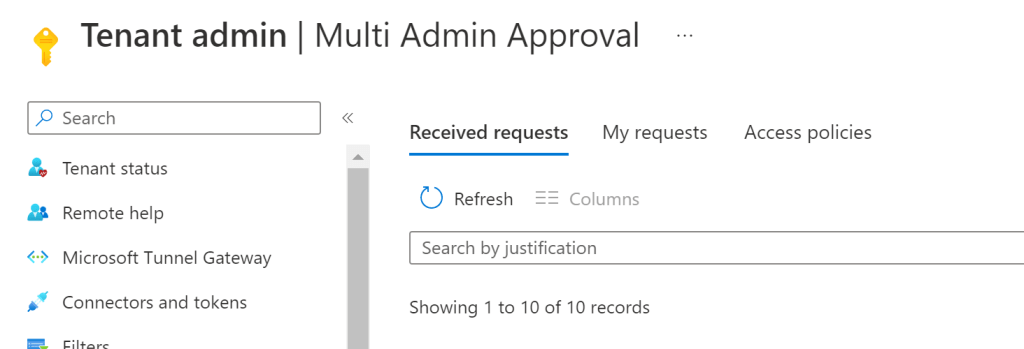
The new Multi Admin Approval feature is currently in public preview and just showed up in my demo tenant, so I decided to play around with it to learn more. The concept of Multi Admin Approval (MAA) is to ensure a single administrator cannot push a change into production without another administrator’s explicit approval. The checks and balances solution can help mitigate “resume generating events” stemming from unintentional changes across hundreds or thousands of devices. Microsoft docs mentions this solution can also help ensure if an account with Intune administrative privileges were ever compromised, the attacker would not be able to make sweeping changes to the environment. (In MAA’s current state, I was able to delete the access policies that apply these protections without administrative approval so an attacker could simply disable this protection first, if they wanted to skirt around it. Some sort of change control or protection around access policy changes would be nice to see here.)
There are no additional licensing requirements or add-on purchases necessary to implement MAA protection and any Intune administrator can access and configure the solution. You can find the setup for MAA under your Intune admin console Tenant Administration > Multi Admin Approval.
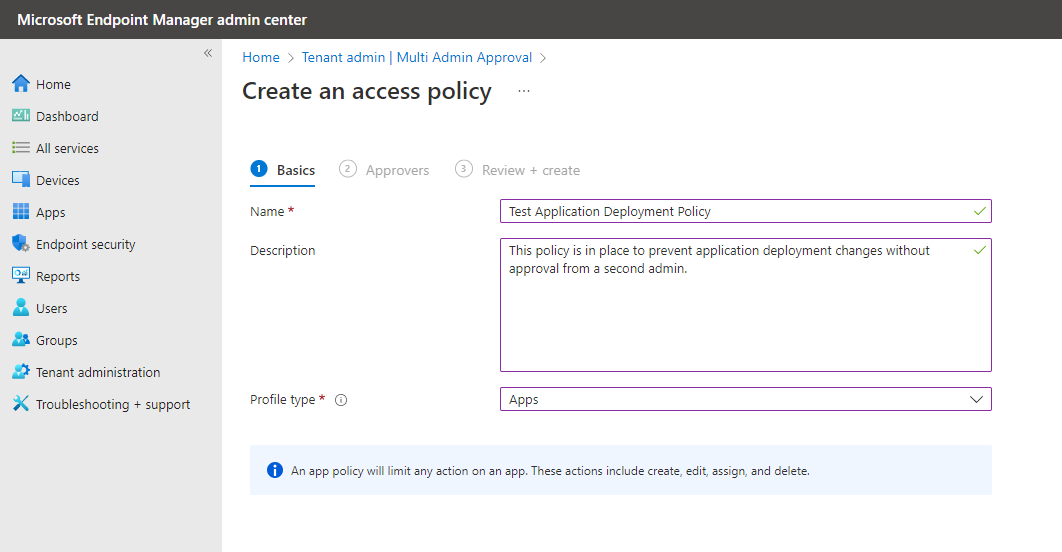
Creating access policies are step one. At present, access policies can only be created for application deployments, (not app protection policies) and macOS/Windows scripts. I’m assuming this will be expanded during the preview phase to include things such as compliance policies and configuration profiles as both can have wide-reaching impact and would benefit from change control. You will give your access policy a name, description and select the profile type.
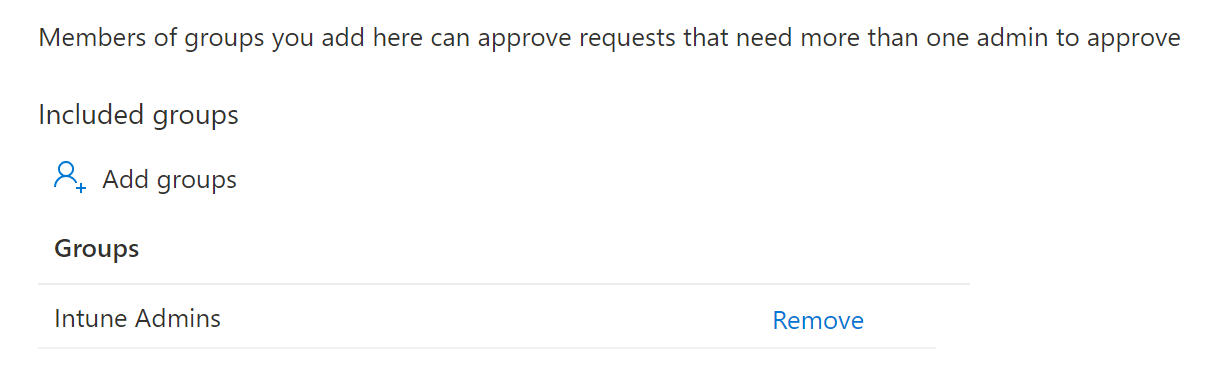
The next step is to provide a group of administrators who will be given the ability to approve requests from this access policy. Any security group from Azure Active Directory will work but the members of the group must already have a level of administrative rights in Intune for this to work. I tested this successfully with both an account in the Intune Administrator role group and an account in the Application Administrator role.
Review and save the new access policy.
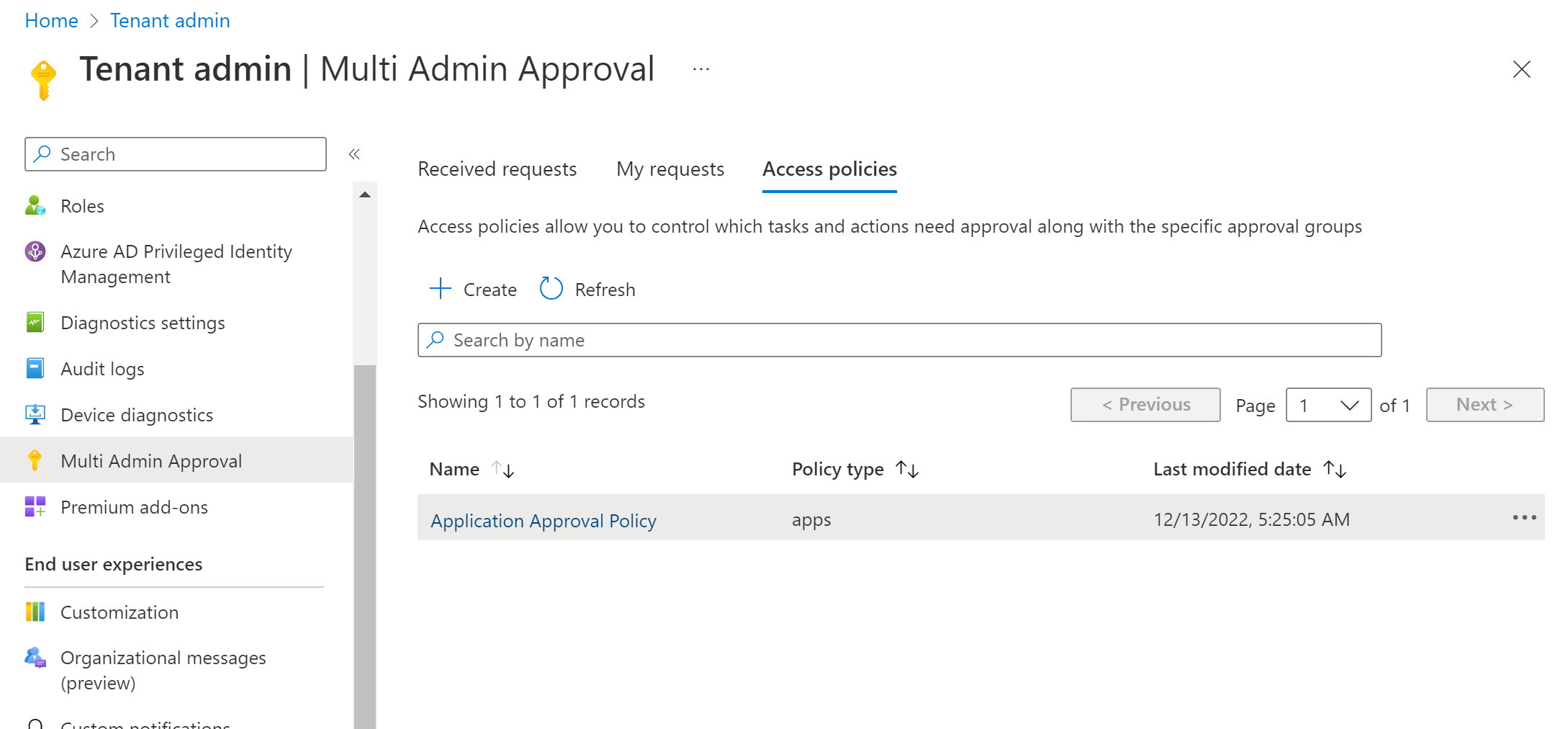
Although the new policy will show up right away, you will need to give the policy some time to fully save and enable before using. In my testing, this took about 15-20 minutes before the access policy kicked in and prompted for approval.
Now that the policy is in-place, any creations, edits, deletions or assignments to applications will require a business justification and another administrator to approve the request.
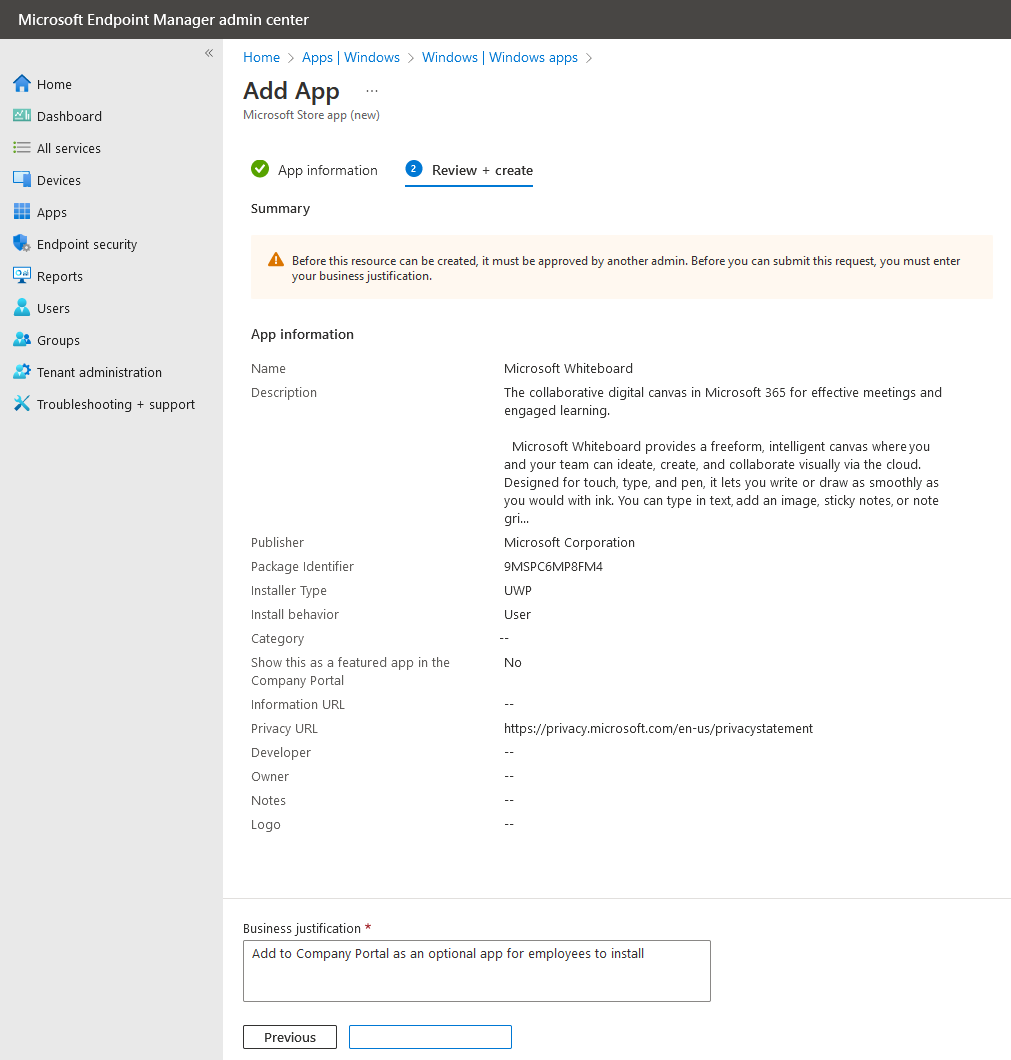
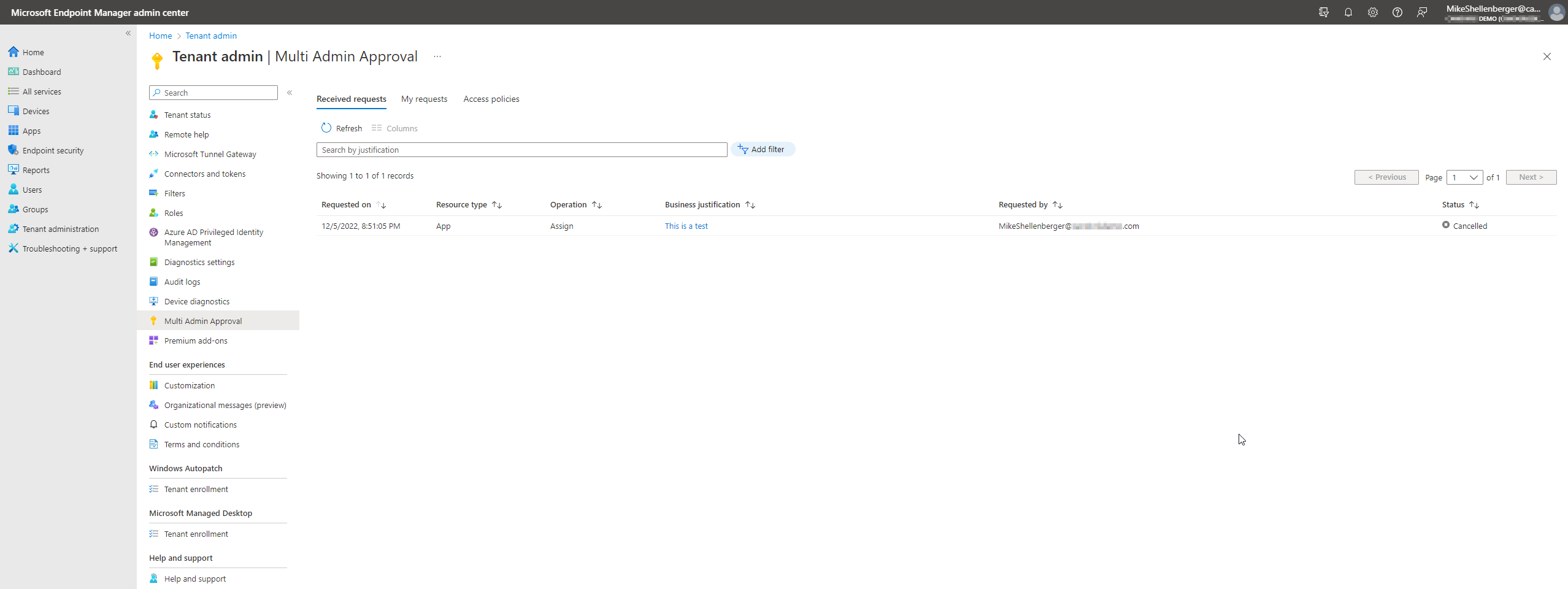
Once a change is requested, another administrator, from the group specified in the access policy, will need to review and approve. During public preview, pending request notifications are not sent to approvers automatically so you will need to reach out directly to let them know. It sounds like there will be an option for automatic notification in the future which will be very welcome in my opinion! Here’s what admins will see in the Multi Admin Approval section of the Intune admin console:

Clicking on the business justification link from the list of pending requests will take you to the actual request where the approver can review exactly what was requested. If a change/edit is requested, the view will show both the current and pending configuration and highlight key differences.
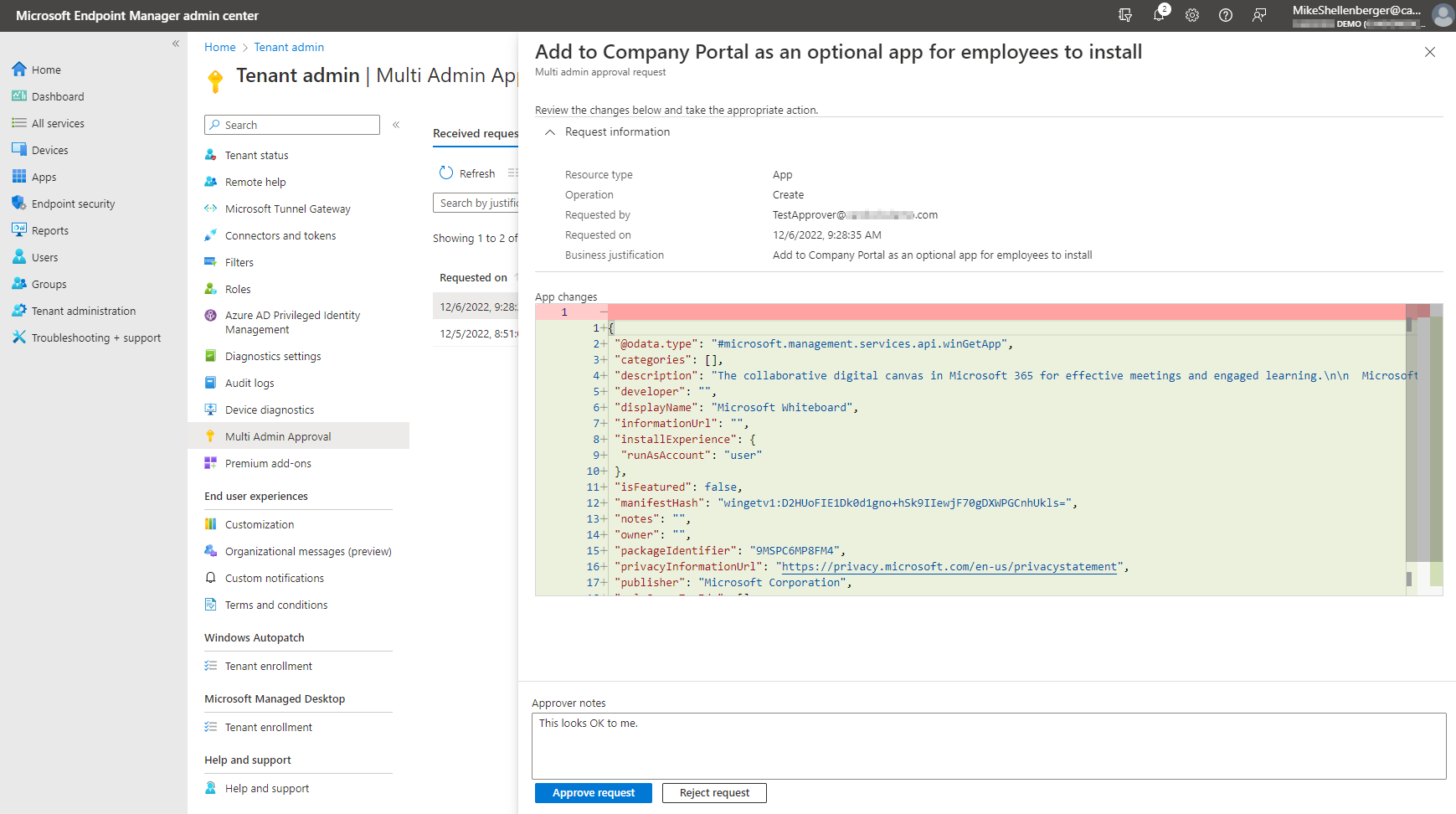
The approver will need to enter notes, then click approve request to process the change. At this point the change should be made immediately, however, in my tenant any approver changes are taking over 24 hours to process. This is the message I see on the application post-approval:
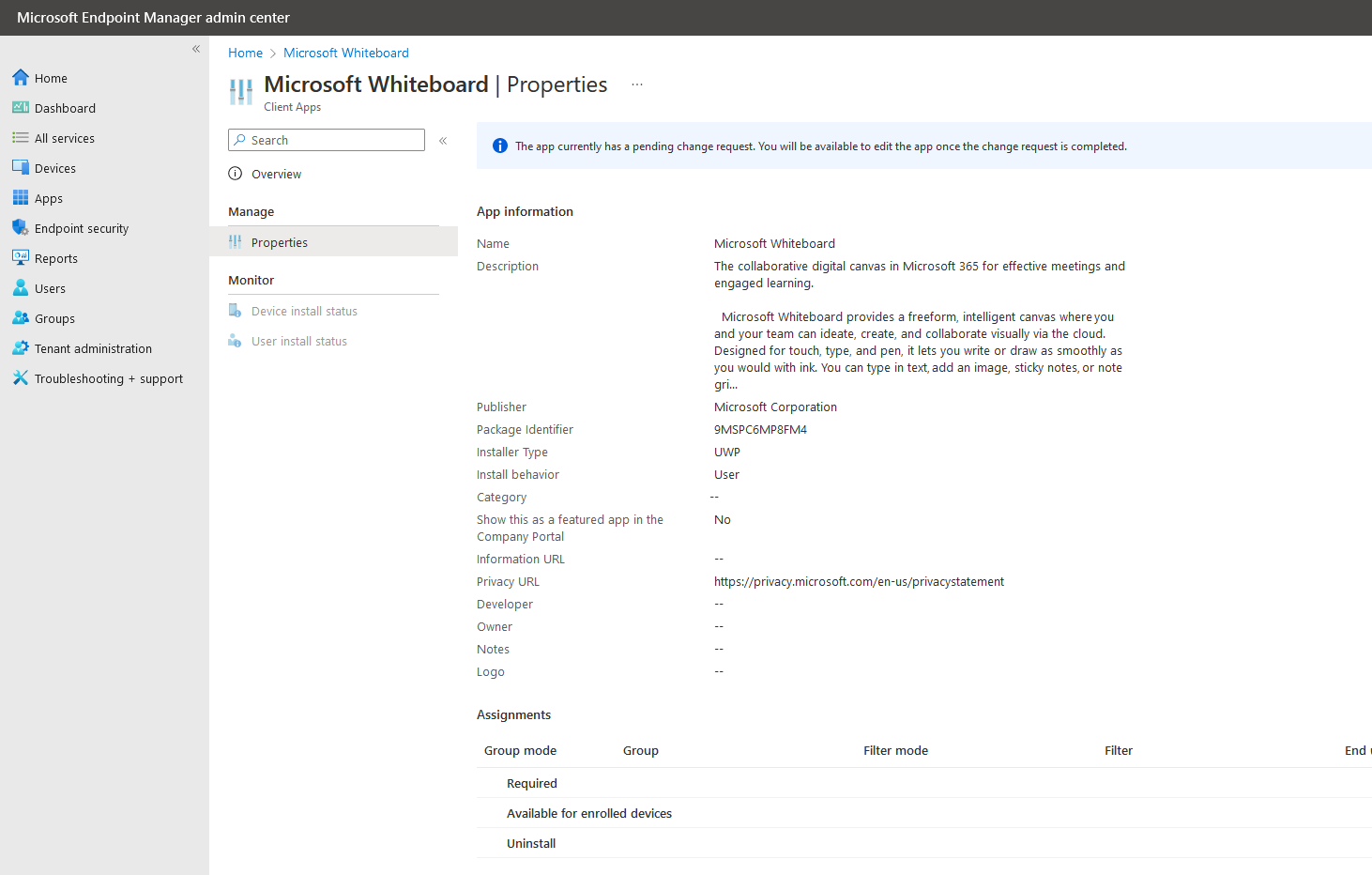
I don’t believe this is by design (Adding an app is one request and assigning the app is a second request which means there would be a minimum of 48 hours just to deploy an app with MAA enabled in my current state) and I do have a ticket open with support to determine why this is happening. I am hearing there are others experience this issue as well, but not everyone. I will update this post once I have a final answer from support on what’s causing this.
If a request has not been approved within 30 days, it becomes expired and must be resubmitted. Another important note is that if a request is already submitted for an object, you cannot submit a different request for the same object. This prevents conflicts where multiple admins attempt to change the same object. All requests and actions during the approval process are logged in the Intune audit logs and can be reviewed for up to 30 days.
Overall, this solution still needs a bit of polishing, but that’s a given since it’s only in public preview. I think the concept of integrating change control directly within Intune is especially important in larger environments or in organizations where multiple endpoint administrators are responsible for endpoints. I will absolutely be recommending this moving forward, once the delay issues and automatic notifications are addressed. Another great innovation to the Microsoft Intune!
Did you find this particular article extra helpful? Please consider donating to help me offset the costs of maintaining this site. Your support is greatly appreciated!

 Mike Shellenberger's blog
Leave a comment