
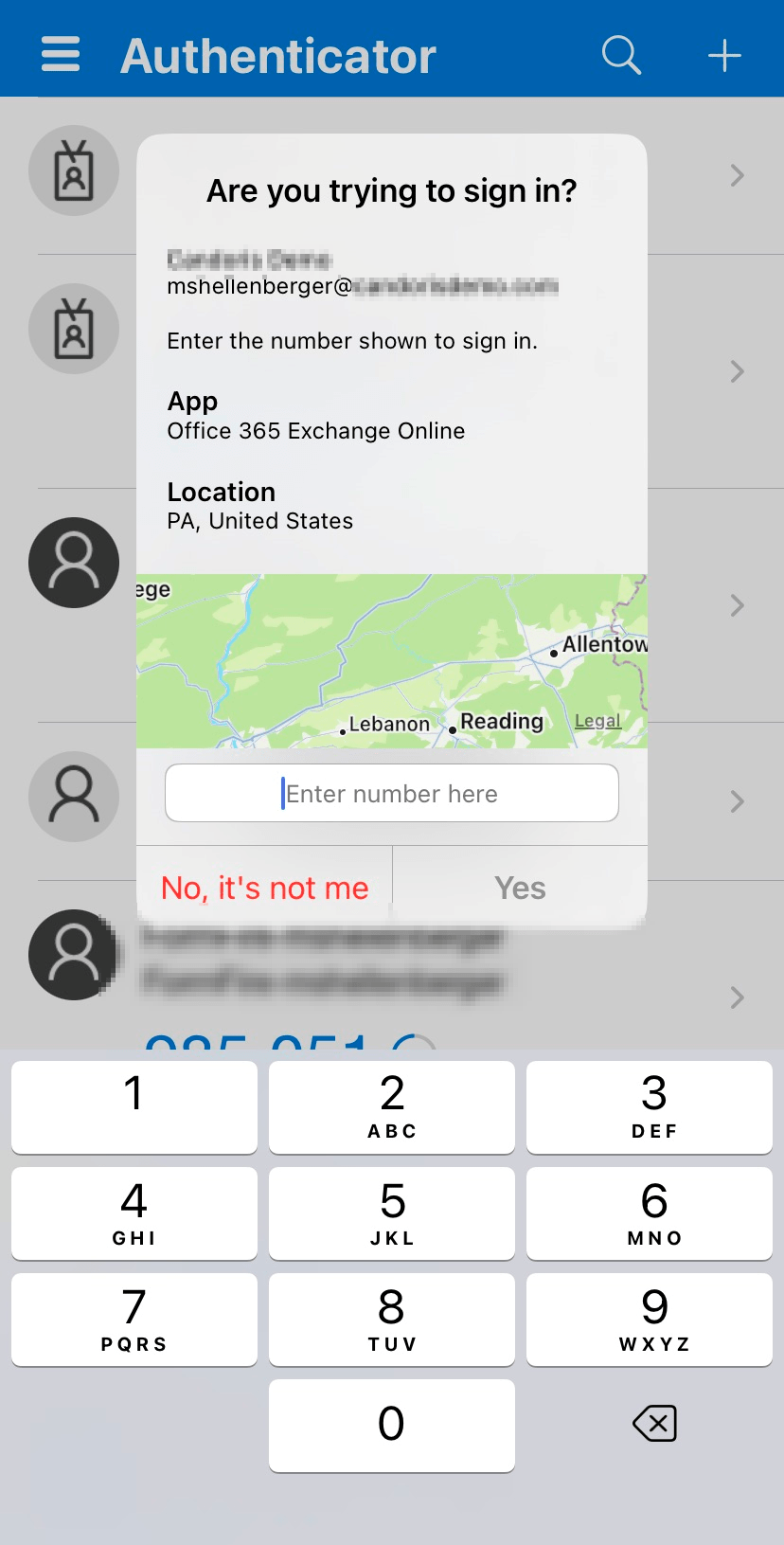
I mentioned in Part II of this blog series that Microsoft has released two new features for Azure Active Directory and Azure multifactor authentication that’s designed to combat MFA fatigue. Additional context in the Microsoft Authenticator app is the second such feature that I’m excited to talk about.
To recap, MFA fatigue is the industry coined term for the scenario where users have become so accustomed to approving MFA push requests on their mobile devices, that they simply approve any request that comes through. This behavior defeats the purpose of MFA and allows bad actors to compromise MFA protected accounts. To be fair to the user, there is often not enough information communicated during the MFA request to allow them to make an informed decision on whether to approve or deny. With so many applications and services running through Azure MFA, it’s not that unusual for a user to receive a what I will call a “ghost request” where randomly an application such as OneDrive or Teams re-authenticates in the background causing an MFA request to go out. There are ways to mitigate this, but not all organizations are in a position to implement the changes required for this.
To help users make more informed decisions in the MFA approval process, Microsoft has added “additional context” options to the Microsoft Authenticator app. Administrators can now configure the push notification (and soon to be number match, covered in Part II) to send information about the application or service requesting the MFA prompt, as well as the geolocation of the request origination. This is VERY welcomed, in my opinion, and all organizations should adopt this functionality as soon as possible to arm their users with better context during the MFA request process.
The only prerequisite to begin using additional context with Azure Authenticator, is to ensure users are already setup to use the app for MFA notifications and ensure that they are using either the push notification or passwordless option to acknowledge prompts.
Enabling the functionality in Azure Active Directory is very easy. Begin by opening the Microsoft Entra admin center: https://entra.microsoft.com and expanding the Protect & Secure menu option. Choose Authentication Methods, then select the Microsoft Authenticator link. Click the Configure link. This will take you to the same place where we configured number match for users in Part II.
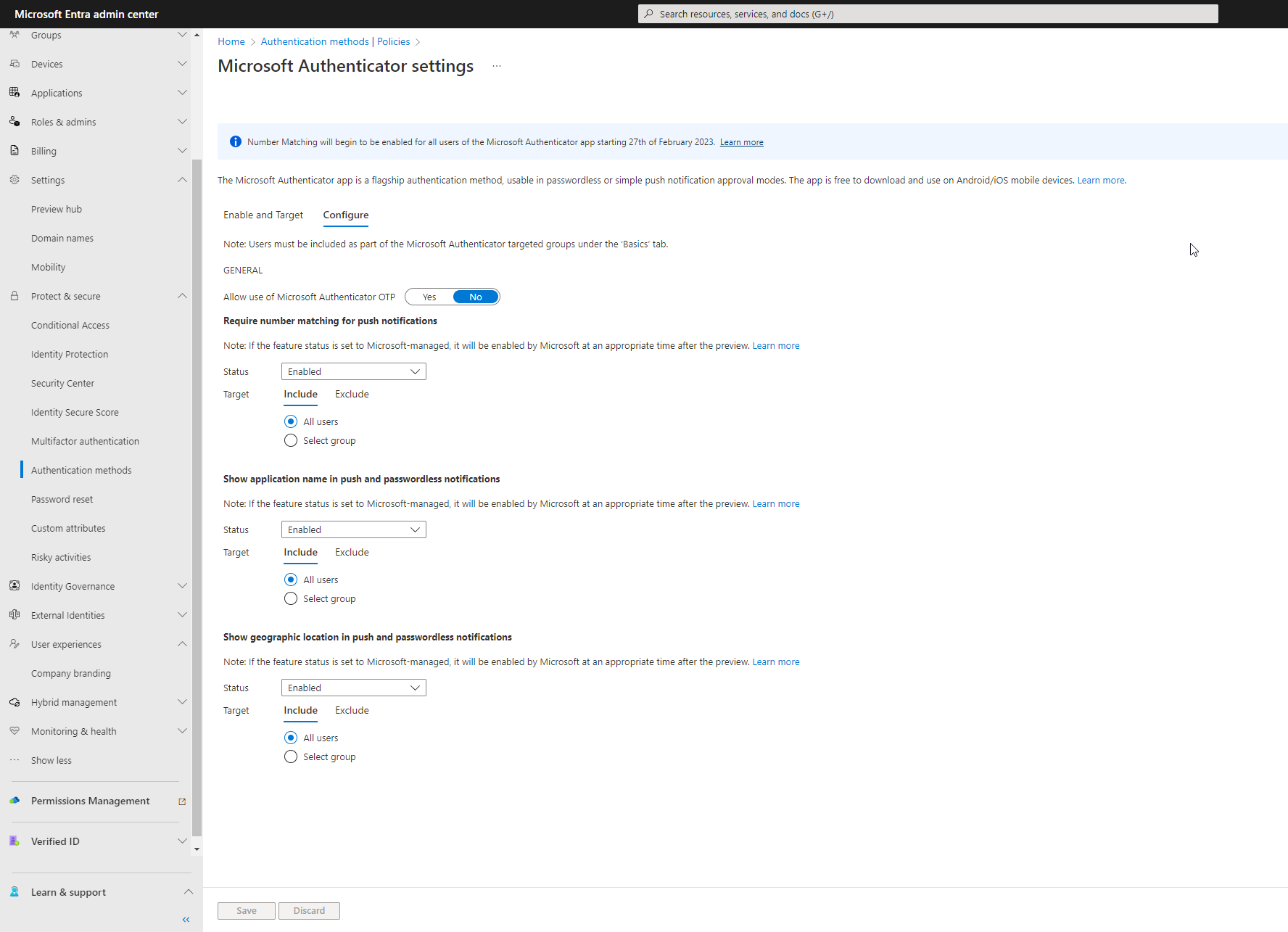
The two options for additional context are Show application name in push and passwordless notifications and Show geographic location in push and passwordless notifications. You can choose to enable one or both options for All Users or a subset of users via a security group. After making changes, expect to wait roughly 15-30 minutes to see this start showing up for end users. Here’s what an MFA prompt now looks like from the Microsoft Authenticator app after both additional context options are enabled:

I already have the number match experience enabled for all users in my tenant which is why you also see the prompt for the two-digit code. You do not have to use number match with additional context. Regular push notifications are supported as well. If you are using Active Directory Federated Services or the Azure MFA extention for Network Policy Server, you will be disappointed to hear that additional context notifications are currently not supported for either scenario.
In recap, the new additional context options with Microsoft Authenticator offer a simple way to improve your MFA security with no additional investment in licensing and very little technical lift. I’d highly recommend organizations roll this new feature out along with the number match experience.
Are you finding the content on my site particularly helpful? Please consider donating to help me offset the costs of maintaining this site. Your support is greatly appreciated!

 Mike Shellenberger's blog
Leave a comment