
This is the last post in the series of articles around my favorite, recent Azure Active Directory annoucements. This last feature was annouced at Ignite 2022 and is currently in public preview. Azure Active Directory “Authentication Strength” enforces certain authentication methods, and thus strength of the authentication, to gain access to resources protected by Azure AD. There are a few compelling use cases for this . Scenarios such as protecting sensitive applications with phishing-resistant authentication, requiring step-up authentication during a sensitive action within an application, applying more stringent authentication to users at high risk are all great examples of how this could be deployed in production environments to further enhance security.
Prerequisites
There are two prerequisites to getting started with the public preview feature. First, you need to have your users licensed for Azure Active Directory Premium Plan 1 or higher. Second, you will need to ensure that the combined registration experience in Azure Active Directory is enabled for all users. If you have a newer Microsoft 365 tenant, this feature if likely already enabled as it’s now a default. If you’re not not sure, you can follow these instructions to find out and enable, if necessary.
Authentication Strengths
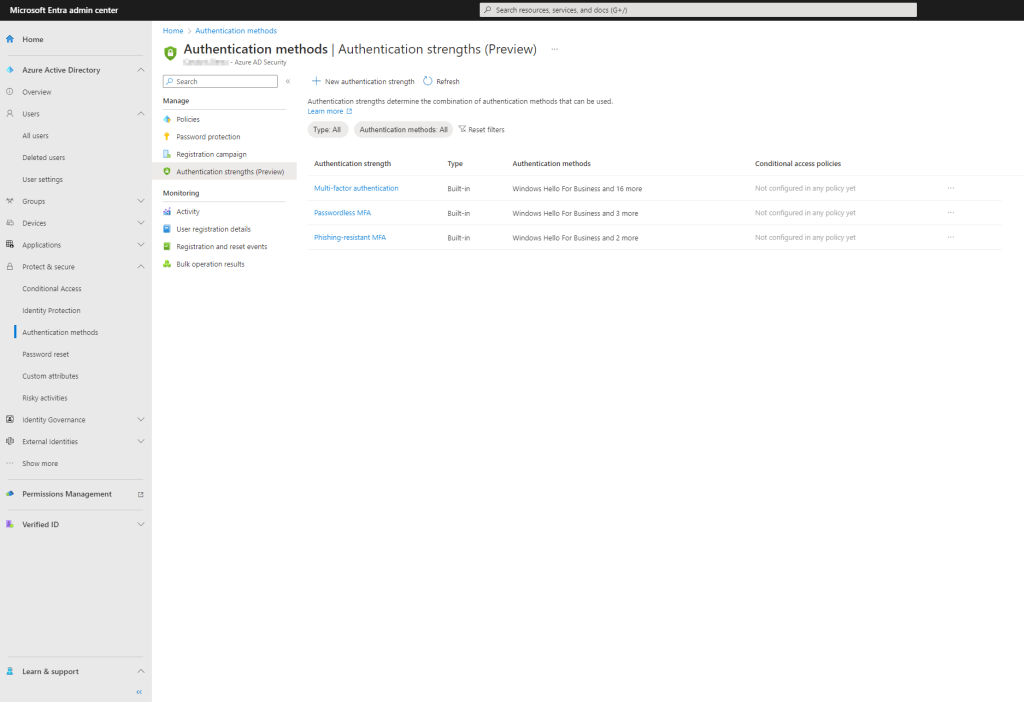
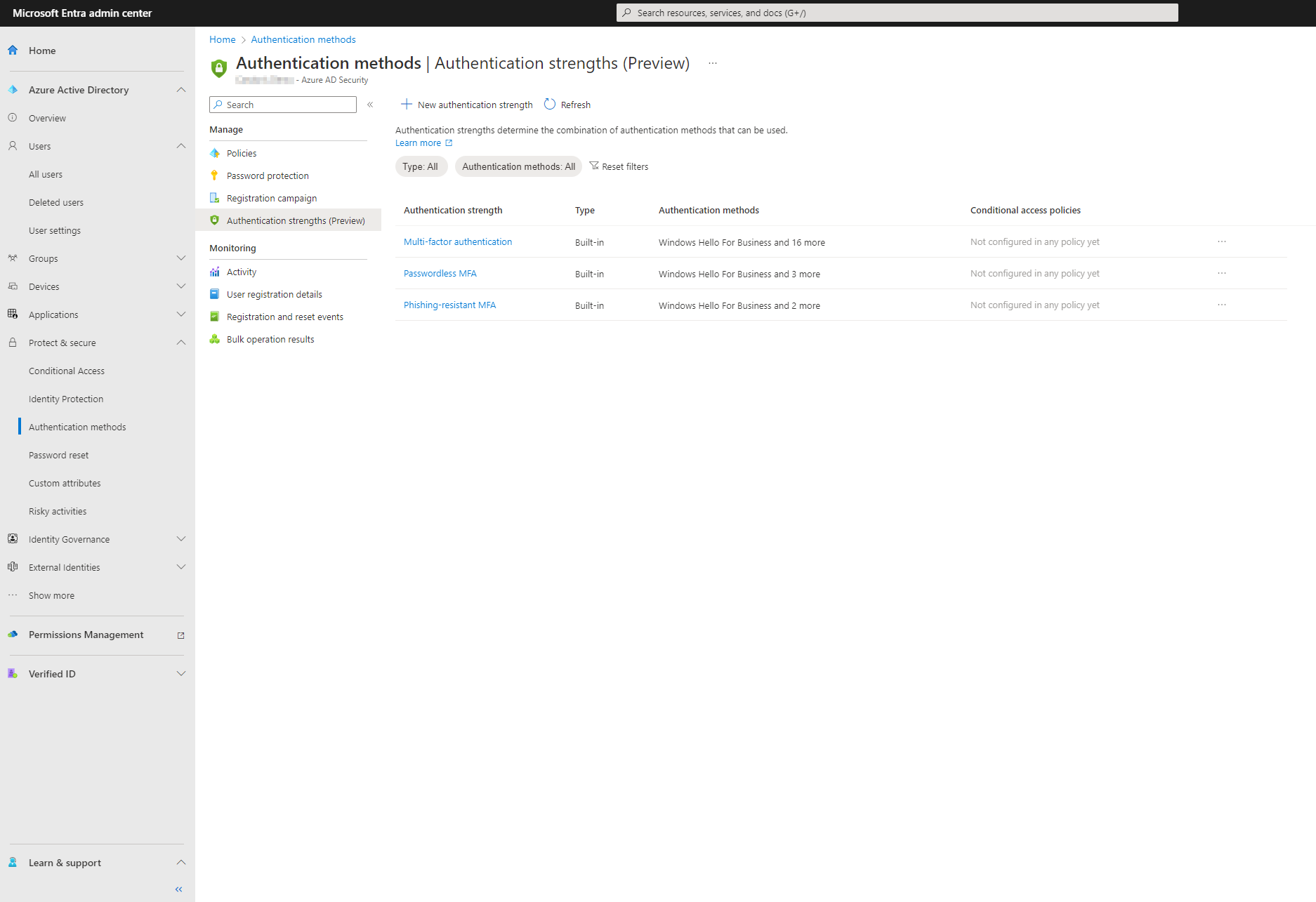
Within the Authentication Strengths feature in Azure Active Directory, multiple authentication methods are grouped together into what are defined as “authentication strengths”. There are three authentication strength templates defined out of the box: MFA strength, Passwordless MFA strength and Phishing-resistant MFA strength. Here’s a table showing the three built-in authentication strengths and the default authentication methods assigned to each:
| Authentication Method | MFA Strength | Passwordless MFA Strength | Phishing-resistant MFA Strength |
| FIDO2 security key | X | X | X |
| Windows Hello for Business | X | X | X |
| Certificate-based authentication (Multi-Factor) | X | X | X |
| Microsoft Authenticator (Phone Sign-in) | X | X | |
| Temporary Access Pass (One-time use and Multi-use) | X | ||
| Password + something you have | X | ||
| Federated single-factor + something you have | X | ||
| Federated multi-factor | X | ||
| Certificate-based authentication (single-factor) | |||
| SMS sign-in | |||
| Password | |||
| Federated single-factor |
These pre-built templates will likely suffice for the vast majority of organizations, but if you need to you can create your own custom strengths (up to fifteen). You can configure Azure Active Directory authentication strengths from the Entra admin portal, https://entra.microsoft.com. Expand the Protect & secure menu, then click on Authentication methods. You will find the Authentication Strengths (Preview) icon under the Manage heading.
Authentication Methods
Assuming the pre-built authentication strengths meet your requirements, the next step is to ensure the the authentication methods you will allow users to authenticate with are enabled and users are able to enroll them. You can configure your Azure AD authentication methods from the Entra admin portal, https://entra.microsoft.com. Expand the Protect & secure menu, and click on Authentication methods.

Modify the available authentication methods for users, as necessary. If users do not already have the appropriate authentication methods enrolled to meet the authentication strength criteria for the resource they are attempting to access, they can be prompted during the “step-up” authentication experience. There are a few caveats to this that are important to note. The following authentication methods cannot be registered during the “combined registration interrupt mode”…
- Microsoft Authenticator (phone sign-in) – Must register from the authenticator app
- FIDO2 – can be registered using combined registration managed mode
- Certificate-based authentication – Requires administrator setup, cannot be registered by the user
- Windows Hello for Business – Can be registered in the Windows Out of Box Experience (OOBE) or the Windows settings menu only
More details on the limitations can be found here: Overview of Azure Active Directory authentication strength (preview) – Microsoft Entra | Microsoft Learn
These limitations for combined registration interrupt mode are important to note as all four of the authentication methods mentioned are part of the passwordless MFA strength while three are part of the phishing-resistant MFA strength. You will want users to register with these authentication methods prior to rollout of authentication strengths, otherwise they will not be able to step-up their authentication strength when required.
Conditional Access Policies
When you are certain the users you will target for authentication strength policies have all registered authentication methods meeting policy requirements, you will create a new conditional access policy rule to enforce authentication strength for resource access. You will use the Grant access control within a conditional access policy to specify the appropriate authentication strength. In the following tutorial, I’ll demonstrate creating a new conditional access policy with authentication strength to ensure any users signing into the Salesforce application are using Passwordless MFA authentication strength.
From the Entra admin portal, https://entra.microsoft.com, expand the Protect & secure menu, then click on Conditional Access.
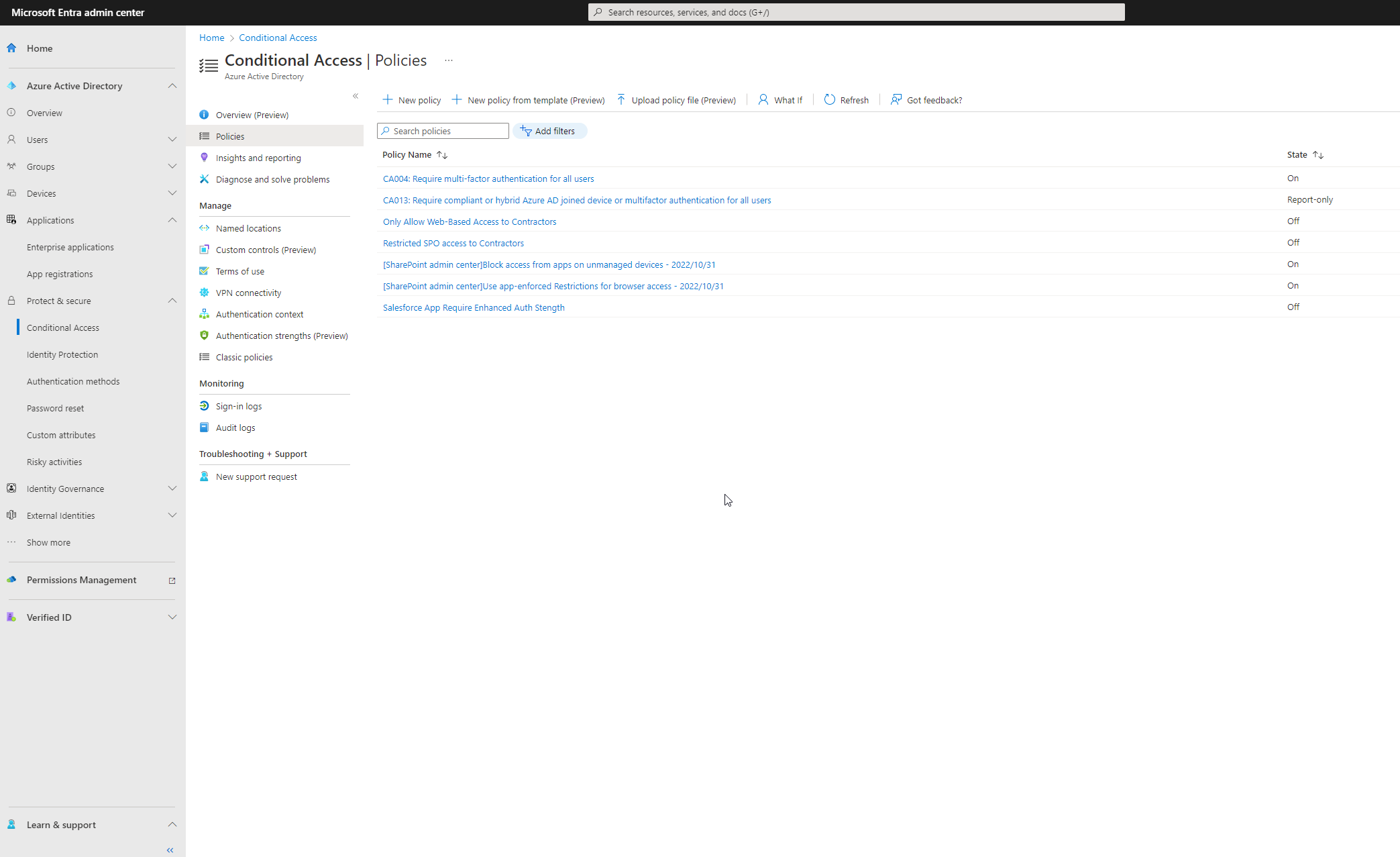
Click New Policy. then give the policy a name.
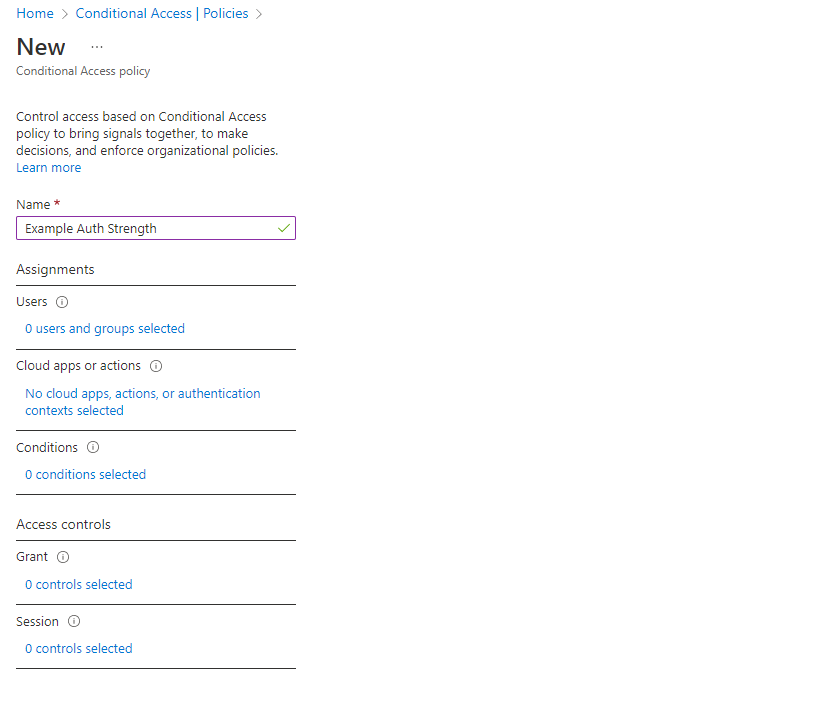
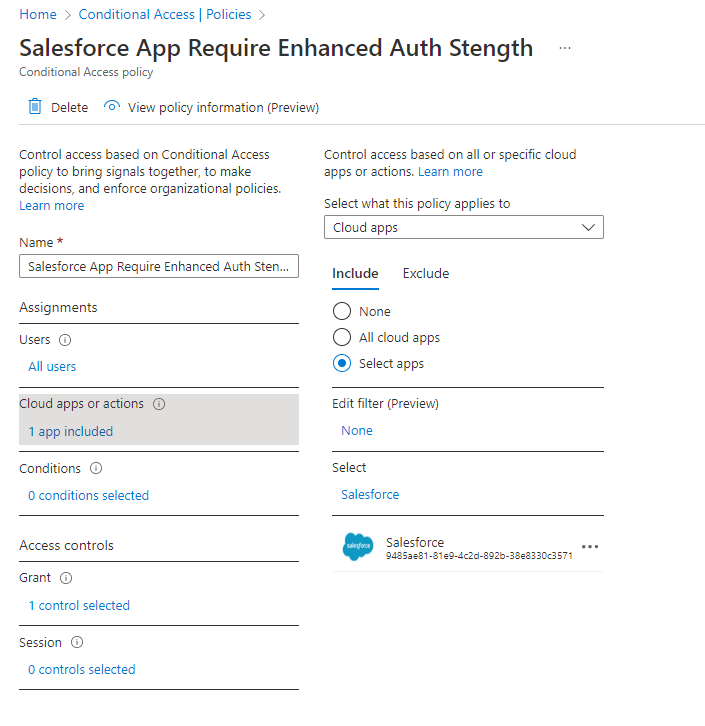
Using the Assignments, Users, Cloud Apps or Actions, and Conditions parameters, define the who, what, when and where variables you will target for the policy. In the example screenshot below, I’ve chosen to target All Users for the Salesforce application.
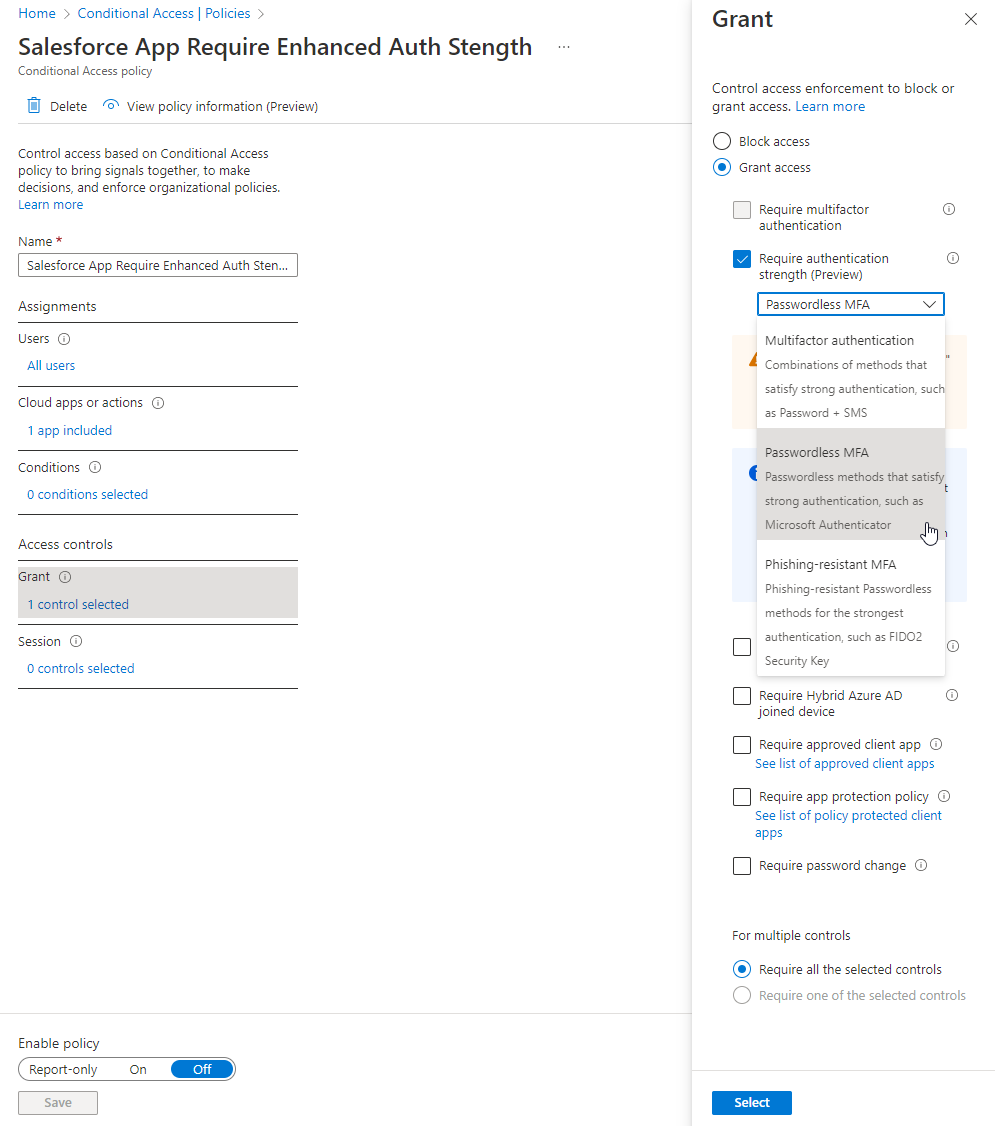
Next, select the Grant access control parameter. Select the Require authentication strength (Preview) access control and set the authentication strength you would like to enforce. In this case, I will ensure all users have authenticated with a Passwordless MFA strength before allowing access to Salesforce.
Set your policy to either On or Report Only and Save. To test out the new policy, wait approximately fifteen minutes.
End User Experience
For perspective on what Azure AD Authentication Strengths looks like from the end user side, I’ve recorded a few screen captures of various experiences. In the first video, authentication strength is not enforced and no policy exists. This is a demonstration of what Azure Active Directory authentication looks like for the Salesforce application without authentication strength. For context on my current session, I am logged into my Azure AD joined, Windows 11 workstation with a regular password. I’ve opened a web browser and I am going directly to my custom Salesforce URL.
You’ll notice I was seamlessly signed into the application with SSO and no additional prompts or requests for credentials. This is the experience users are familiar with today.
In video number two, I’ve enabled a Passwordless MFA strength policy to the Salesforce application for all users. For context on my current session, I am logged into my Azure AD joined, Windows 11 workstation with a regular password. I’ve opened a web browser and I am going directly to my custom Salesforce URL.
Notice that this time, I was prompted to step-up my authentication to a passwordless MFA authentication strength. I chose to leverage the Microsoft authenticator app in this scenario. You will need to configure the Microsoft authenticator app to perform Phone Sign in for this authentication method to work with the Passwordless MFA strength. Push notifications in the Microsoft Authenticator app are not passwordless MFA authentication strength.
In the last example video, I’ve required a Phishing-resistant authentication strength in order to access the Salesforce app. The same scenario applies where I am logged into my Azure AD joined, Windows 11 workstation with a regular password. I’ve opened a web browser and I am going directly to my custom Salesforce URL.
This time, I was required to use either Windows Hello for Business authentication, or as shown in the video, a FIDO2 compliant security key.
If I would have logged into my Windows 11 Azure AD joined workstation with my Windows Hello for Business credentials instead of a password in any of the example scenarios above, I would not have been prompted for step-up authentication. My Windows Hello for Business credentials would have met the authentication strength criteria required for access to Salesforce and I would have been signed into the application with SSO. This is one of the many reasons why you should be migrating your Windows devices to Azure AD joined endpoints!
Conclusion
That’s a wrap for this series of articles on my four favorite recent Azure AD features/annoucements. Please feel free to leave comments on any of my articles and I’ll do my best to address and questions or feedback.
Are you finding the content on my site particularly helpful? Please consider donating to help me offset the costs of maintaining this site. Your support is greatly appreciated!

 Mike Shellenberger's blog
Leave a comment