
iOS interoperability with the Phone Link app for Windows is here! I, along with many others, have been looking forward to this day for some time. We can finally tie our iPhones to our Windows PC’s and enjoy a more unified experience for messaging and calling. Well, sort of… As with many new releases, the first iteration isn’t perfect. There’s some key functionality I’d like to see included that simply isn’t there yet. Hopefully as the app matures, the missing functionality will be added but for now this is a great first step!
tl;dr
Negatives:
- Not a complete chat history. You can’t see messages you respond to via the iPhone
- Inability to respond to group messages, you must use the phone to send/receive group messages
- Inability to view image and other media messages. Notifications work within Windows but you must view the images and media on your iPhone
- Messages from first-time senders shows as unknown number
- Notifications needs a bit of tweaking out of the box
- Messages send as SMS and not iMessage
Positives
- Notifications of new messages, calls and mobile app notifications are conveniently displayed via Windows notifications
- Ability to send/receive 1:1 messages with SMS and iMessage users from Windows, hooray!
- Ability to make/receive PSTN calls via my iPhone from Windows!
- I can “toss” active Edge browser tabs to my iPhone and vice versa.
- Simple setup process
Prerequisites
The Phone Link app requires the following to work:
- A PC running Windows 11 (Microsoft recommends the latest build of Windows 11 for optimal integration)
- An iOS device running iOS 14 or later
Setup
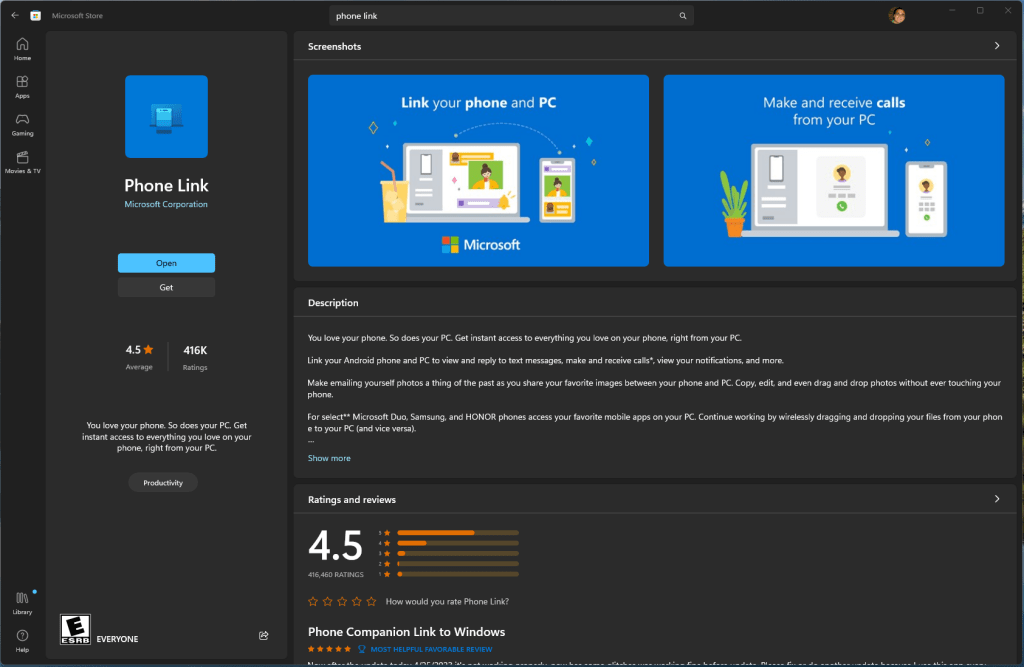
To setup an iOS device with Windows for the first time, you will need to access the Phone Link app on your Windows device. If you don’t already have the Phone Link app, you can download it here from the Microsoft Store.
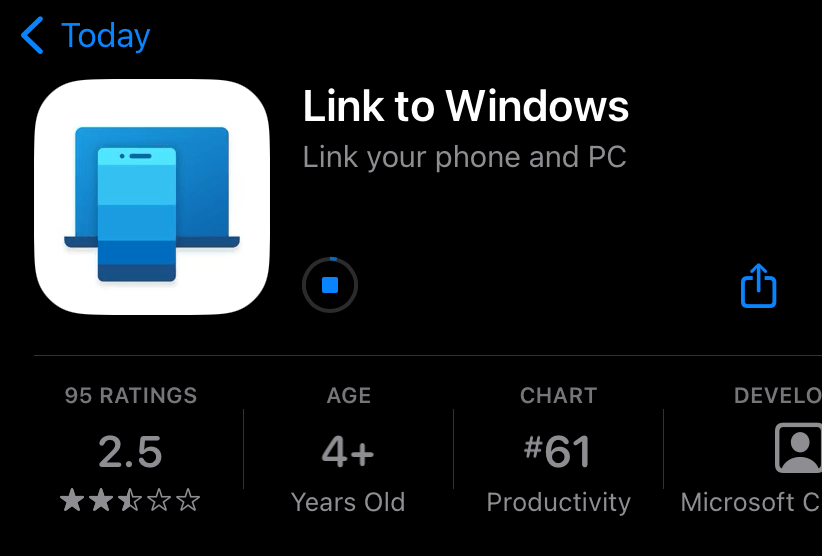
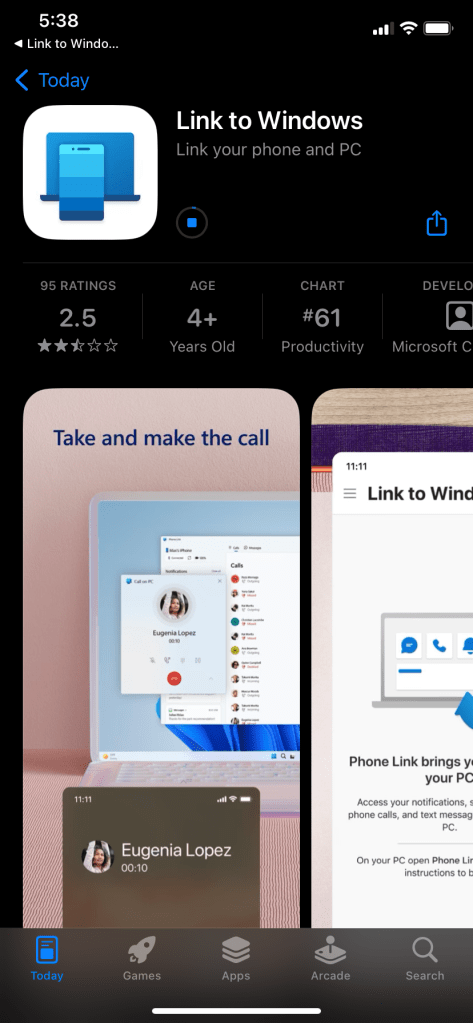
Next, you’ll need to make sure you have the Link to Windows app on your iPhone. You will install it from the iOS App Store like any other iOS application.
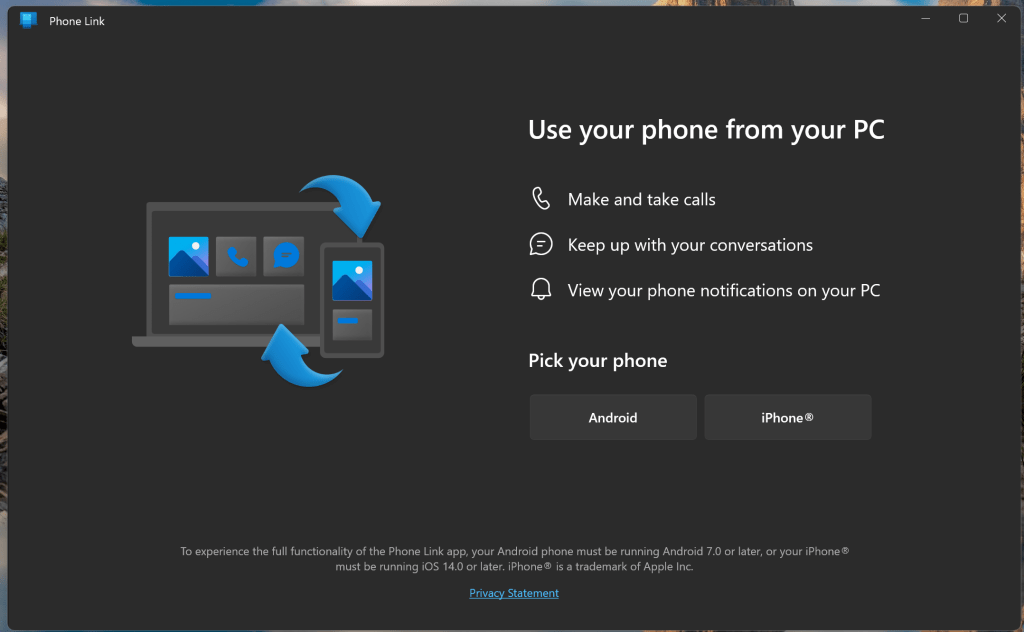
Begin the pairing process by opening the Phone Link app in Windows and click iPhone to begin the pairing process.
A QR code will be displayed which you can use to easily pair the device. There is also a more manual method available via the Continue manually without a QR code link.
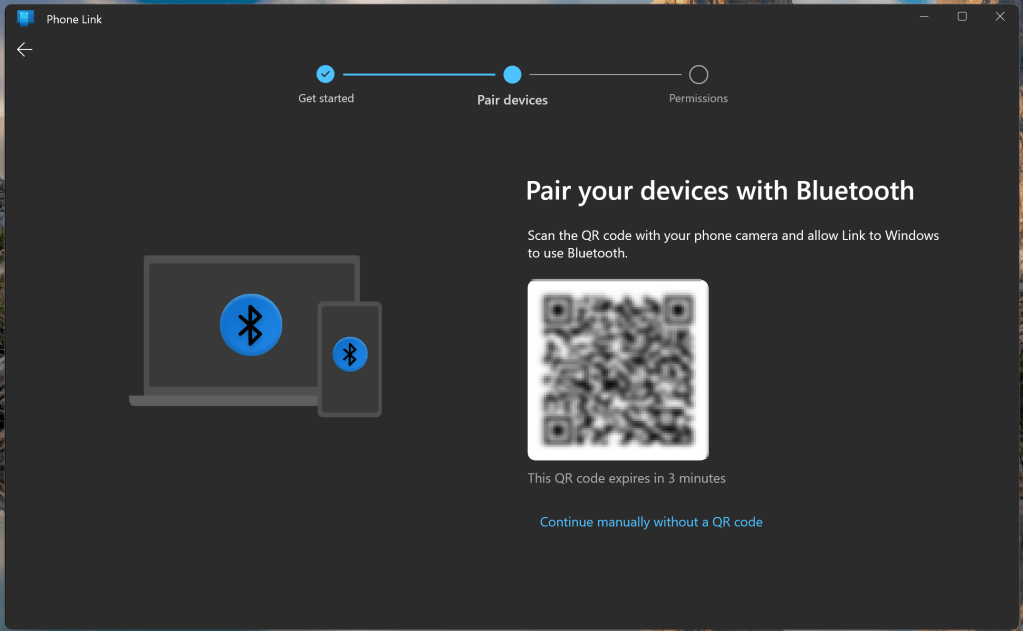
Open the Link to Windows app on your iPhone, tap Scan QR code, allow the app access to your camera and point the phone at the QR code on the screen to establish the link.
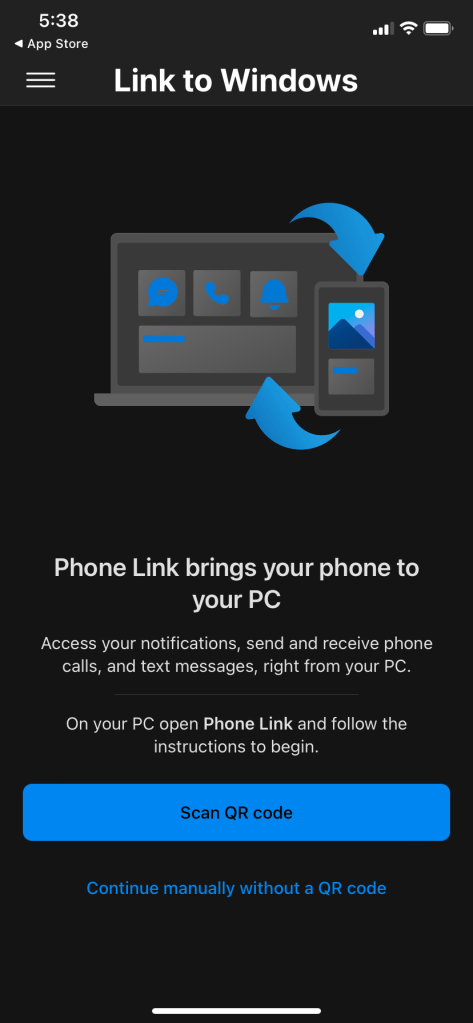
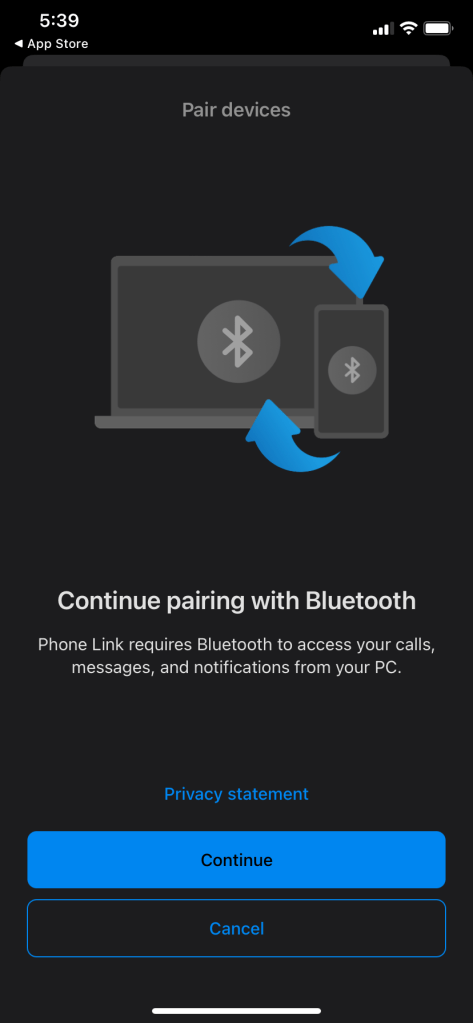
Press Continue on the Link to Windows app to continue the pairing process.
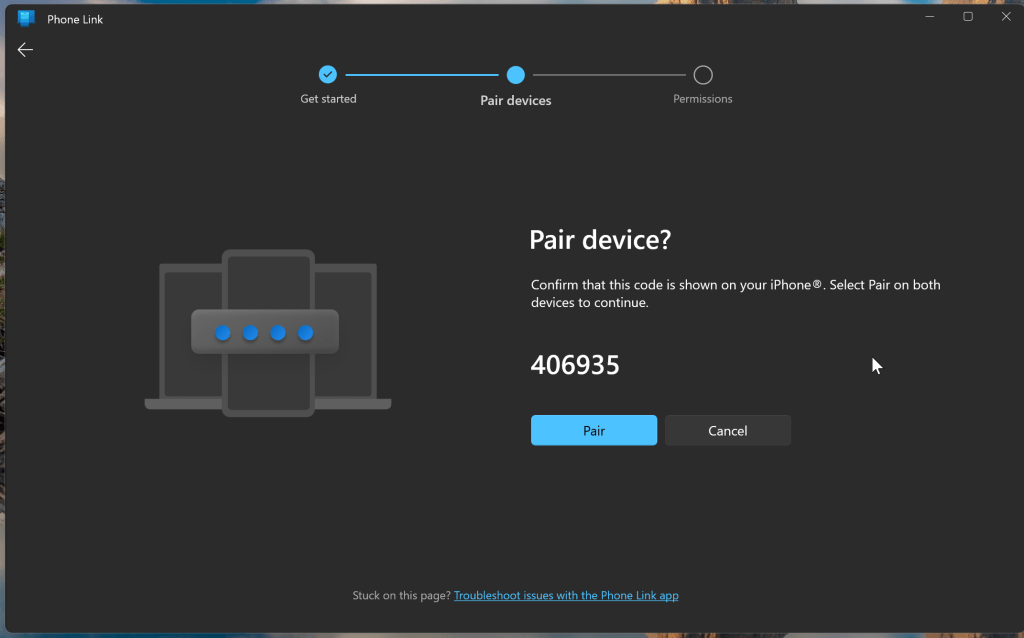
At this step, my Phone Link app prompted for a code number exchange, but nothing showed on the iPhone app except the Continue button, which seemed to work fine without the code exchange. Not sure if this is a bug or simply a one-off issue I experienced.
Once pairing is complete, you will receive messages on both the Phone Link app as well as the Link to Windows app.
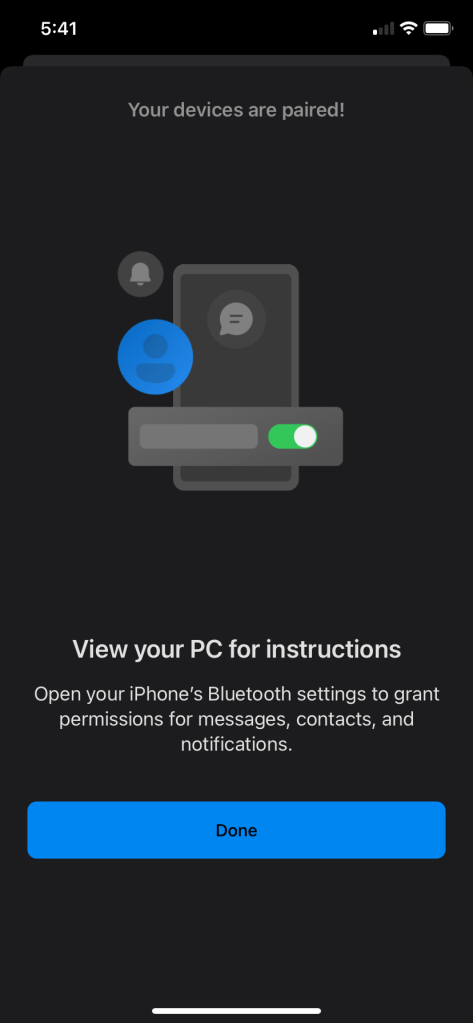
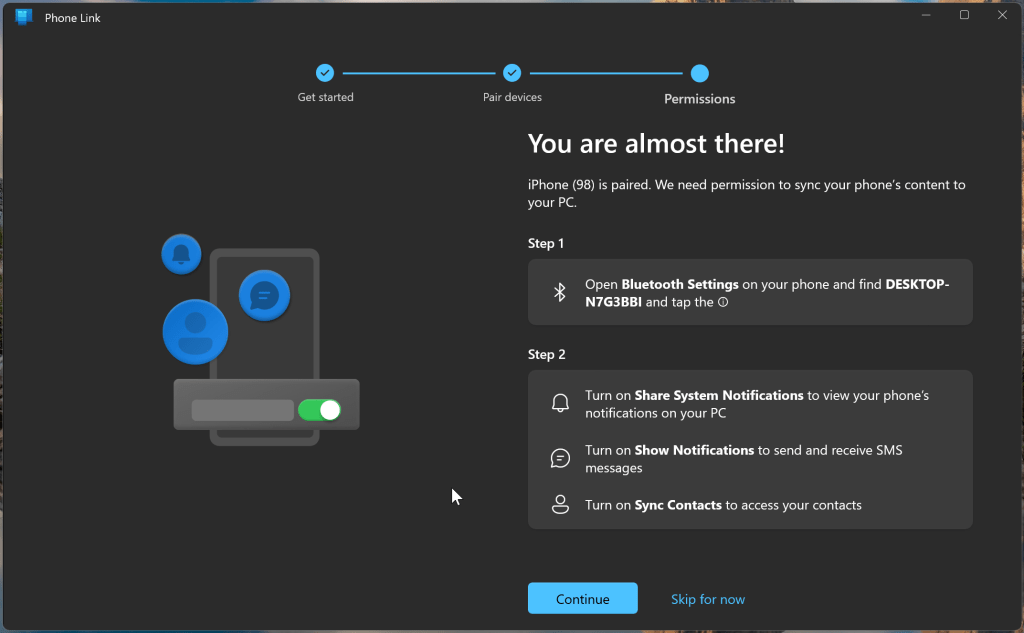
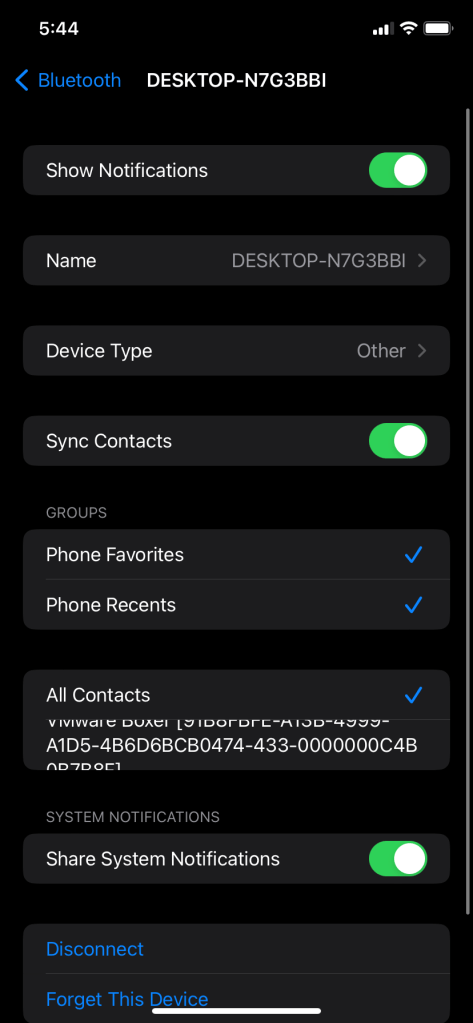
The next step is to configure iOS to allow contact sync, share system notifications and allow regular notifications. You can do this by opening the Bluetooth settings for the Windows PC connection (Settings > Bluetooth > [YourWindowsPCName]).
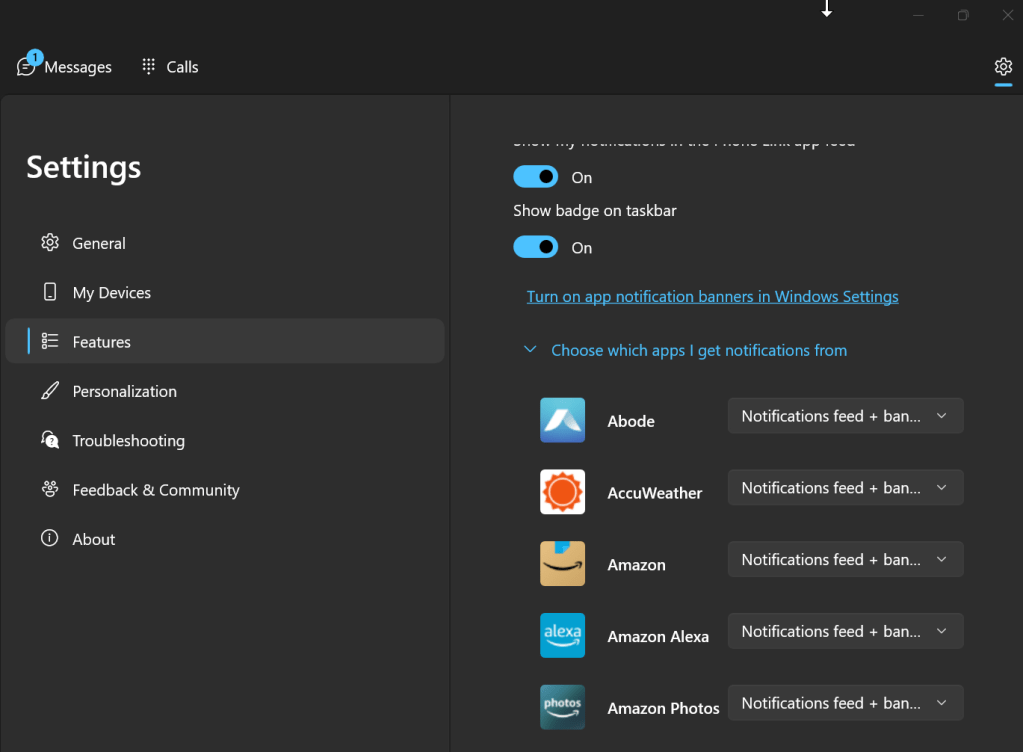
Now that the two devices are connected, and the correct permissions have been granted for the app, you can open the Phone Link app on the Windows device to customize your settings. I won’t go into detail on all the settings here, but there is one section I’d advise customizing and that is your app notifications. I have the same apps (i.e. Microsoft Teams) on both my iPhone and PC. Without customization, when I receive a Microsoft Teams notification in Windows, I will also receive a Phone Link notification that I have a Teams notification on my iPhone. This gets pretty noisy and repetitive, so I’d advise adjusting which mobile apps generate notifications via the Phone Link app.
While you were adjusting your app settings, the initial synchronization should have completed. You now have the ability to make/receive phone calls and messages via iPhone from your Windows PC!
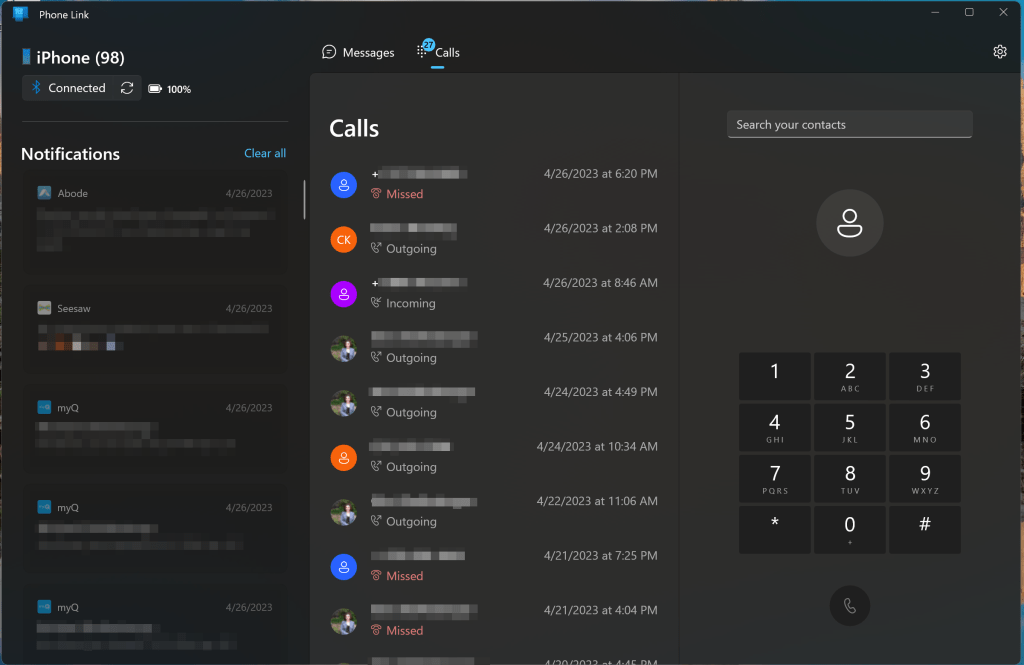
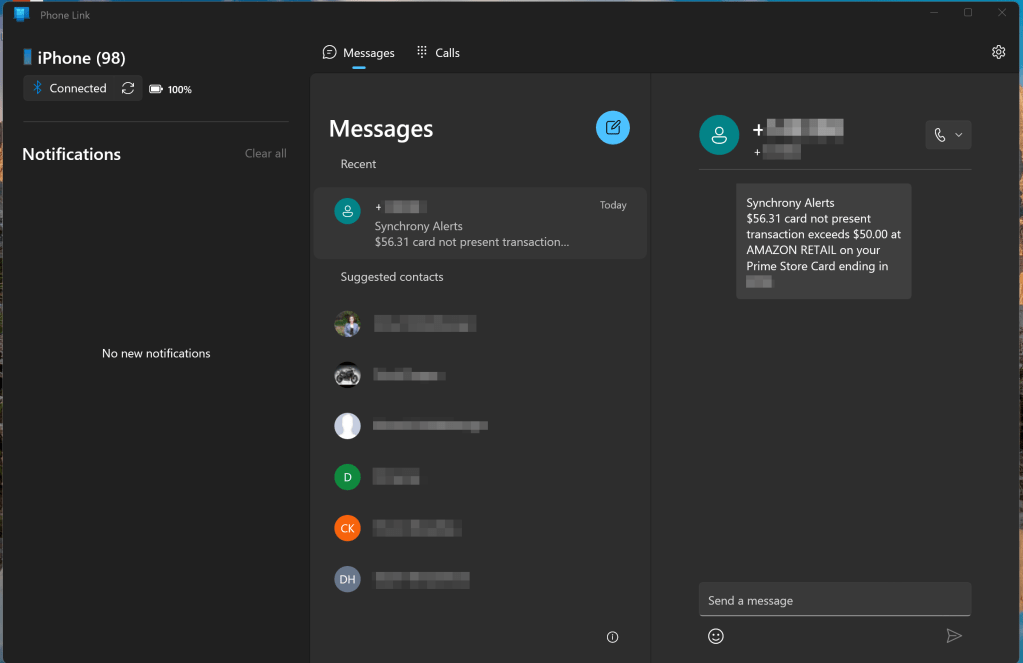
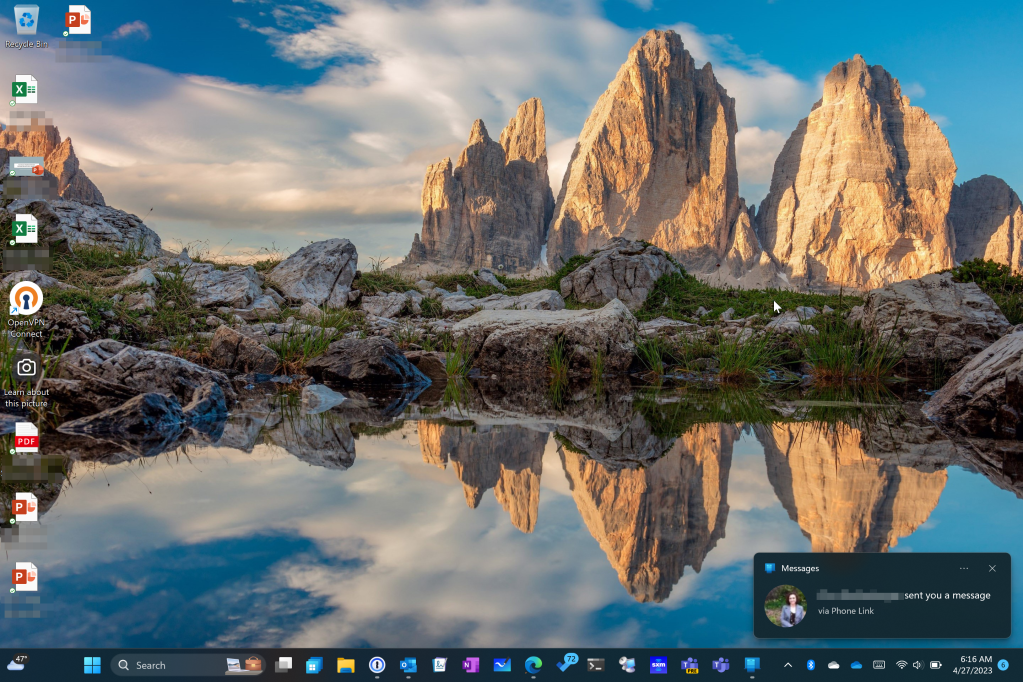
You will see your mobile app notifications from iPhone show up in Windows as well. Here’s an example of what an incoming SMS notification looks like on Windows.
Conclusions
Even with the first release app shortcomings considered, I’m really digging the new “better together” experience between my iPhone and Windows. I remain hopeful that a lot of these issues will be addressed in future updates. I’m willing to bet we will also see additional capabilities added on. Personally, I’d love to see a screen mirroring capability where I can view or even interact with my iPhone via the Phone Link app. For now, we can monitor the Phone Link app announcements page.
 Mike Shellenberger's blog
Leave a comment