

Microsoft has been gradually switching consumer versions of the Edge browser to using the new Adobe Reader render engine, instead of the native Edge viewer, since March 2023. For enterprise IT, you have the option of waiting until September of 2023, when the new PDF viewer will become the default, or you can begin to selectively roll it out to your organization using ADMX templates.
What are the benefits of a new PDF rendering engine in Edge?
- Higher fidelity for more accurate colors and graphics
- Improved performance
- Strong security for PDF handling
- Greater accessibility—including better text selection and read-aloud narration
Pre-requisites
- Microsoft Edge browser v111 or later
- Intune managed Windows 10/11 clients (or another MDM provider capable of pushing ADMX template backed configuration profiles) OR group policy managed Windows 10/11 clients connected to Windows Server Active Directory
Steps to Enable (Intune managed clients)
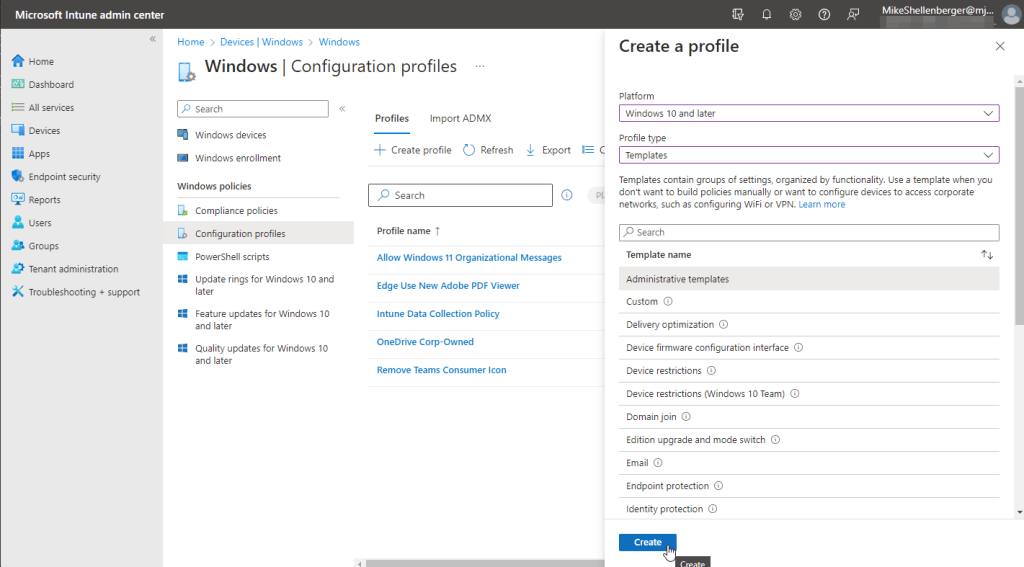
- Create a new Windows device configuration profile:
- Platform: Windows 10 and later
- Profile Type: Templates
- Template Name: Administrative Templates
Provide a Name and Description, then click Next
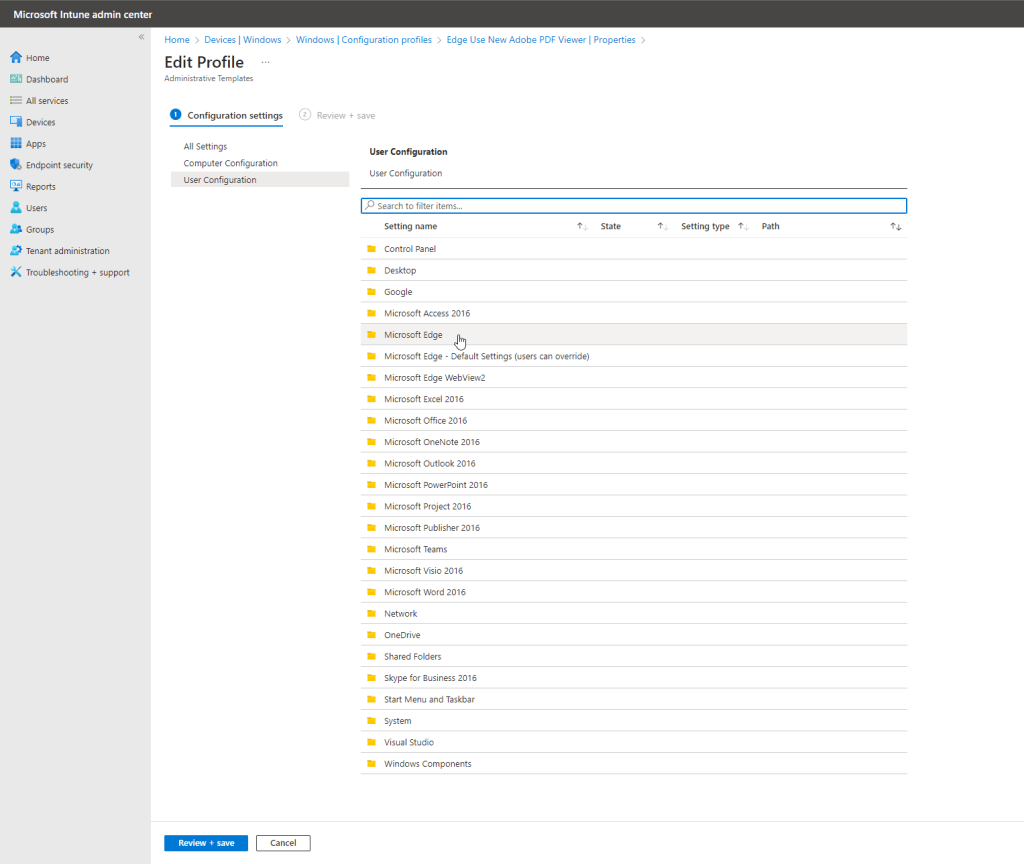
In the configuration settings screen, ensure User Configuration is selected from the list of available settings on the left. Then click the Microsoft Edge folder from the list. *IMPORTANT NOTE: While there is a similar option to configure this option as a device-based setting, I did not have success getting it working unless I applied the user-based setting documented in this article.
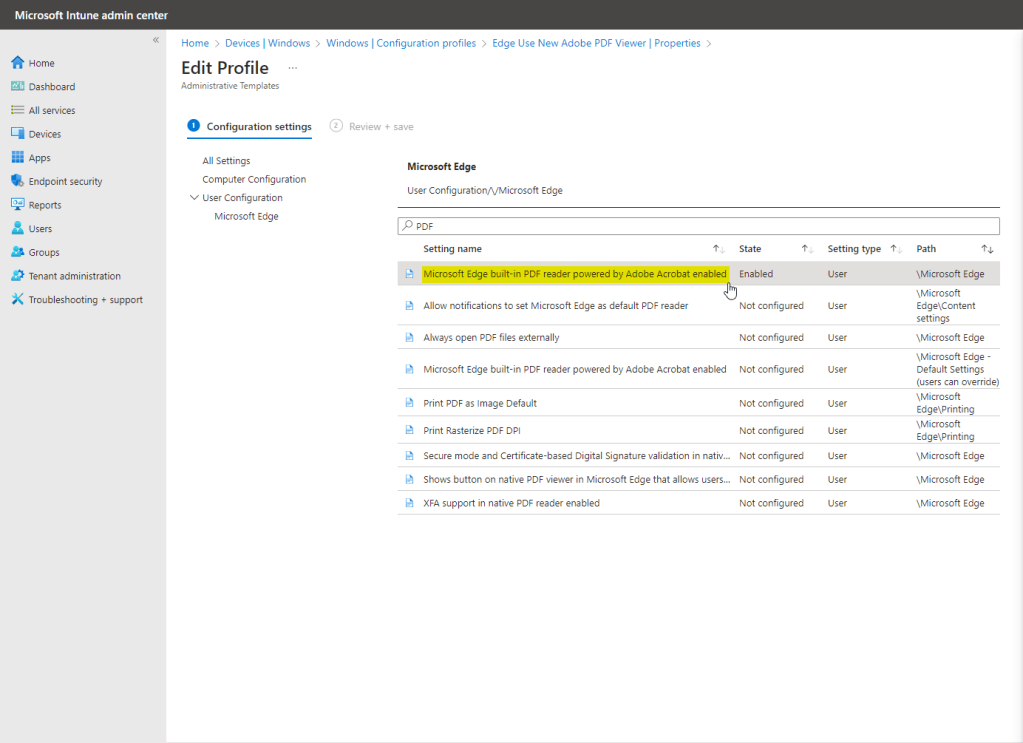
From the search bar, type PDF and find the setting named Microsoft Edge built-in PDF reader powered by Adobe Acrobat enabled.
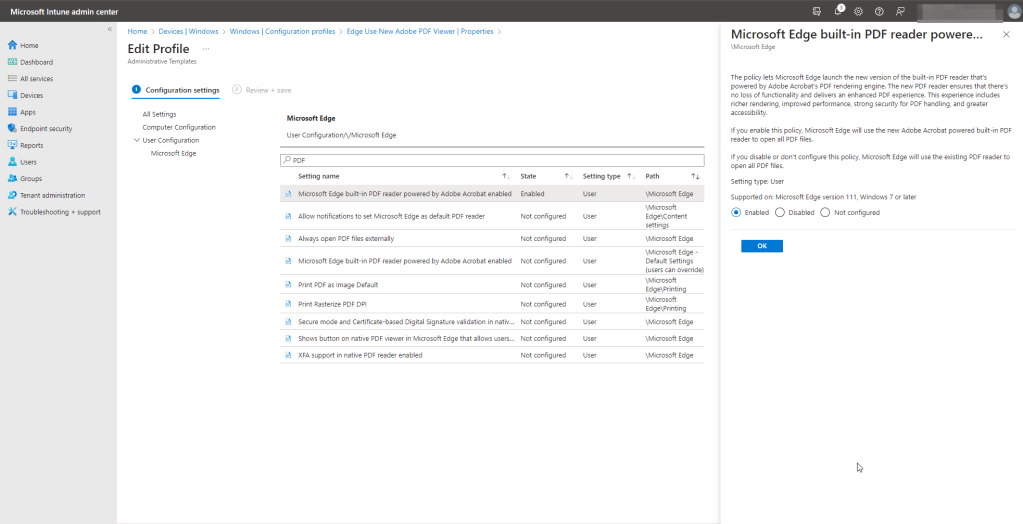
Select Enabled, then click OK.
Assign the profile to a group containing the users you wish to enable for the pilot, then click, Next. Review your settings, then click Create to complete.
Steps to Enable (GPO managed clients)
Begin by downloading the latest version of the Microsoft Edge Administrative Template for settings configuration (msedge.admx) for Windows Server Active Directory Group Policy. Extract the contents of the .cab file and .zip file, then add the msedge.admx and msedge.adml files to your group policy central store in your domains SYSVOL folder. *NOTE: If you do not have a central store already configured, you will need to configure this.
Open the Group Policy Management console for your domain and create a new group policy object for Microsoft Edge configuration. Edit the new policy and expand the path User Configuration > Policies > Administrative Templates > Microsoft Edge. Find the setting titled Microsoft Edge built-in PDF reader powered by Adobe Acrobat enabled.
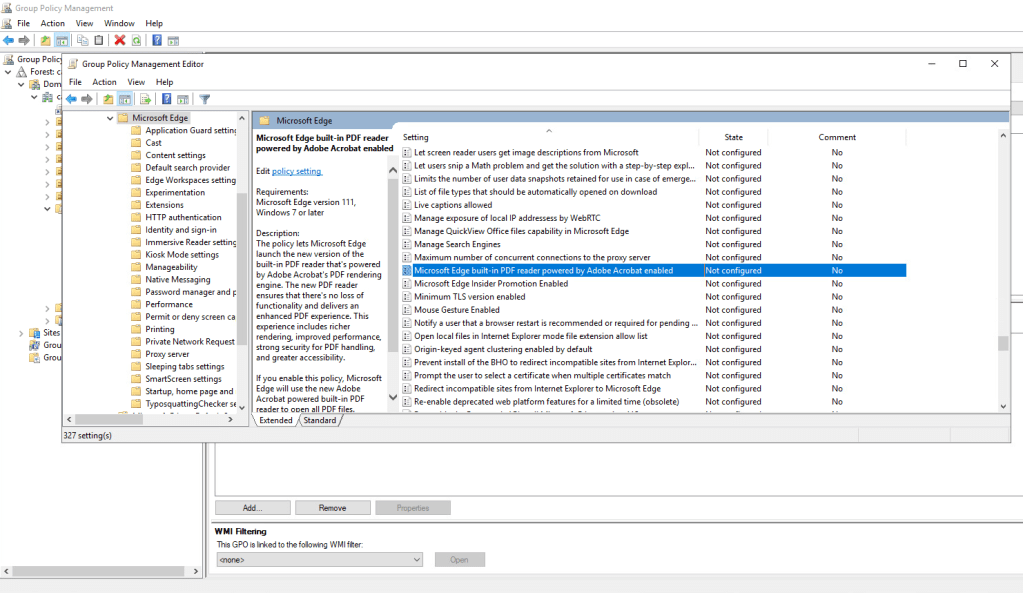
Double-click the setting to open, then set the policy configuration to Enabled. Click OK to save and close. Then close the group policy editor window.
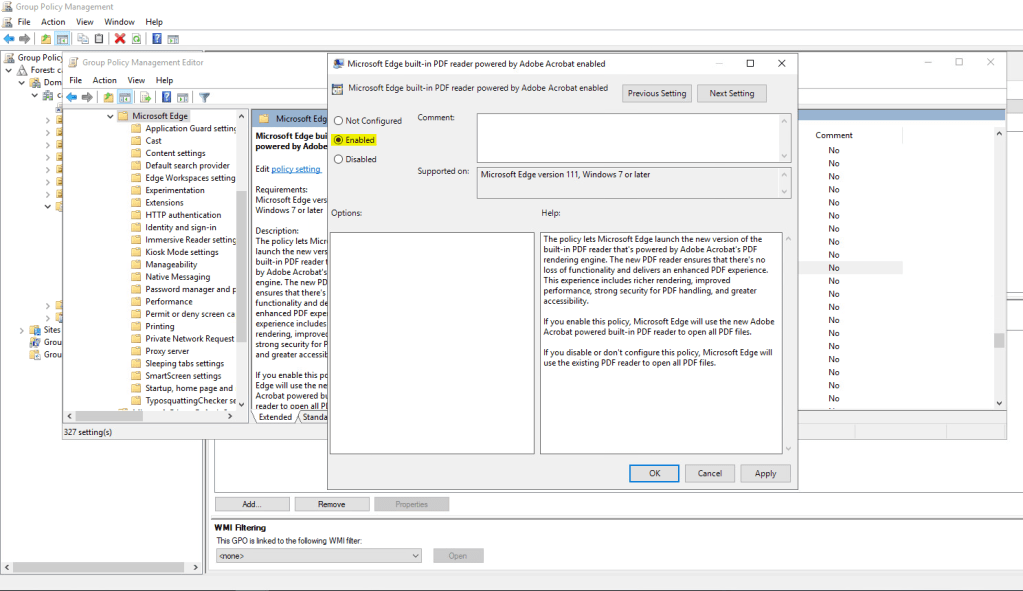
Complete the deployment by linking the new group policy object to an OU that contains the users you wish to enable the new Adobe Reader rendering engine in Edge for.
Results
Whether using Intune or group policy to configure the policy settings, opening a PDF with Adobe Reader rendering active will present the following change in Edge:

You’re now set to begin testing out the new rendering capabilities with Adobe Reader in your enterprise!
Are you finding the content on my site particularly helpful? Please consider donating to help me offset the costs of maintaining this site. Your support is greatly appreciated!

 Mike Shellenberger's blog
Leave a comment