

Windows LAPS policy for Microsoft Intune managed clients
If we look at the previous visual representation of my test devices, we are focused only on the devices outlined in red here:
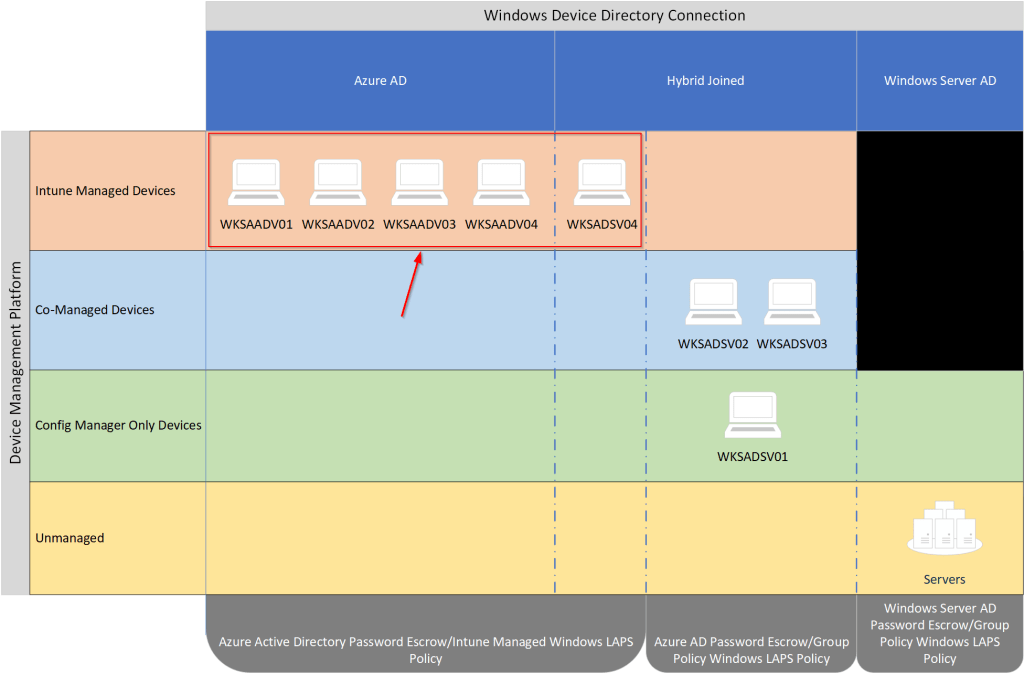
The last step in our hybrid enterprise migration to Windows LAPS is to apply a Windows LAPS policy to the endpoints that are managed solely by Microsoft Intune. We will start by creating an endpoint security/account protection profile in Intune.
Creating Windows LAPS Policies in Intune
- From the Microsoft Intune admin console, navigate to Endpoint Security > Account Protection. Then click Create Policy.
- Select the Windows 10 and later platform, and the Local admin password solution (Windows LAPS) profile. Click Create.
- Assign a profile Name and Description as desired. Click Next.
- From the configuration settings page, drop-down the backup directory option Backup the password to Azure AD only. The rest of the options can be set to not defined, in my case, as the defaults meet my environments requirements. If you have requirements beyond the defaults, be sure to specify those here.

5. Leave the scope tags and assignments blank for now. Click Next through each.
7. Review your new policy configuration, then click Create.
Assigning Windows LAPS Policies in Intune
My preferred method for targeting assignment of the Windows LAPS policy to Intune managed clients is to use an existing security group in Azure AD that already contains all Windows devices from my tenant, then use filters to only apply the policy to organization owned, Azure AD joined/Hybrid Joined devices. Using filters helps cut down on the number of security groups you would otherwise need in Azure AD for granular targeting of objects.
To create a dynamic Azure AD Security group that contains all Windows devices as members:
- Create a new group in Azure AD:
- Group Type: Security
- Group Name: All Windows Devices
- Membership Type: Dynamic Device
- Dynamic membership rule syntax: (device.deviceOSType -eq “Windows”)
To create a filter in Microsoft Intune for Azure AD Joined Windows devices:
- In the Microsoft Intune Admin console, click on Tenant Administration, then Filters.
- Create a new filter for Managed devices.
- Give the filter a name like Azure AD Joined/Hybrid Joined Windows Devices and ensure the Platform is set to Windows 10 and later.
- Use the rule builder or provide the following rule syntax to filter: (device.deviceTrustType -eq “Azure AD joined”) or (device.deviceTrustType -eq “Hybrid Azure AD joined”). Click Next, then Create.

Now that the appropriate groups and filters exist, navigate to the Windows LAPS policy that was previously created and assign to the Azure AD joined/Hybrid-joined devices:
- From the Microsoft Intune Admin Center, navigate to Endpoint Security, then Account Protection.
- Select the Windows LAPS policy previously created, then click Edit Assignments.
- Under Included Groups, select Add Groups, then choose the All Windows Devices security group.
- Click the Edit Filter link on group assignment.
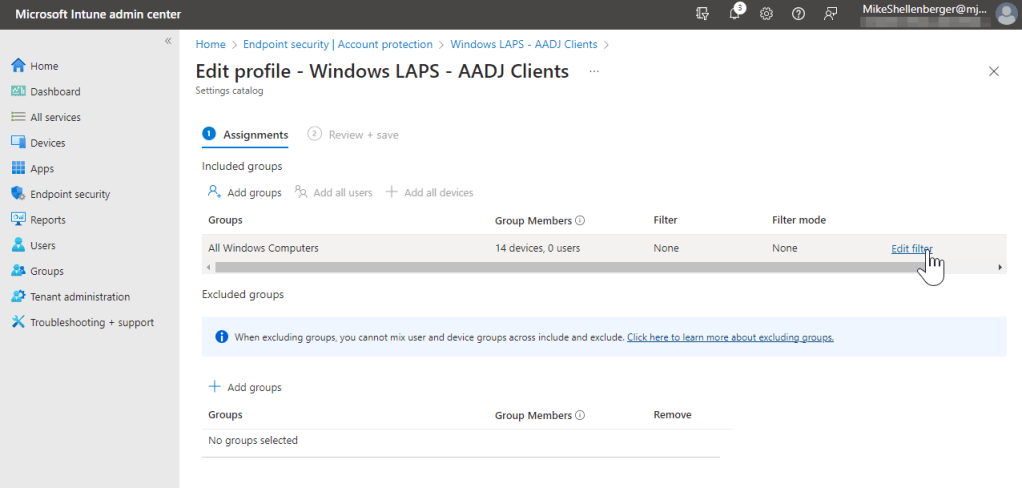
- Select the Include filtered devices in assignment then select the Azure AD Joined/Hybrid Windows Devices filter created previously.

- Click Review + Save to finalize the assignment of the Windows LAPS policy to the Azure AD joined/Hybrid-Joined Windows endpoints.
Use one of the previously addressed methods for monitoring the deployment of Windows LAPS to the Intune managed endpoints.
That brings us to the end of our Windows LAPS migration journey! I hope this series has been helpful. Please leave post feedback with any questions, concerns or comments!
Are you finding the content on my site particularly helpful? Please consider donating to help me offset the costs of maintaining this site. Your support is greatly appreciated!

 Mike Shellenberger's blog
Leave a comment