

Migrate Azure Active Directory Hybrid Joined Devices
If we look at the previous visual representation of my test devices, we are focused only on the devices outlined in red here:
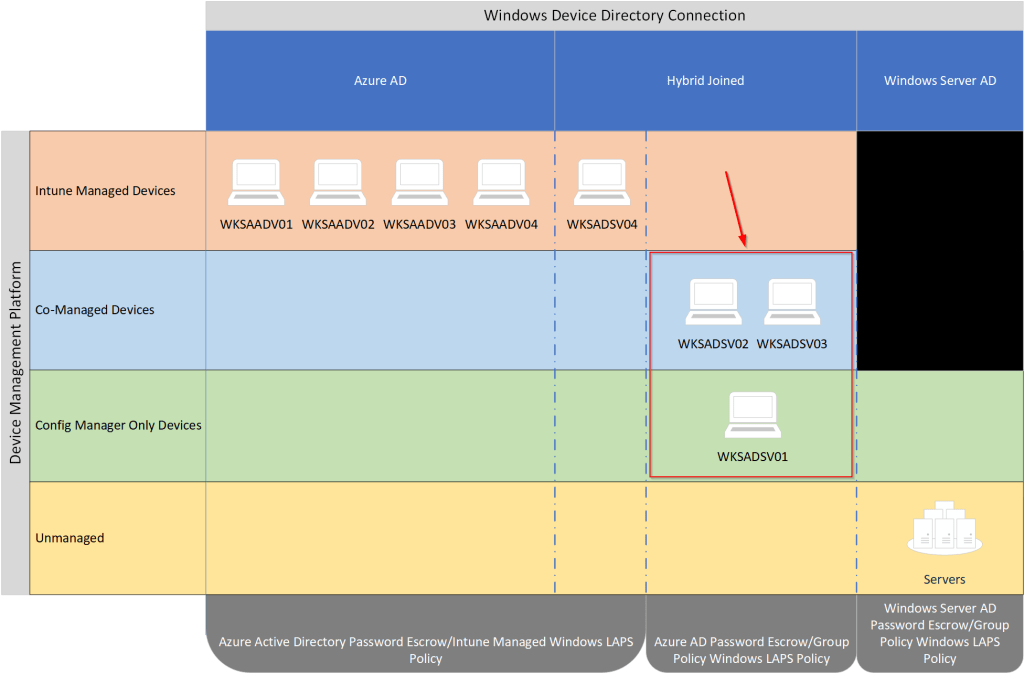
With all the Windows Server Active Directory only joined clients now switched to Windows LAPS, it’s time to focus on the hybrid joined devices. Ideally, we want Intune to manage Windows LAPS as it’s the preferred device policy management solution. Unfortunately, my lab environment is in a state of co-management where some clients are solely managed by Microsoft Configuration Manager, some are co-managed by both Microsoft Configuration Manager and Intune and others are solely managed by Intune.
This will make my migration a bit more complex as I will need a mix of group policy and Intune device configuration profiles until all of my devices are solely managed by Intune. I will target the devices fully managed by Intune (or devices piloting device configuration with co-management) with Windows LAPS policies deployed by Intune. Any devices that are co-managed but not receiving device configuration from Intune or are Microsoft Configuration Manager only clients will obtain their Windows LAPS policies from Windows Server AD group policy. I’m allowing the built-in policy precedence in Windows LAPS to determine which deployment settings take effect. Here’s a list of the different LAPS registry policy roots in order of policy precedence:
| Policy Name | Registry key root |
| LAPS CSP | HKLM\Software\Microsoft\Policies\LAPS |
| LAPS Group Policy | HKLM\Software\Microsoft\Windows\CurrentVersion\Policies\LAPS |
| LAPS Local Configuration | HKLM\Software\Microsoft\Windows\CurrentVersion\LAPS\Config |
| Legacy Microsoft LAPS | HKLM\Software\Policies\Microsoft Services\AdmPwd |
From Microsoft Docs: “Windows LAPS queries all known registry key policy roots, starting at the top and moving down. If no settings are found under a root, that root is skipped and the query proceeds to the next root. When a root that has at least one explicitly defined setting is found, that root is used as the active policy. If the chosen root is missing any settings, the settings are assigned their default values. Policy settings are never shared or inherited across policy key roots.”
Following this logic, if my device is under the management of Intune for device configuration, it will honor the Windows LAPS profiles I’ve assigned in Intune. If the device configuration isn’t controlled by Intune, the CSP registry hive will be empty, and Windows LAPS will look next to the Windows LAPS group policy values.
While my endpoints are in various states of device management, one thing that is consistent is that all my endpoints are hybrid-joined so I can use Azure AD as my password escrow directory location for all client devices. I’ll need to first prepare my Azure Active Directory for Windows LAPS.
Preparing Azure AD for Windows LAPS
- Open the Entra admin console. Expand the Azure Active Directory section, then click All Devices. On the management blade that opens, click Device Settings.
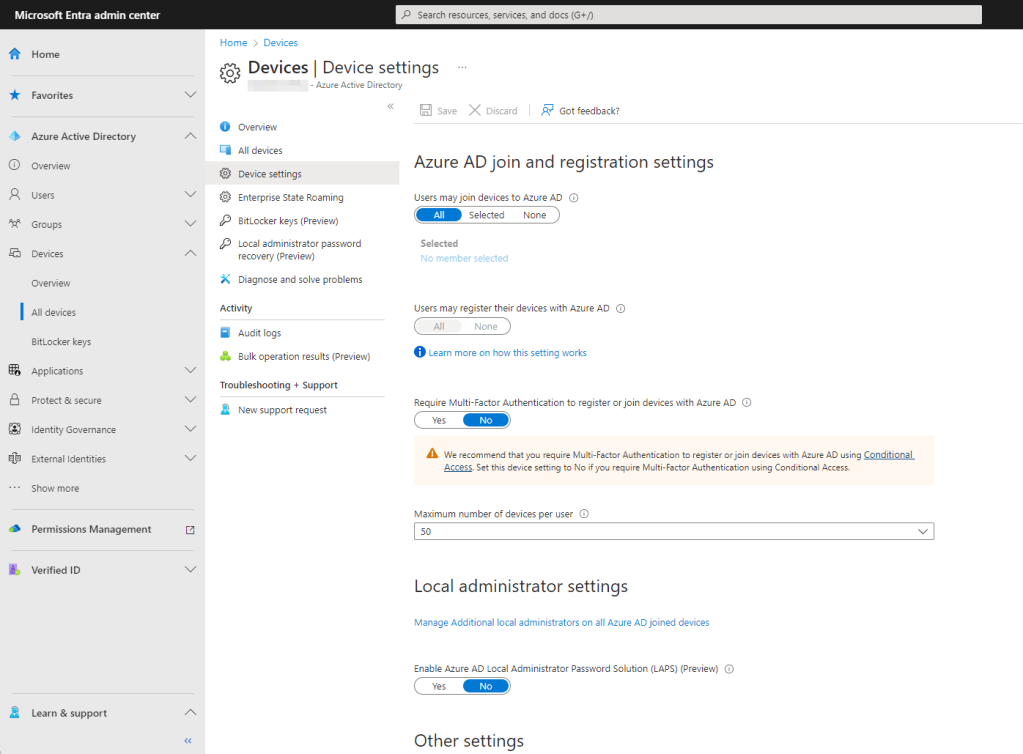
2. Under Local administrator settings, click Yes on the toggle switch for Enable Azure AD Local Administrator Password Solution (LAPS) (Preview).
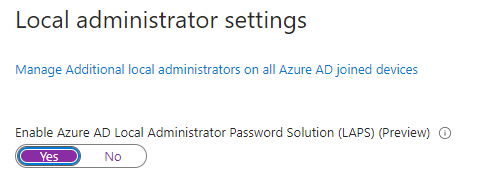
3. Click Save.
Creating Windows LAPS Policies in Group Policy
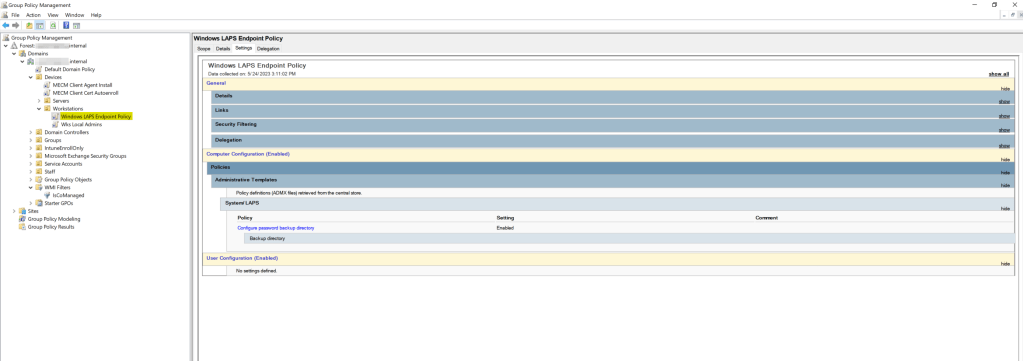
The steps will be identical to the previous Windows LAPS GPO we created earlier, with the exception of the BackupDirectory being set to a value of 1 or Azure Active Directory and no additional settings defined (unless your requirements for password policies are different from the defaults). Again, you will be staging the group policy object without linking it to an OU right away. The assignment step will take place next when you’re ready to fully cutover endpoints to Windows LAPS.
Cutover Hybrid Azure AD Endpoints from Microsoft LAPS (legacy) to Windows LAPS
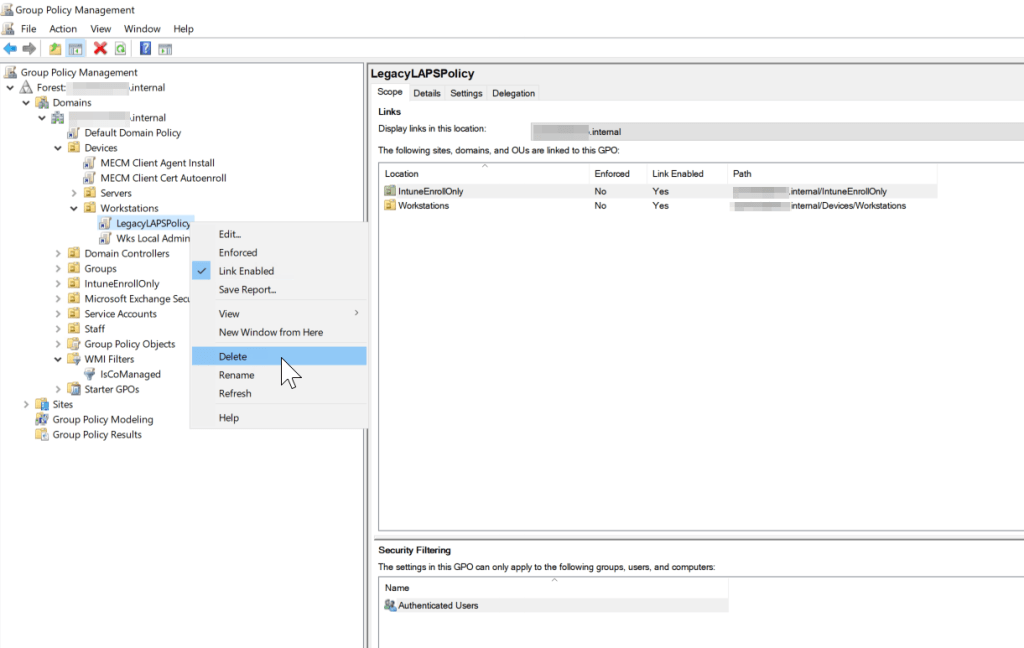
When you are ready to cutover to Windows LAPS on the hybrid endpoints, you’ll follow a similar migration strategy to the Windows Server AD clients we’ve already migrated. You’ll need to remove the legacy Microsoft LAPS group policy link from the OU where your hybrid devices are located, then link the new Windows LAPS policy.
Monitoring Azure AD Windows LAPS Deployment
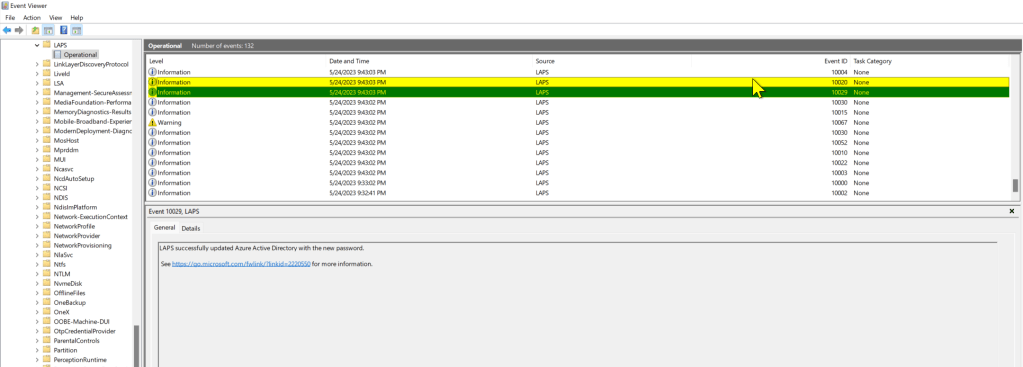
We have similar options for monitoring the success of the Azure AD password escrow via Windows LAPS. We can manually spot check the Windows LAPS event logs on each device, or use a centralized event log collection solution to monitor the devices for the following event ID’s:
- 10020 – LAPS successfully updated the local admin account
- 10029 – LAPS successfully updated Azure Active Directory with the new password.
Other ways of verifying the successful transition to Windows LAPS include:
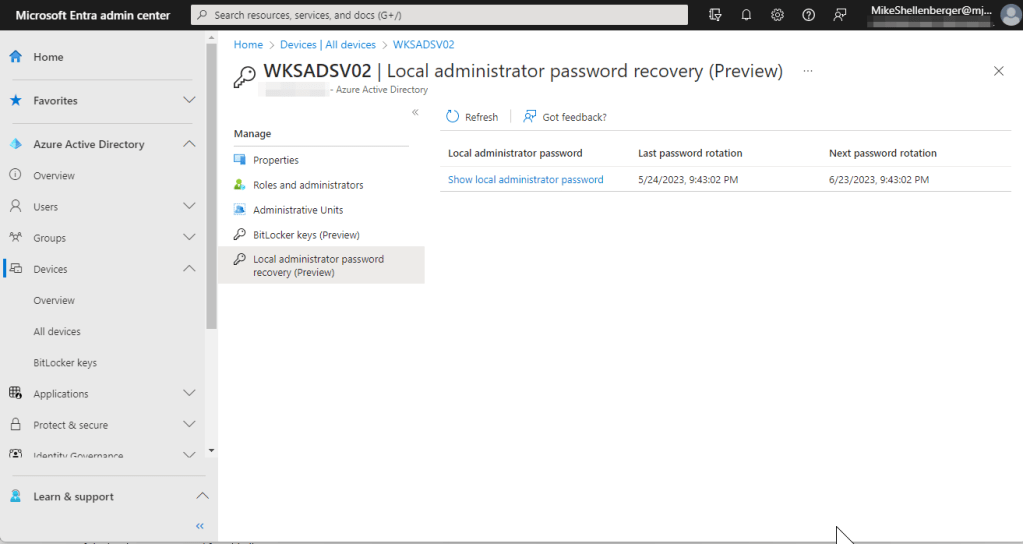
- Manually checking the Azure Active Directory device object:
- Open Microsoft Entra Admin Center, expand Azure Active Directory section, expand Devices, then click on All Devices. Click on the device you want to check, then click the Local administrator password recovery (preview) link.
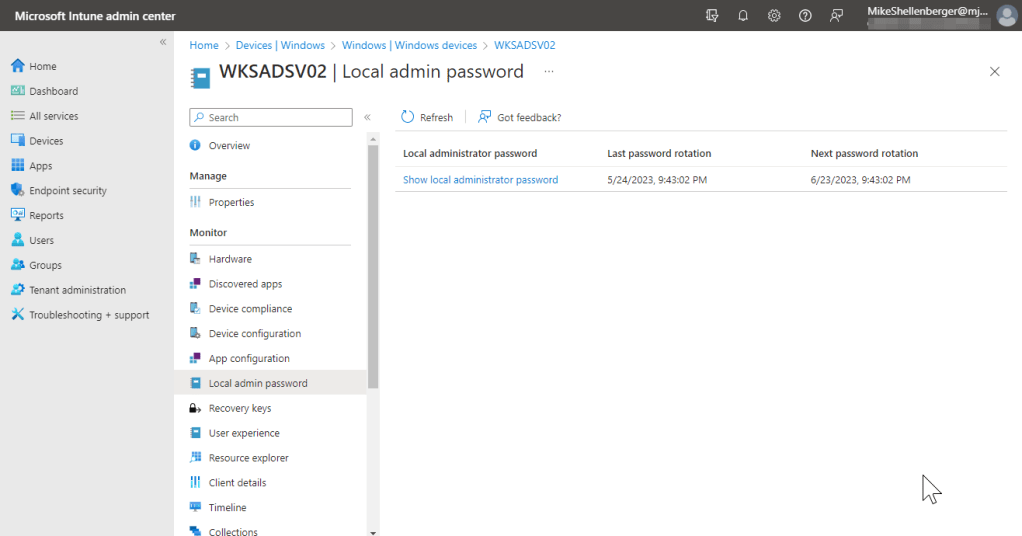
- Manually checking the Microsoft Intune device object:
- Open the Microsoft Intune Admin Center, click Devices, then Windows. Click on the device you want to check, then click the Local admin password
- Scripting the evaluation of the computer objects in Azure AD and returning devices that have successfully escrowed Windows LAPS passwords to Azure AD. Note: this requires some additional setup as the Microsoft Graph module for Powershell is required. Step 3 only needs to be performed one time.
- Install the Microsoft Graph PowerShell library: Install-Module Microsoft.Graph -Scope AllUsers
- Configure the repository as Trusted: Set-PSRepository PSGallery -InstallationPolicy Trusted
- Create an Azure Active Directory application that’s configured with the necessary permissions for Windows LAPS:
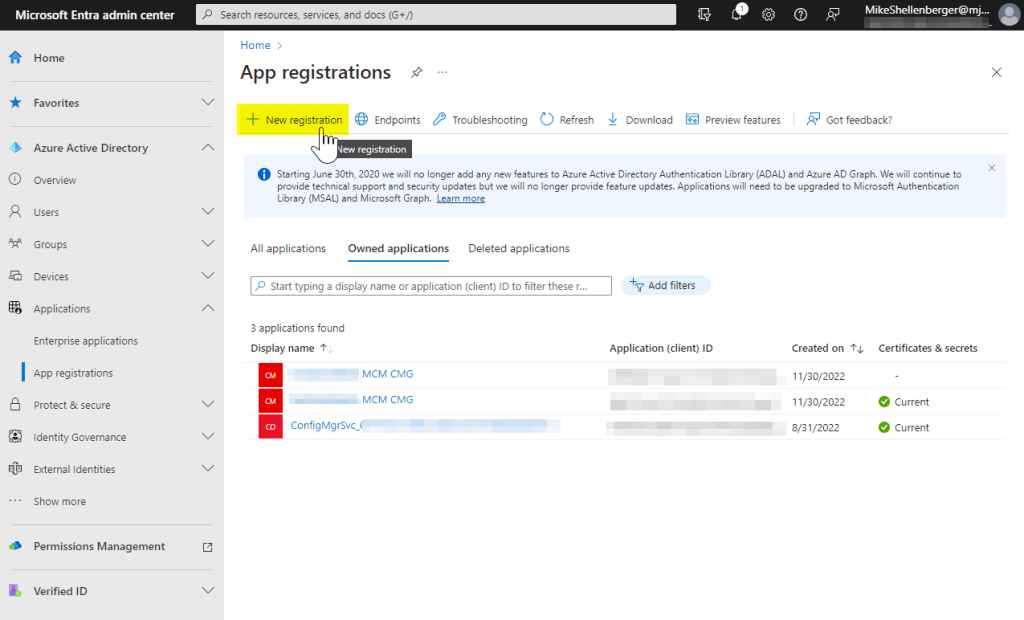
- From the Microsoft Entra Admin Portal expand Azure Active Directory, then expand Applications, and click on App Registrations.
- Click New registration
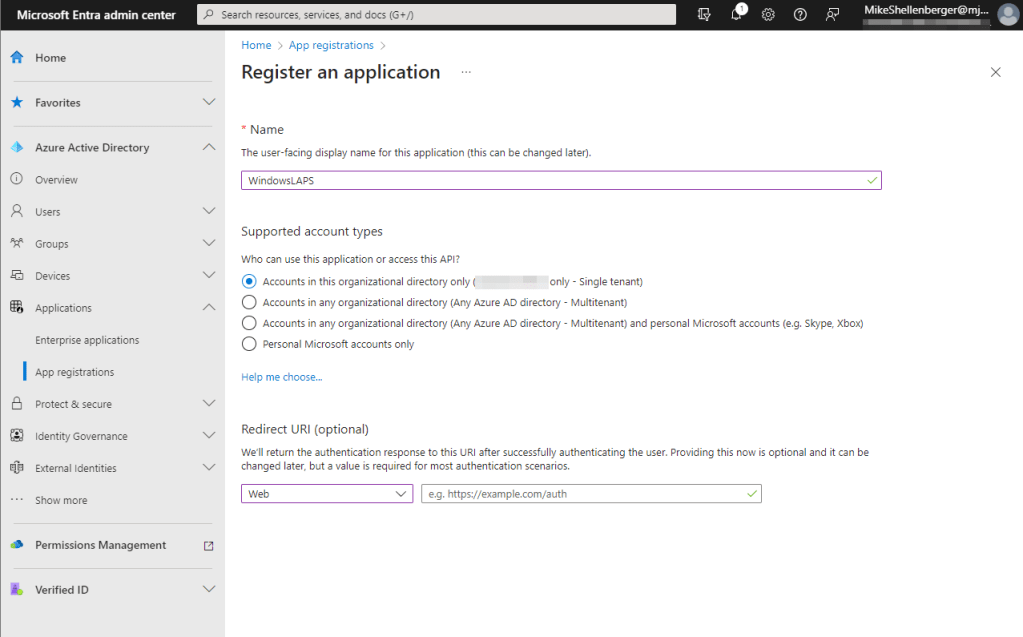
- Provide a Name and ensure Accounts in this organizational directory only ([Organization Name] only – Single tenant) is selected. Click Register.
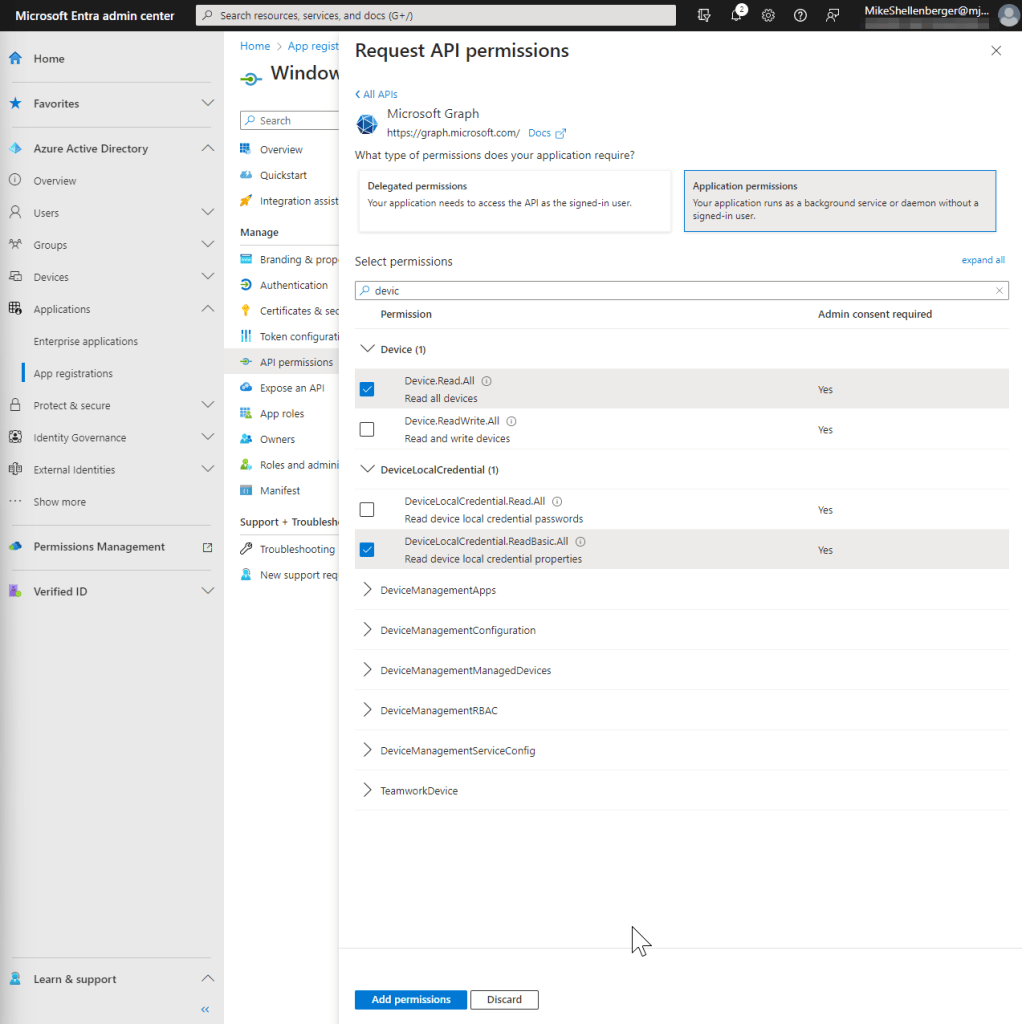
- Click on API Permissions, then click Add Permission.
- Select Microsoft Graph from the commonly used API’s list.
- Select Application Permissions
- Search for the permission Device.ReadAll and select. Based on whether you want this connection to be able to retrieve passwords or not, select the appropriate additional permissions:
- Use DeviceLocalCredential.ReadBasic.All to grant permissions for reading non-sensitive metadata about persisted Windows LAPS passwords. Examples include the time the password was backed up to Azure and the expected expiration time of a password. This permissions level is appropriate for reporting and compliance applications.
- Use DeviceLocalCredential.Read.All to grant full permissions for reading everything about persisted Windows LAPS passwords, including the clear-text passwords themselves. This permissions level is sensitive and should be used carefully.
- Click Add permissions, when complete.
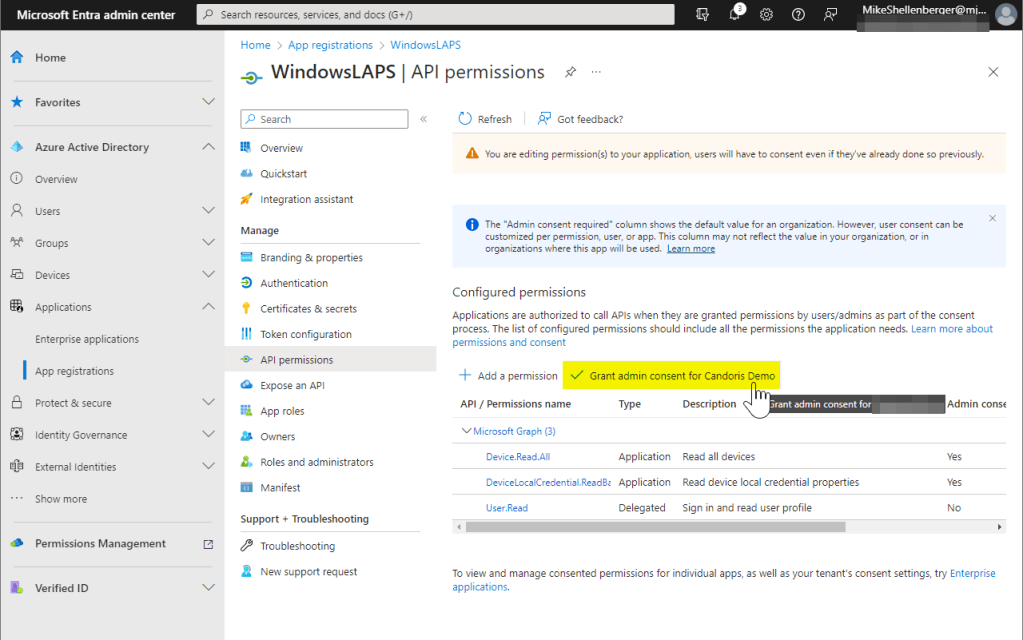
- Click Grant admin consent for [Organization Name] button.
- Click on Overview on the app registrations open blade.
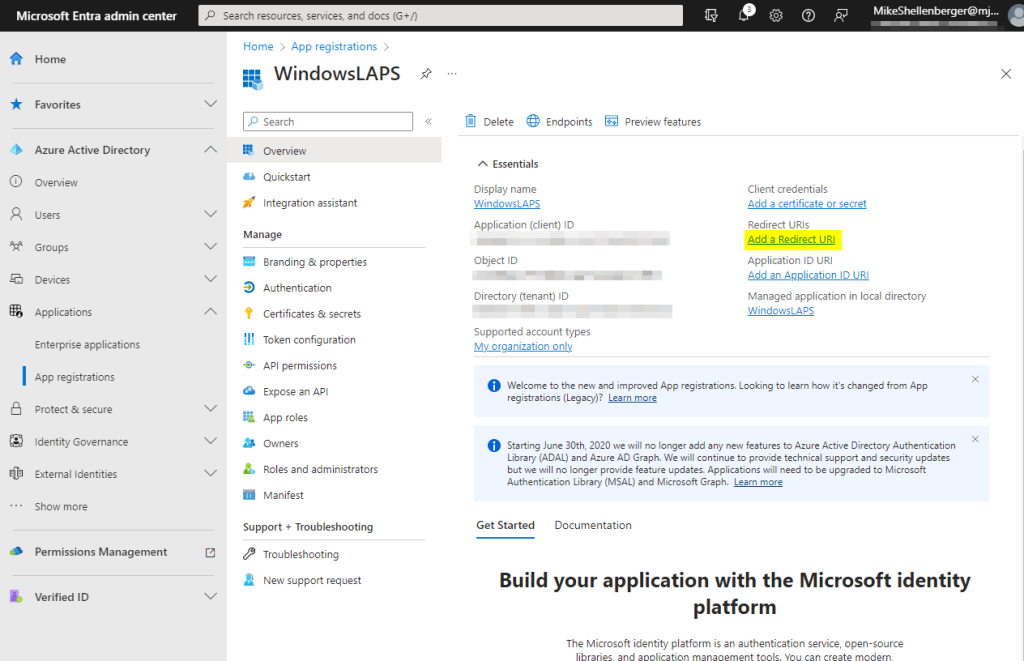
- Click the Add a Redirect URI link.
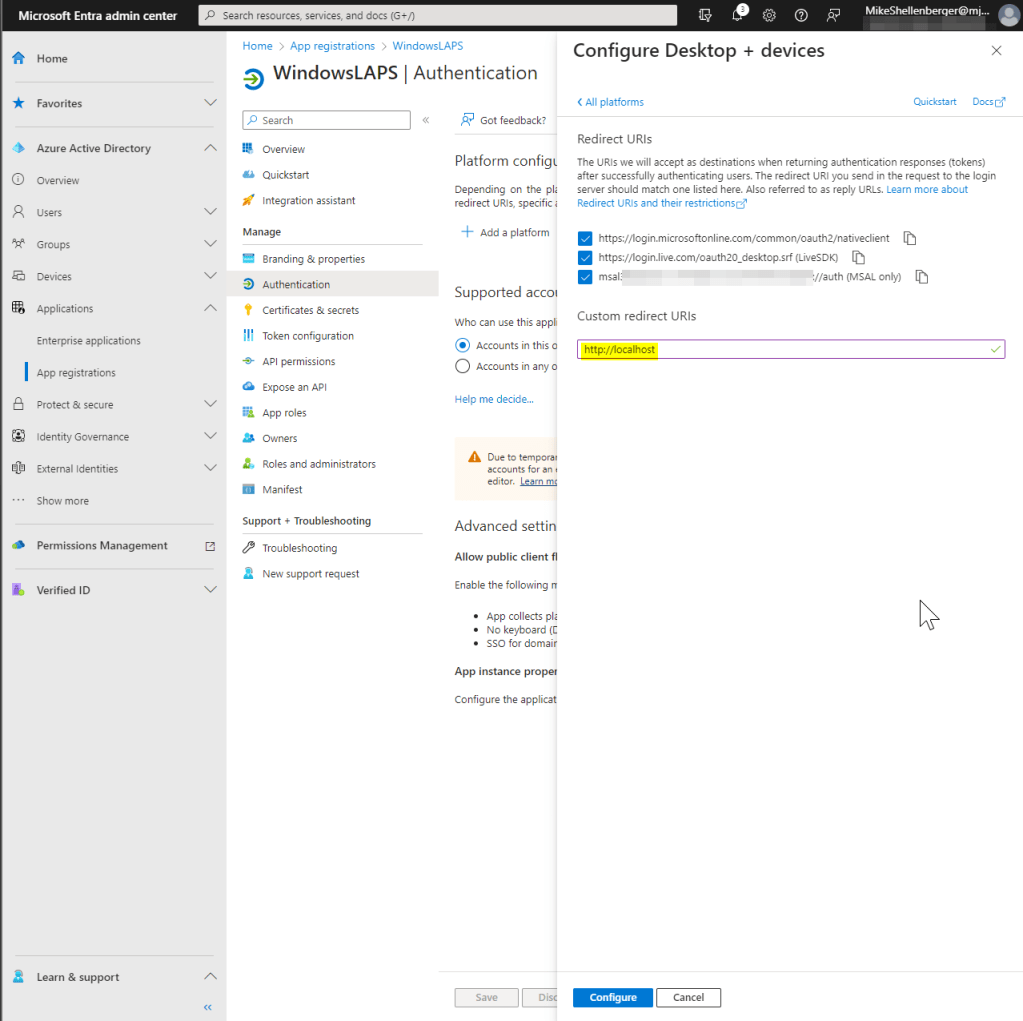
- Under Platform configurations click the Add a Platform button.
- Select Mobile and desktop applications.
- Select all three default URI’s presented. Add a custom redirect URL of: http://localhost, then click Configure.
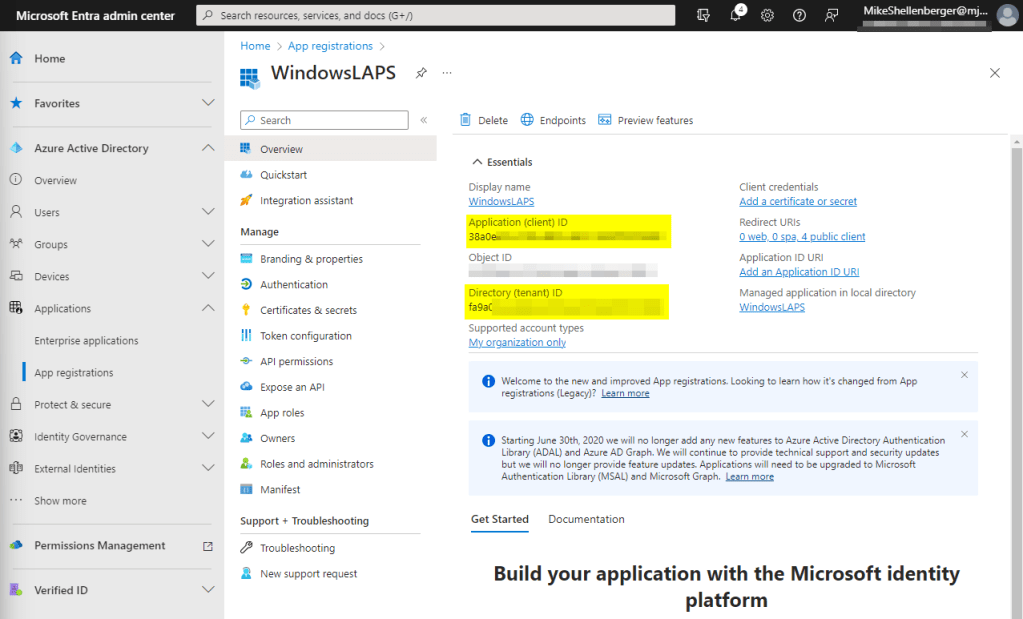
- Click on Overview on the app registrations open blade.
- Document both the Directory (tenant) ID as well as the Application (client) ID. You will need these anytime you connect via the Microsoft Graph powershell module.
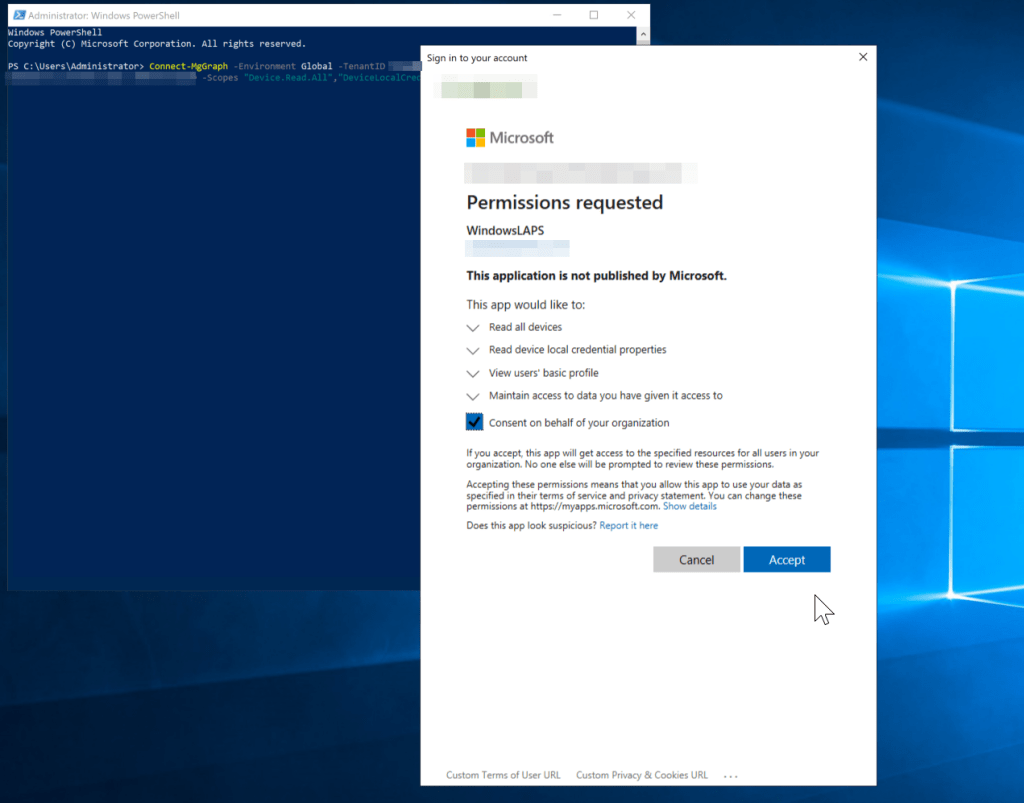
4. Connect to MSGraph using the cmdlet: Connect-MgGraph -Environment Global -TenantId [DocumentedTenantID] -ClientId [Documented ClientID] -Scopes “Device.Read.All”,”DeviceLocalCredential.Read.All” substituting the “DeviceLocalCredential.Read.All” permission with the “DeviceLocalCredential.ReadBasic.All” permission if that’s the route you chose. If this is the first time you’ve connected, you will not only need to provide your credentials but may also be prompted to accept the permissions for your organization.
5. You can now manually retrieve the Windows LAPS information for an individual device by running the cmdlet: Get-LapsAADPassword -DeviceIds [DeviceIDFoundInAzureAD]

6. To return all devices that have escrowed local admin passwords to Azure AD, try the following script after connecting to MSGraph via the previous steps:
$WindowsDevices = Get-MgDevice -Filter "OperatingSystem eq 'Windows'"

foreach ($Computers in $WindowsDevices)
{
Get-LapsAADPassword -DeviceIds $Computers.DeviceId
}
Remove Microsoft LAPS (legacy) Agent
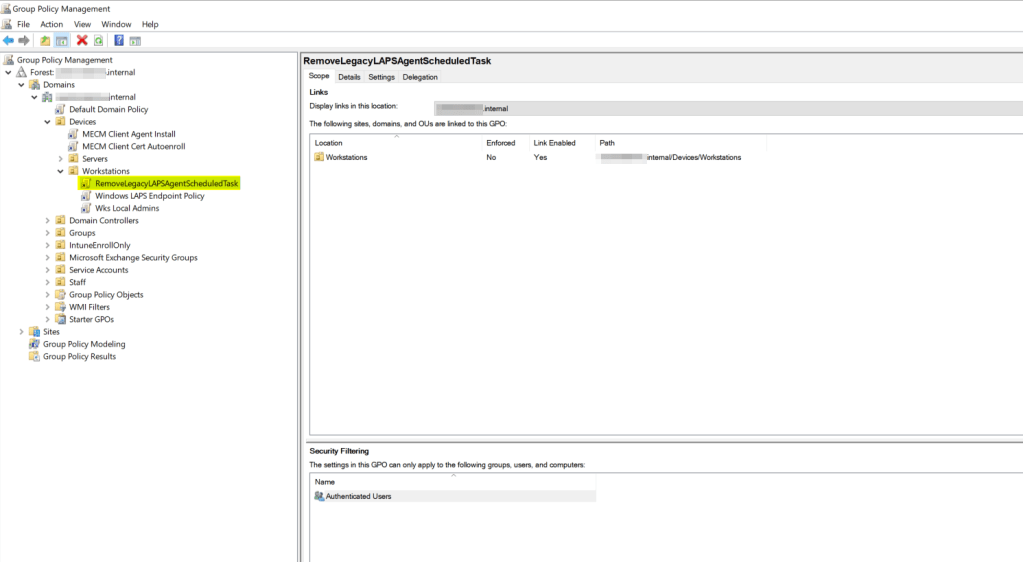
With the hybrid joined endpoints transitioned to Windows LAPS, we can now remove the legacy LAPS agent using the same group policy methodology from the Active Directory migration process. Simply link the GPO to the organizational unit containing the hybrid-joined clients and ensure the date/time for the scheduled task is appropriate for removing the client agent.

In Part 4, we address the last piece of migrating to Windows LAPS which is deploying a Windows LAPS policy for Microsoft Intune managed clients.
Are you finding the content on my site particularly helpful? Please consider donating to help me offset the costs of maintaining this site. Your support is greatly appreciated!

 Mike Shellenberger's blog
Leave a comment