
Overview
Windows Update for Business reports provides detailed patch compliance information for your Windows endpoints. The unique feature of this solution versus alternatives from Microsoft, is that it’s free and that it can be used with any Windows patch management deployment solution. In other words, it works regardless of whether you are using Windows Update for Business update rings in Intune, Autopatch, WSUS, MCM or manual updates, etc.
Once deployed, you can expect to see high-level and detailed data on the overall state of Windows updates compliance in your organization. At present, there are five tabs that display in the workbook once the solution has ingested client telemetry data:
Overview tab

Quality updates tab

Feature updates tab

Driver Updates tab
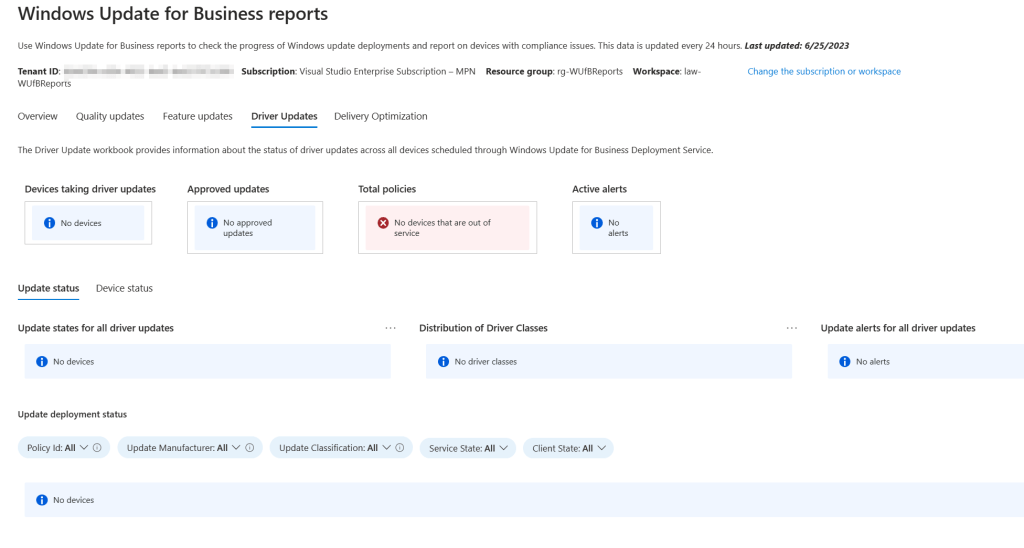
Delivery Optimization tab

The reports are drillable so clicking on the tiles expands the view to display more detail. For instance, details such as the status of an individual update across all devices, where applicable.
Deployment Process – Step 1, Deploy Azure Components
- Log in to the azure portal https://portal.azure.com with an account that her permissions to deploy a new instance of Log Analytics Workspace.
- In the search bar at the top, type Log Analytics Workspace and select when it appears in the search results.
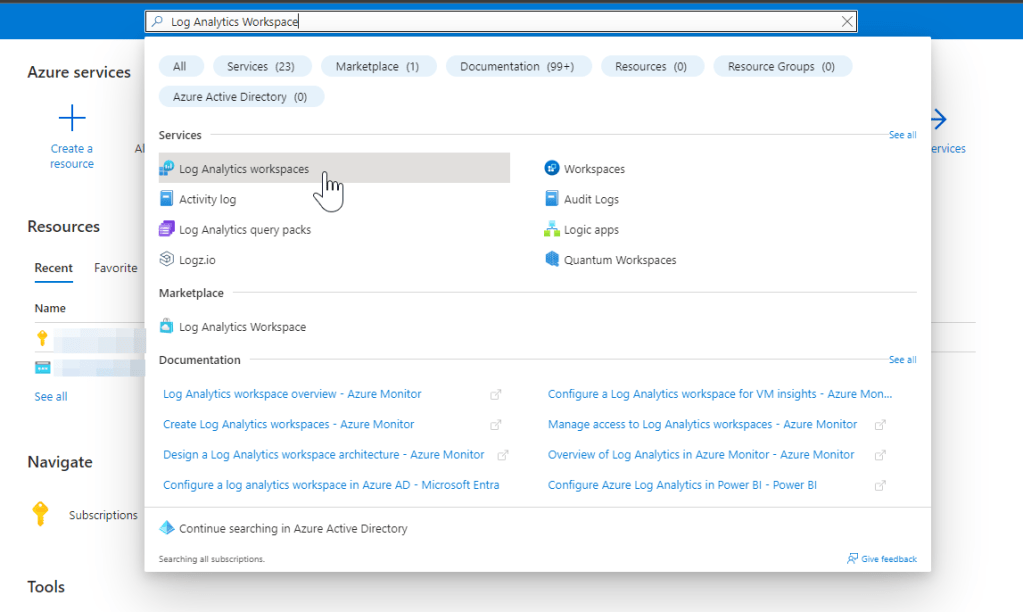
3. Click the Create button to create a new instance of Azure Log Analytics Workspace, if you don’t have an existing workspace you intend to use. *Note: Log Analytics Prerequisites from Microsoft for Windows Update for Business reports: https://learn.microsoft.com/en-us/windows/deployment/update/wufb-reports-prerequisites#log-analytics-regions
4. Populate the subscription, resource group, name and region for the new workspace. Refer to the link in step 3 to confirm the region you choose is supported for a Windows Update for Business Log Analytics Workspace. I prefer to use industry recommended naming conventions when deploying new Azure resources. In this case, I used rg- for my new resource group and law- for the new Log Analytics Workspace. Click Review & Create, then Create when finished.

5. Now that a new Log Analytics Workspace is available for use, we will enroll in the Windows Update for Business reports. The easiest way to do this is through the Azure workbook detailed in the following steps.
From the Azure menu bar located in the upper left corner of the Azure portal, select Monitor.

6. Select the View button under Workbooks.
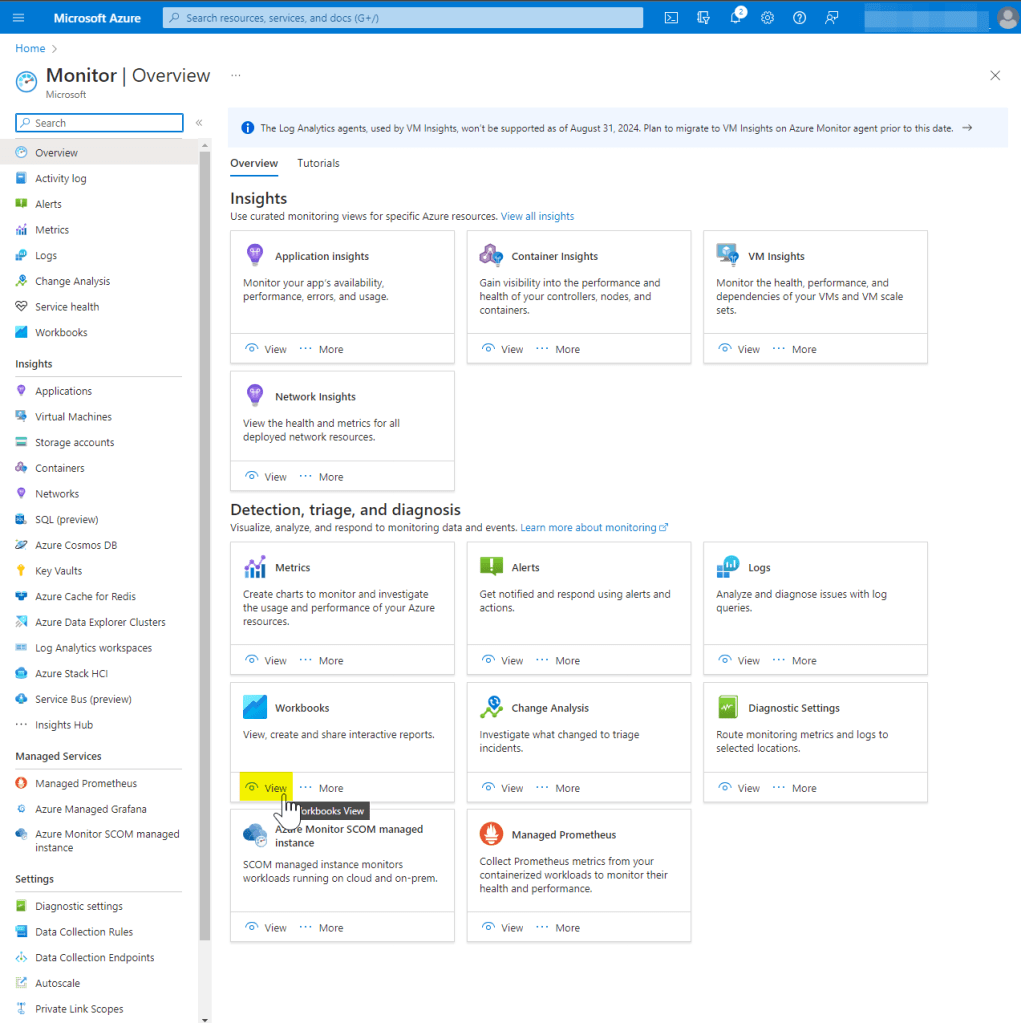
7. Find the Windows Update for Business reports workbook under Insights.

8. Click the Get Started button. When the configuration flyout appears, populate the Subscription and newly created Azure Log Analytics workspace. Click Save settings when complete.
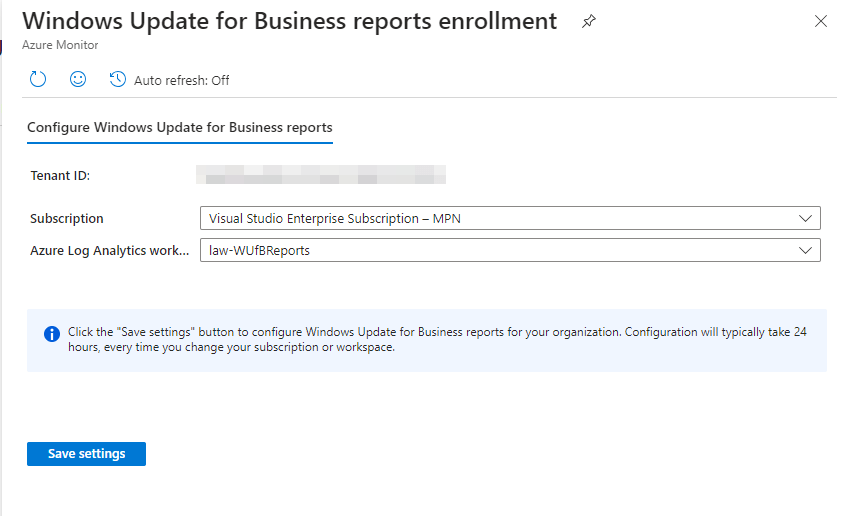
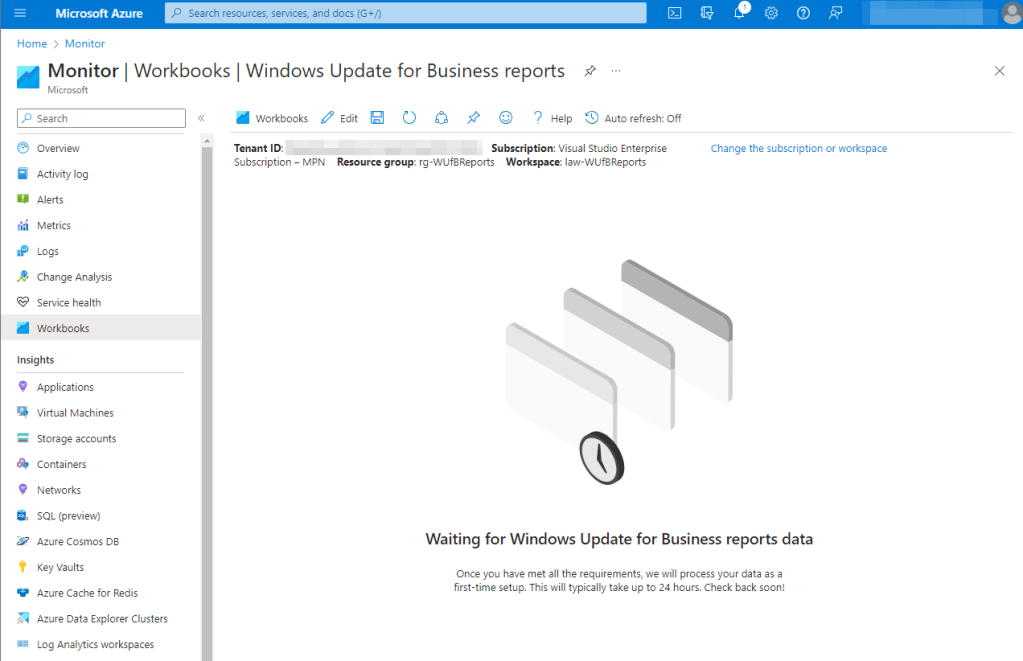
This completes the deployment in Azure. You will notice a message stating Waiting for Windows Update for Business reports data on the Windows Update for Business reports workbook. This can take up to 24 hours to complete. Microsoft provides the following guidance: “Devices that are active and connected to the internet daily can expect to be fully uploaded within one week (usually less than 72 hours). Devices that are less active can take up to two weeks before data is fully available.”
Deployment Process – Step 2, Deploy Client Policy
The next step in our deployment process is to enable policy on the clients to begin collecting and sending the required telemetry to our tenant. This can be done a number of ways (scripting, manual or CSP). I will be covering deploying the necessary CSP using Microsoft Intune since that’s the most preferred route for enabling client telemetry.
1. We will perform the work in the Intune admin console. Navigate to to Devices > Windows > Configuration profiles. Click Create Profile.
2. Select Windows 10 and later for platform and Settings Catalog for profile type, then click Create.
3. Provide a name and description, as desired, then click Next.
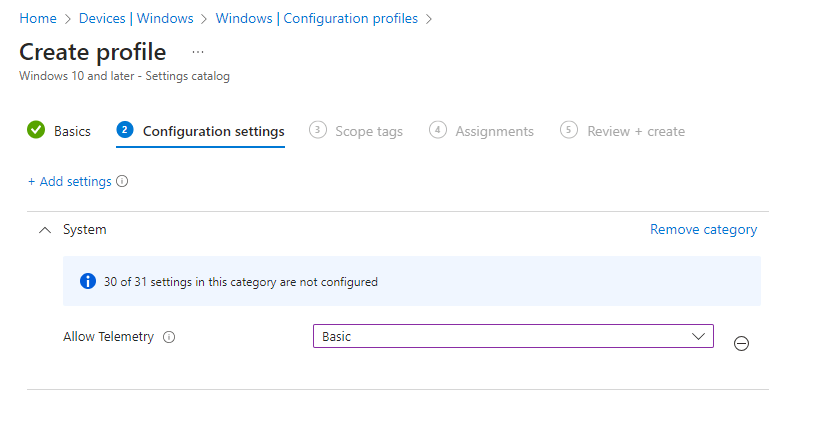
4. From the settings catalog, add the following settings using search and the +Add settings link:
- Setting: Allow Telemetry
- Value: Basic (or higher)
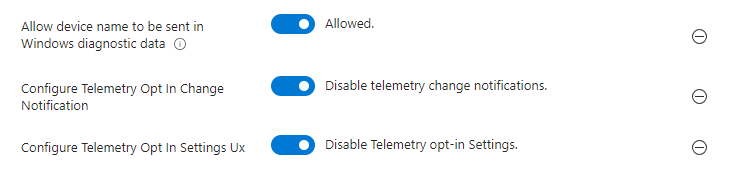
The following settings are optional, but Microsoft recommends them to prevent users from being able to change the diagnostic data values on the endpoint:
- Setting: Configure Telemetry Opt In Settings Ux
- Value: Disabled
- Setting: Configure Telemetry Opt In Change Notification
- Value: Disabled
- Setting: Allow device name to be sent in Windows diagnostic data
- Value: Allowed
5. Click Next, then set any necessary scope tags required and hit Next when ready to proceed.
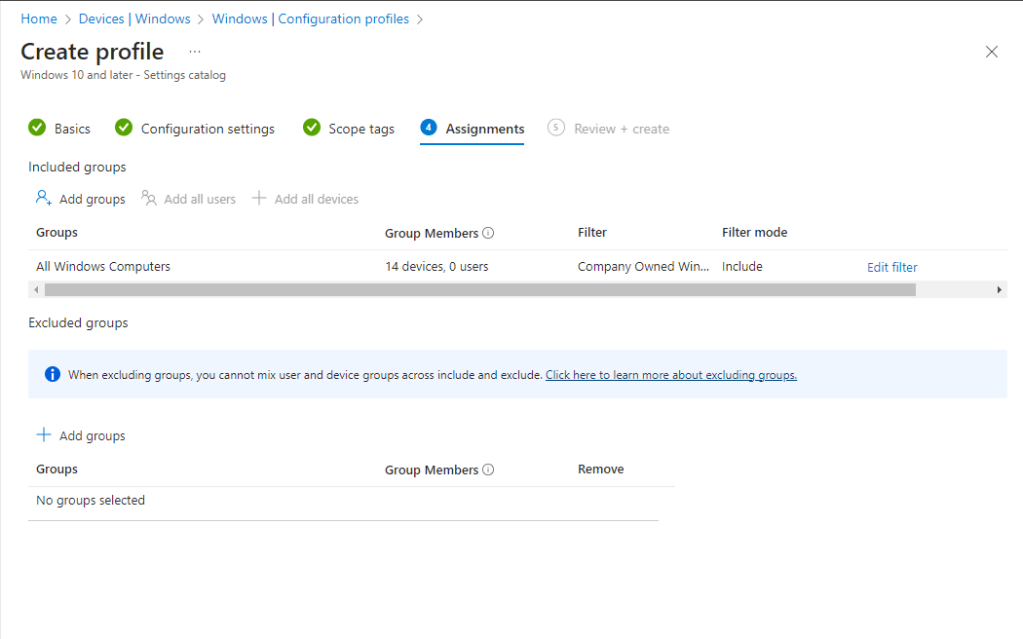
6. Add the appropriate groups to target devices for the telemetry settings. In my case, I am targeting a group that contains all Windows computers in my environment. I’m then refining my scope with a filter that includes only company owned Windows endpoints. Click Next, once complete.
7. Review the new profile settings on the Review + create screen, then click Create.
In my experience, it was 48-72 hours before my devices really started reporting any valuable data in so be patient with the reports populating and don’t be disheartened if data doesn’t show up right away. It’s likely not something wrong with the deployment of your new policy!
FAQ
- What are the licensing requirements? This is a free service with only technical requirements. You will need an Azure subscription to deploy the necessary log analytics workspace.
- If it requires an Azure subscription and a Log Analytics Workspace, how much can I expect to spend per month? Although an Azure subscription is required, you won’t be charged for ingestion of Windows Update for Business reports data, which is what makes this service free.
- What are the differences between Windows Update for Business reports and the Windows Updates reports in Microsoft Intune? The Windows Update reports built into Intune are focused on reporting out on the configuration policy status as well as feature update and expedited update statuses. Here’s a list of the available reports in Intune and a description of their purpose:
- Monitor | Per update ring deployment status – display details about the update ring deployment and status.
- Monitor | Feature update failures – provides details for devices that you target with a Windows 10 and later feature updates policy, and that have attempted to install an update. Devices in this report might have an Alert that prevents the device from completing installation of the update. This report provides insights to update installation status, including the number of devices with errors.
- Monitor | Windows Expedited update failures (Requires Windows 10/11 E3/A3 or A5/E5 license) – help you find devices with alerts or errors and can help you troubleshoot update issues.
- Reports | Windows Feature Update Report – provides you update installation status that’s based on the update state from device and device-specific update details. The data in this report is timely, calls out the device name and state, and other update-related details.
- Reports | Windows Expedited Update Report (Requires Windows 10/11 E3/A3 or A5/E5 license) – shows the current state of all devices in the profile and provides an overview of how many devices are in progress of installing an update, have completed the installation, or have an error.
- Reports | Windows Feature Update Device Readiness Report (Requires Windows 10/11 E3/A3 or A5/E5 license) – provides per-device information about compatibility risks that are associated with an upgrade or update to a chosen version of Windows.
- Reports | Windows Feature Update Compatibility Risks Report (Requires Windows 10/11 E3/A3 or A5/E5 license) – provides a summary view of the top compatibility risks across your organization for a chosen version of Windows. You can use this report to understand which compatibility risks impact the greatest number of devices in your organization.
Are you finding the content on my site particularly helpful? Please consider donating to help me offset the costs of maintaining this site. Your support is greatly appreciated!

 Mike Shellenberger's blog
Leave a comment