
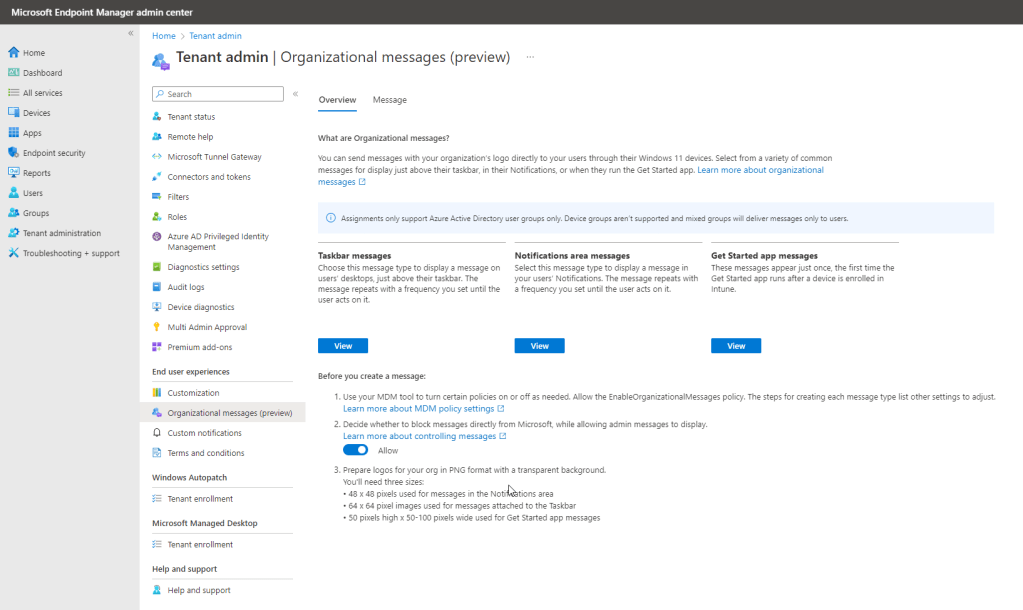
Organizational Messages is a new feature of Microsoft Intune currently in community preview. While notifications are not new to Intune, the existing custom notifications solution has limitations of only applying to iOS, iPadOS and Android devices. Organizational Messages is targeted solely at Windows 11 enrolled endpoints and offers more features in terms of message templates and tracking. Official Microsoft documentation can be found here.
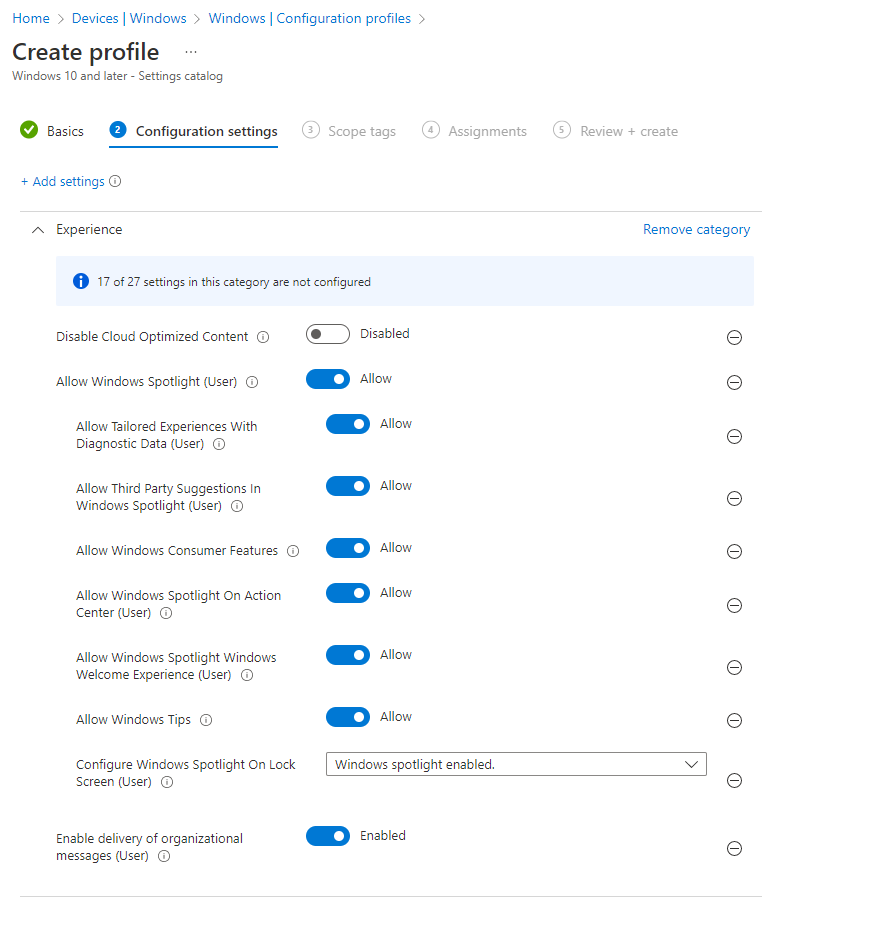
Before you get started, there are a few prerequisites to overcome. First, the endpoints you wish to target for notifications must already be running Windows 11. Windows 10 is not supported. Assuming you are already on Windows 11, those at 22H2 (build 10.0.22621.900) and later will need to define a Windows device configuration profile to ensure the proper Windows Spotlight settings are configured on the endpoint to allow notifications to work properly. Here’s the list of settings to configure from the Settings Catalog:
- Enable delivery of organizational messages (User): Enabled
- Allow Windows Spotlight (User): Allow
- Allow Windows Tips: Allow
- Allow Windows Spotlight on Action Center (User): Allow
- Disable Cloud Optimized Content: Disabled
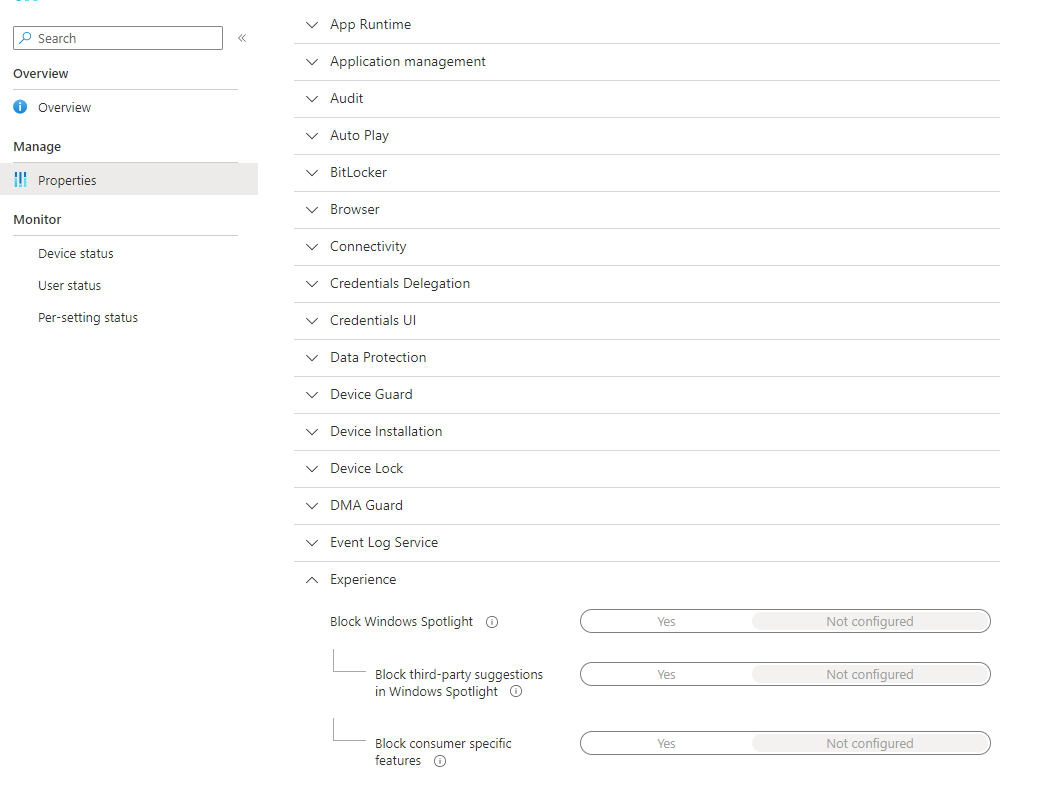
Another important note here is that if you’ve followed recommended practice and deployed default security baselines to your Windows devices, you will need to remove the Block Windows Spotlight setting as part any baseline policies. Failing to modify this baseline policy setting will cause policy conflict with your custom Windows device configuration profile created in the previous step and will render organizational messages unavailable on your endpoints.
You also need one of the following licenses assigned to the users you wish to target with messages: Microsoft 365 E3, Microsoft 365 E5, Endpoint Management + Security E3 and Windows Enterprise E3, or Endpoint Management + Security E5 and Windows Enterprise E5. This means you cannot use organizational messages with Intune standalone licenses or Office 365 licenses with the Enterprise Mobility + Security add-on packages.
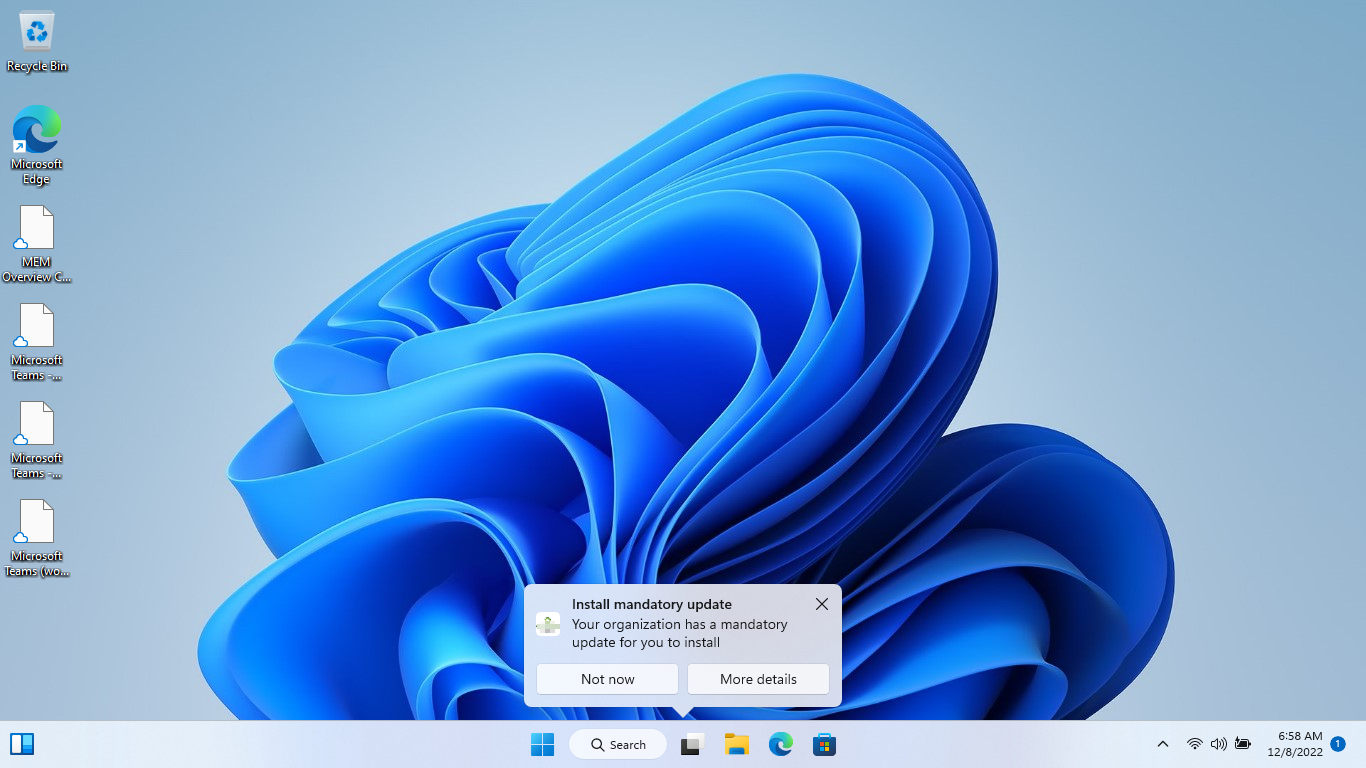
There are three fundamental message types available. Each type is designed to provide a slightly different style message to users. Taskbar messages will pop up right above the Windows taskbar and currently the only message template available for this style message is mandatory update.
A notification area message is what most users are familiar with receiving already. A balloon style message pops up in the lower right-hand corner of the desktop, is visible for a short period of time, then retires to the notification center where they can be reviewed later. Templates such as training, organization updates, browser updates and device updates are available for this style notification.
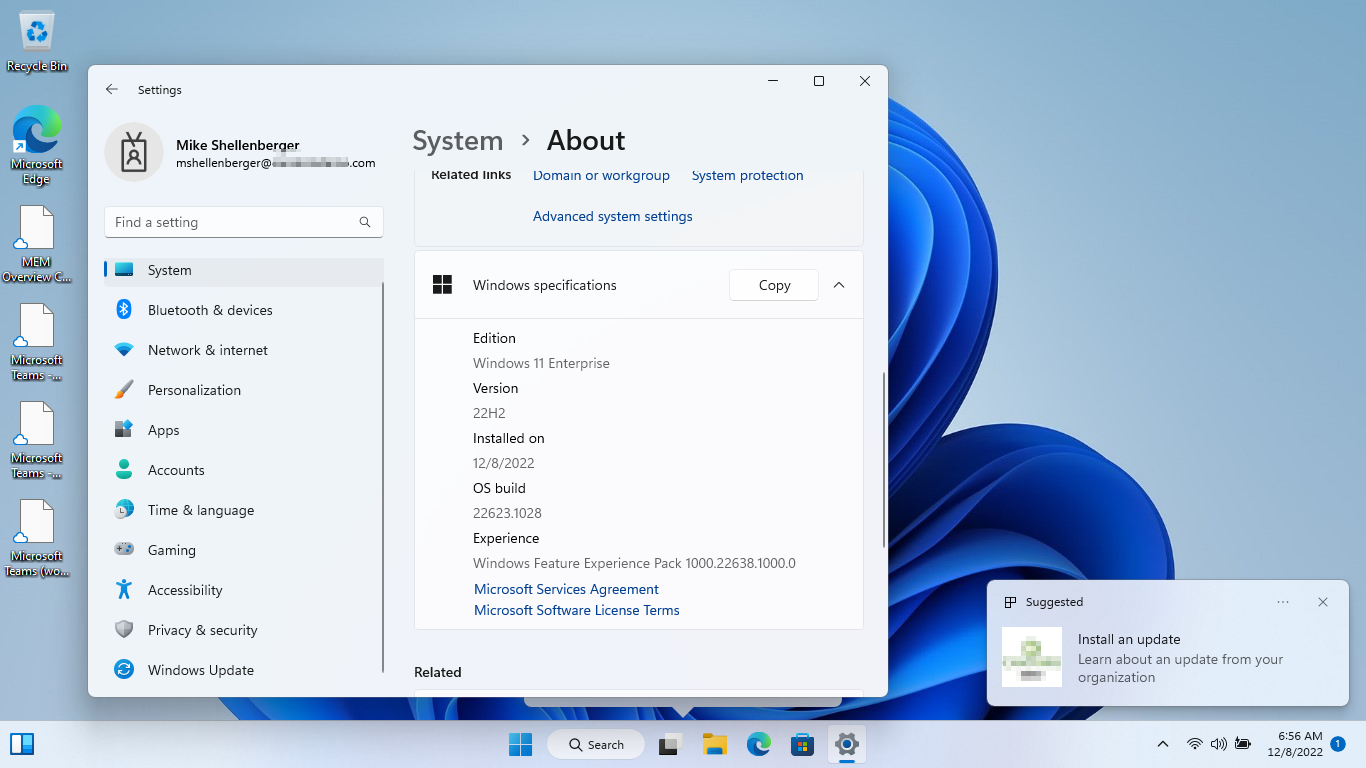
The last style message is the getting started app which is the first page users see after setting up their Windows 11 device for the first time.
I was hoping to provide a screenshot of the getting started app message in my demo environment here however, I couldn’t get it to work no matter what I tried even on multiple devices and with different user accounts. Not sure what would be wrong here but if I get it working eventually, I’ll provide an update.
Now here’s one of the biggest caveats to keep in mind… None of the message styles allow for custom text to be supplied. The templates provide a pre-canned verbiage based on the template type you choose, but you cannot enter free form text. Instead, you can supply a custom URL to direct users to a landing page you’ve pre-created where they can find more information on the message you’ve targeted them for. In order to ensure this is a more secure experience, you must host the landing page via one of your verified Azure AD custom domains or your service tenant domains.
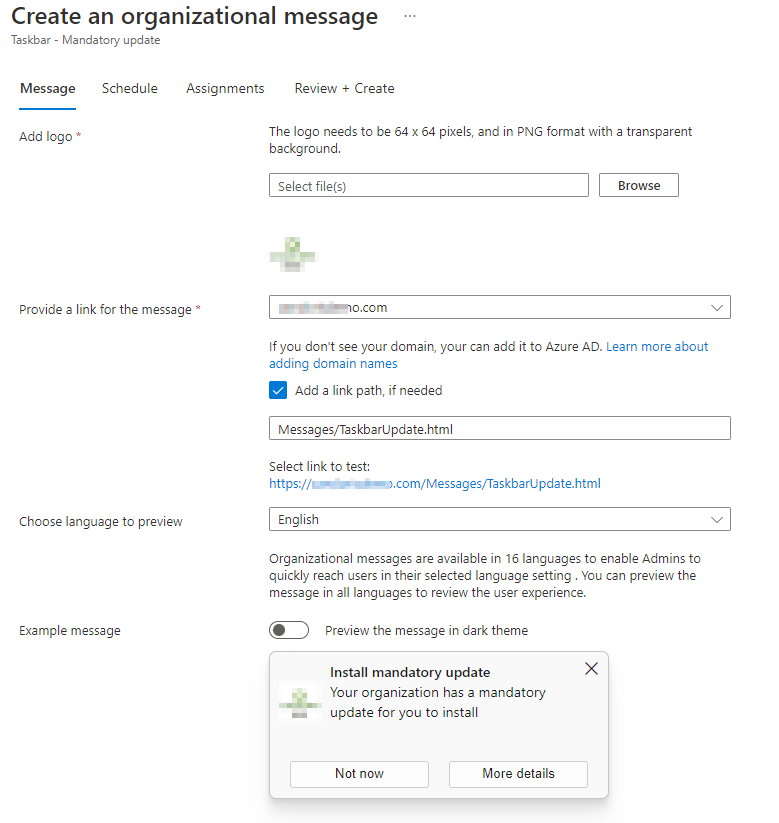
The first time you create a new organizational message of each type, you will be prompted to provide a custom logo for your organization. This is a requirement, and you must specify an image with the exact specifications requested:
- Taskbar messages: 64 x 64 pixels, PNG format
- Notification Area messages: 48 x 48 pixels, PNG format
- Getting Started app messages: 50 pixels long x 50-100 pixels wide, PNG format
The good news is if you’ve provided a logo for each message type once, it will already be on file the next time you attempt to create a new message of that type and you will not need to upload it again.
Once you have created your new message, you will target users based on groups. If you deploy an organizational message to a group that contains both users and devices, only the users on Windows 11 devices from the group will receive the messages. Scope groups and scope tags are not yet available for organizational messages.
So, here’s my feedback after working with the new organizational messages feature. This is definitely not a solution for pushing immediate or urgent notifications to users. While the older custom notifications solution cannot be controlled in terms of delivery speed, the fact that they use push services, and the company portal app makes the overall delivery more expedient. You also cannot customize the text of Organizational Messages, which certainly makes sense from a security perspective, but seems counterintuitive and a bit clunky at present. I would have been happier to see some sort of company portal-based notifications instead.
The delivery of the messages to users is sporadic and not very controllable at present. It’s a great solution for what I would call “gentle reminders” for users to perform certain actions, but it definitely lacks the control and immediacy I was hoping for when I first heard the announcement of the feature. I’m sure Microsoft will continue to make enhancements to the solution while in public preview and I’m looking forward to adopting this feature in production environments in the future!
Did you find this particular article extra helpful? Please consider donating to help me offset the costs of maintaining this site. Your support is greatly appreciated!

 Mike Shellenberger's blog
Leave a comment