

Migrating Windows Server Active Directory Clients
If we look at the previous visual representation of my test devices, we are focused only on the devices outlined in red here:
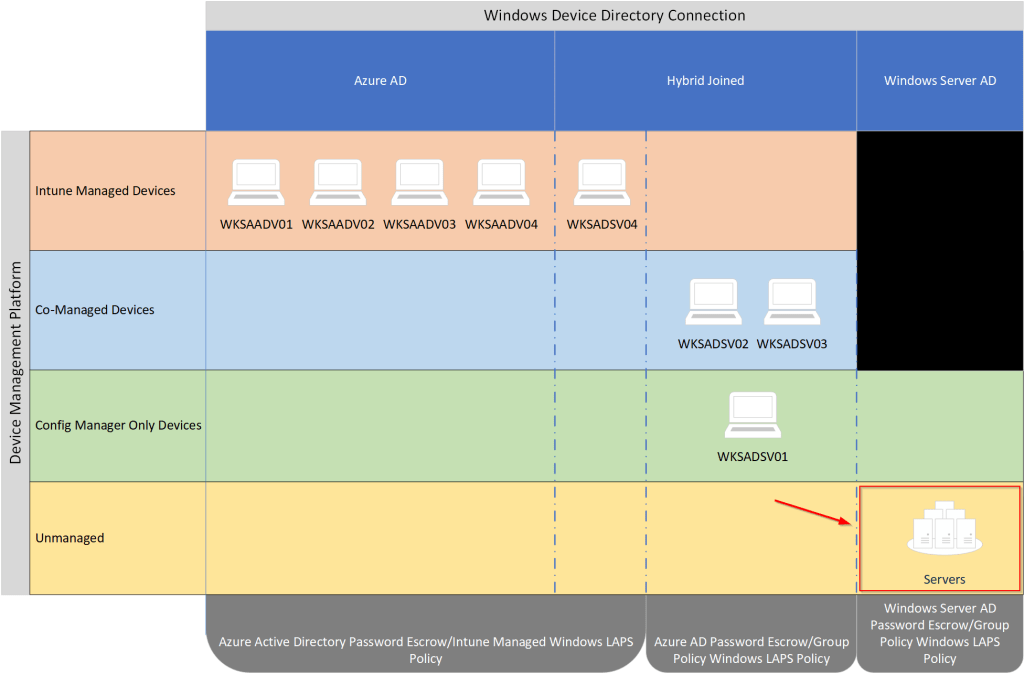
In my current Microsoft LAPS (legacy) configuration, I have two group policy objects targeting both servers and client devices.
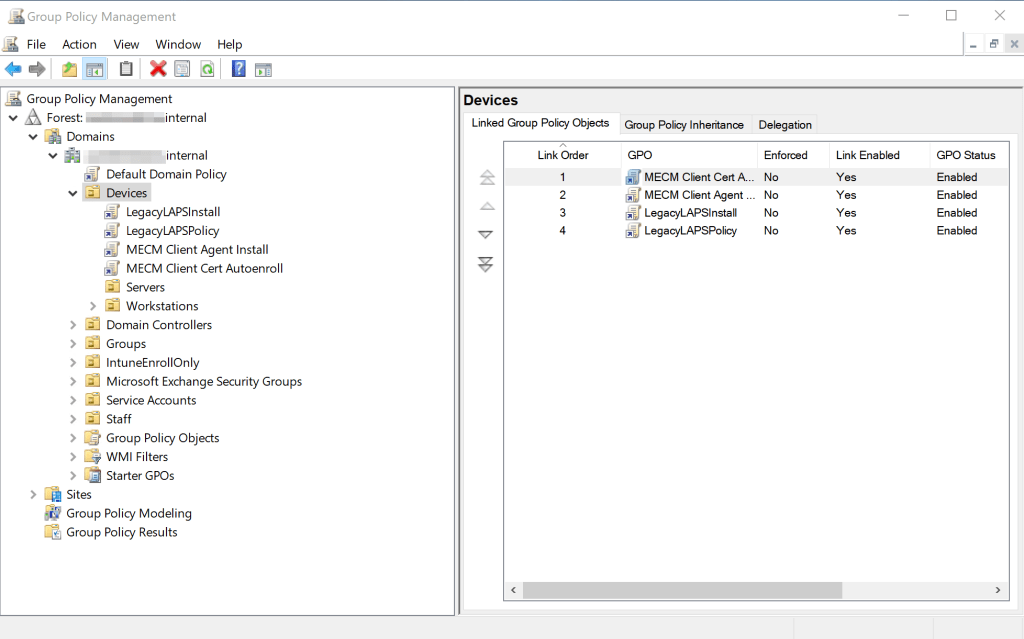
Before I start migrating to Windows LAPS, I’m going to first unlink the group policy object named LegacyLAPSInstall from the Devices OU as it contains the client-side extension for the LAPS agent that is no longer necessary with Windows LAPS emulation mode. This will ensure any new clients or servers that are deployed prior to my cutover to Windows LAPS use emulation mode. When Windows LAPS is successfully running in emulation mode, you will see event ID 10023 in the Windows LAPS event logs (Event Viewer > Application and Services Logs > Microsoft > Windows > LAPS)
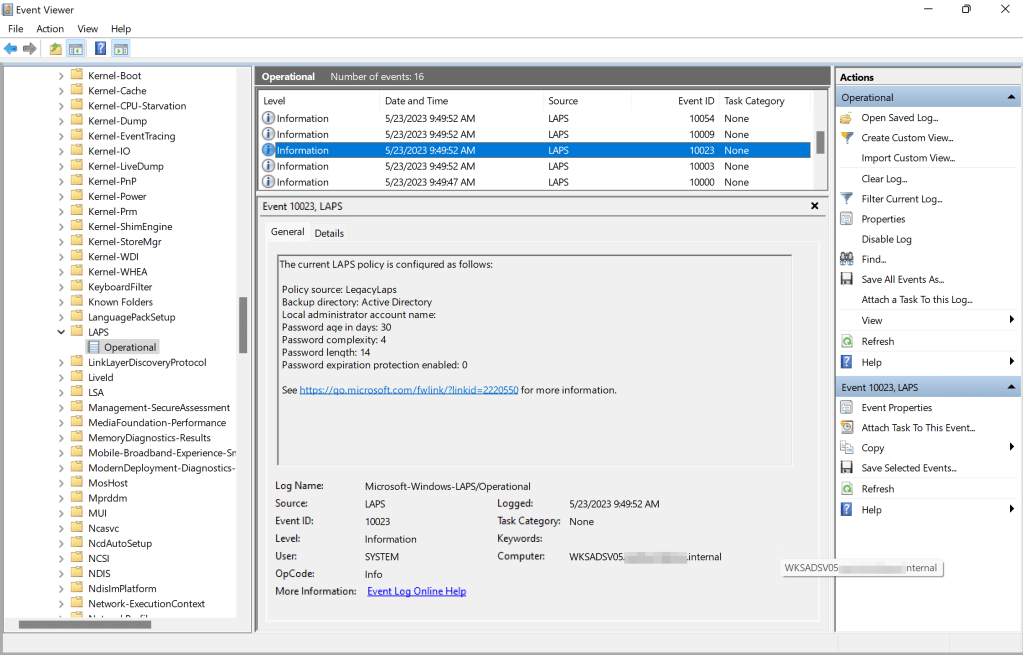
The Microsoft LAPS (legacy) application for retrieving stored passwords in Windows Server AD can continue to be leveraged with Windows LAPS clients in legacy emulation mode, as well. If running Windows LAPS in legacy emulation mode creates issues for your specific setup, you can disable on the client by creating a REG_DWORD registry value named BackupDirectory under the HKLM\Software\Microsoft\Windows\CurrentVersion\LAPS\Config key and set it to the value zero (0).
Now that we’ve stopped the installation of the Microsoft LAPS (legacy) client-side extension, we can proceed with preparing the Windows Server AD for supporting the new Windows LAPS attributes. From a machine that supports the minimum requirements for Windows LAPS and logged in with an account that has Schema Admin permissions, run the following command in Powershell: Update-LapsADSchema

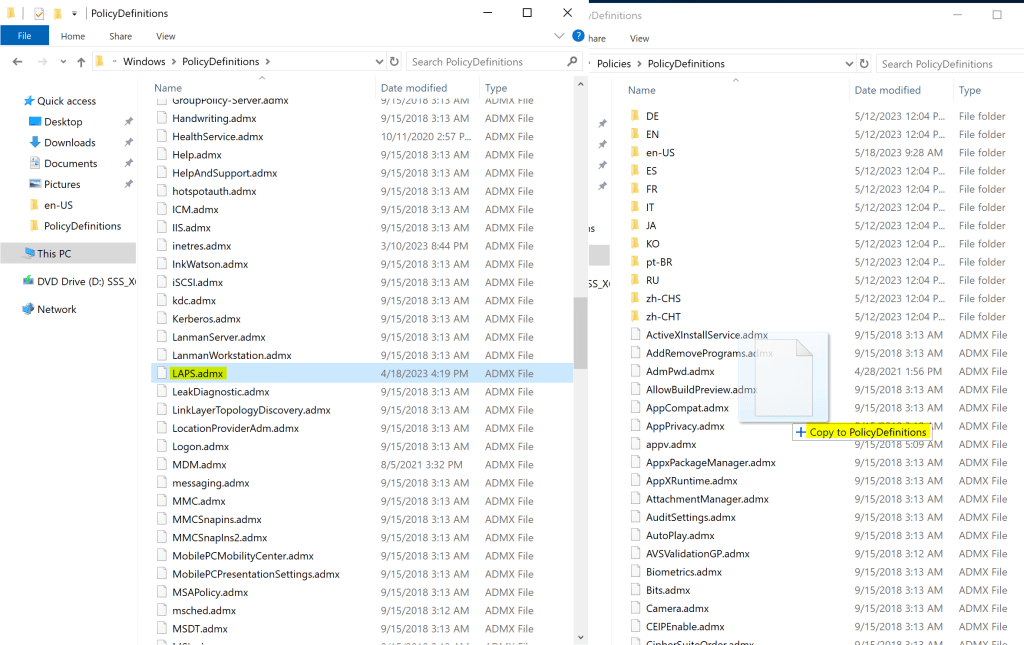
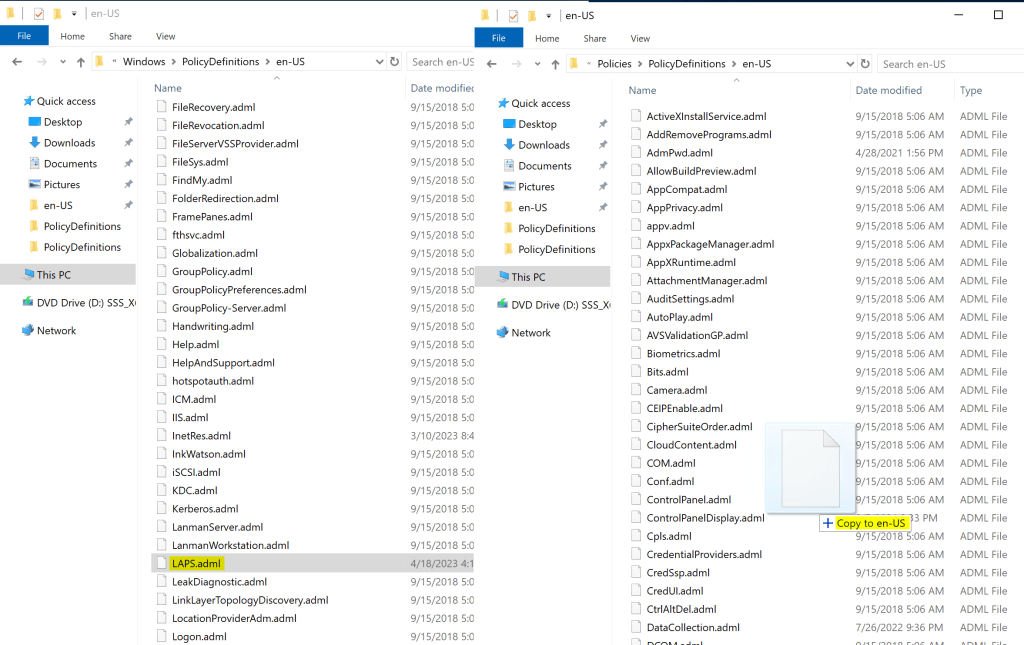
Copy the new Windows LAPS group policy template files to your group policy central store:
- %windir%\PolicyDefinitions\LAPS.admx copy to \SYSVOL\sysvol\domainname\Policies\PolicyDefinitions\
- %windir%\PolicyDefinitions\en-us\LAPS.adml copy to \SYSVOL\sysvol\domainname\Policies\PolicyDefinitions\en-us\
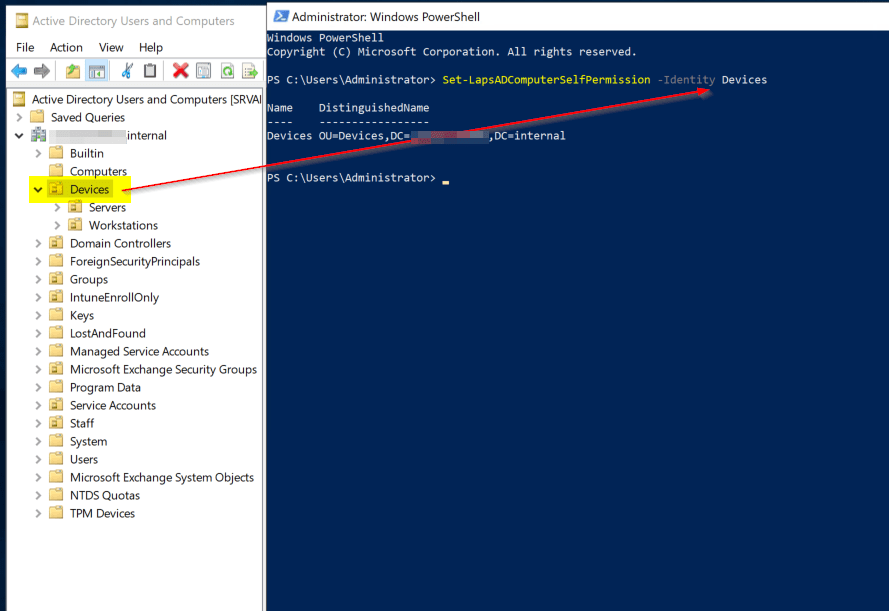
You’ll need to assign the necessary device self-write permissions to the Active Directory OU where Windows LAPS enabled devices will be located. This ensures devices have the appropriate permissions to update the necessary computer object attributes for Windows LAPS. To perform this delegation, issue the following command: Set-LapsADComputerSelfPermission -Identity DevicesOU
Next, assign permissions for your Windows LAPS administrative users who will need to see all attributes regarding a local admin password expiration and force the password reset, without allowing the users to view the actual passwords: Set-LapsADResetPasswordPermission -Identity DevicesOU -AllowedPrincipals “DOMAINNAME\SecurityGroup”

Now assign permissions for your Windows LAPS administrative users who will need to see all attributes regarding a local admin password expiration and force the password reset, while also allowing the viewing of the actual admin passwords: Set-LapsADReadPasswordPermission -Identity DevicesOU -AllowedPrincipals “DOMAINNAME\SecurityGroup”

Configure Windows LAPS Group Policy Object
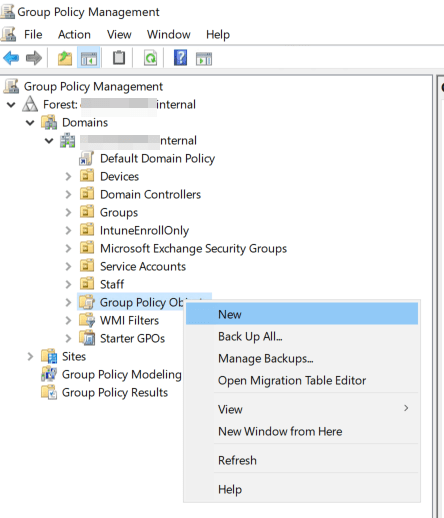
Stage your new Windows LAPS policy using the group policy management tool. Right-click on the group policy objects container and click New.
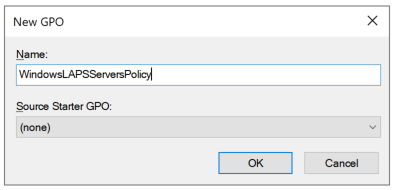
Give your new policy a name that indicates this policy is specific to Windows Server AD LAPS clients. In my case, this policy will target my servers so I’ve named it WindowsLapsServersPolicy.
Right-click the new group policy object and select Edit. Expand Computer Configuration > Policies > Administrative Templates > System > LAPS to expose the new Windows LAPS policy settings.
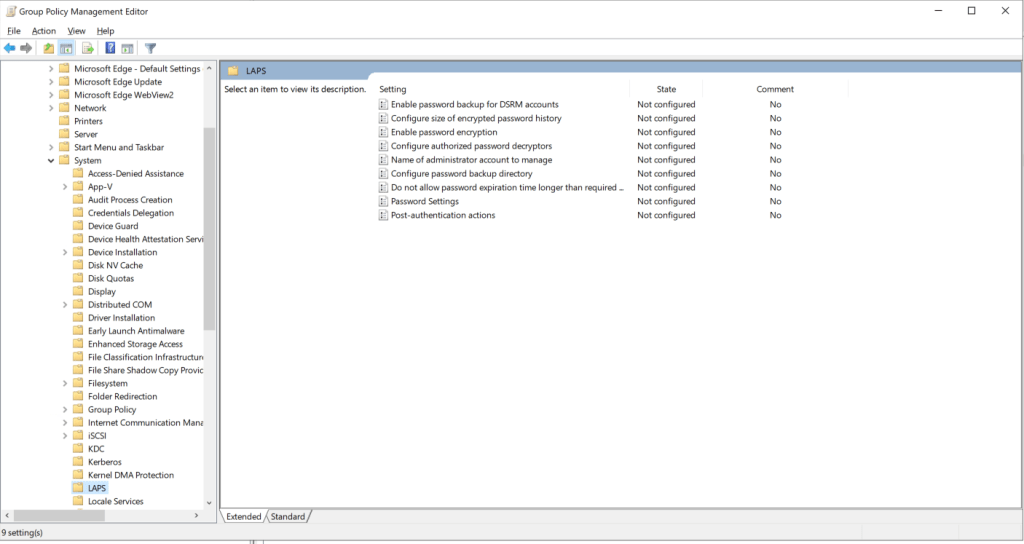
It’s now time to refer back to your Windows LAPS migration planning documentation for the policy configuration values you will need.
At a bare minimum, you will need to configure the Configure password backup directory to 2 or Active Directory which instructs Windows LAPS to begin managing the local admin password and store the password in Windows Server AD. For my environment, I will also be configuring the following additional settings:
| Setting Name | Value | Description |
| ADPasswordEncryptionEnabled | 1 | Enables the new Windows LAPS password encryption feature for Windows Server AD |
| ADEncryptedPasswordHistorySize | 5 | This setting enables the ability for LAPS to document the previous passwords for the account (maximum 12). This can only be enabled if ADPasswordEncryptionEnabled is also enabled. |
| ADBackupDSRMPassword | 1 | Enabling this policy provides the ability to backup the Windows Server AD Directory Services Restore Mode password for each domain controller, which is new to Windows LAPS. |
In my environment, leaving the rest of the settings to Not Configured meets my requirements as the setting defaults are appropriate. Be sure to reference the settings and their defaults here: https://learn.microsoft.com/en-us/windows-server/identity/laps/laps-management-policy-settings#apply-policy-settings
Cutover Windows Server AD Only Devices from Microsoft LAPS (legacy) to Windows LAPS
Now that my group policy object is staged for Windows LAPS, I can perform the actual cutover of Windows Server AD servers from Microsoft LAPS (legacy) to Windows LAPS. I’ll do this by performing the following steps in succession as quickly as feasible. (Note: it’s not necessary to try to be as speedy as possible, just don’t leave an excessive amount of time between removing your old Microsoft LAPS (legacy) policy and applying your new Windows LAPS policy)
- Remove the group policy links for the legacy Microsoft LAPS policy from the OU’s where you have devices that will store their passwords with Windows Server AD. In my case, this involves removing the LegacyLAPSPolicy from the parent Devices OU and re-linking the policy on the Workstations OU (for now to keep legacy LAPS in place for client devices until I transition to Windows LAPS and Azure AD password escrow)
- Link the new Windows LAPS policy to the OU’s where you have devices that will store their passwords with Windows Server AD. (In my case, I will link the WindowsLAPSServerPolicy to the Servers OU in my environment.)
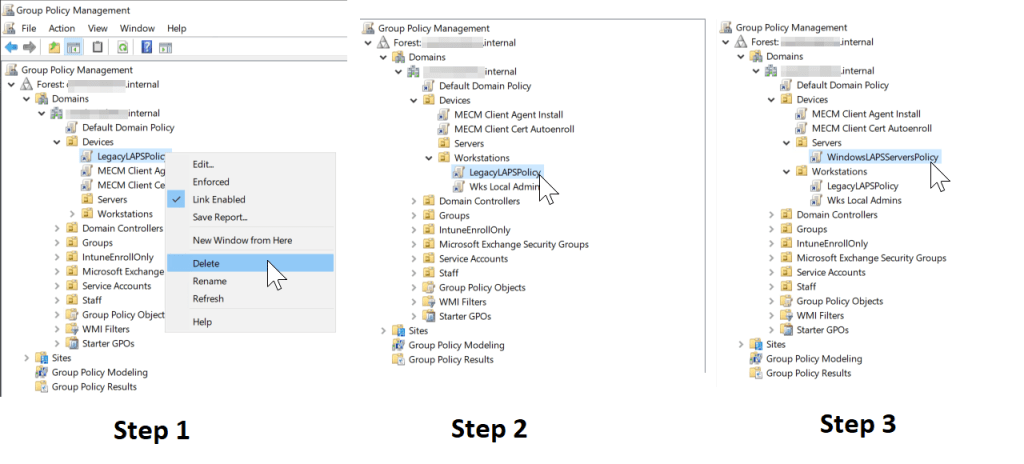
Monitoring Cutover to Windows LAPS
Once the new policy is in place, you can either manually spot check the Windows LAPS event logs on each device, or use a centralized event log collection solution to monitor the devices for the following event ID’s:
- 10020 – LAPS successfully updated the local admin account
- 10018 – LAPS successfully updated Active Directory with the new password.
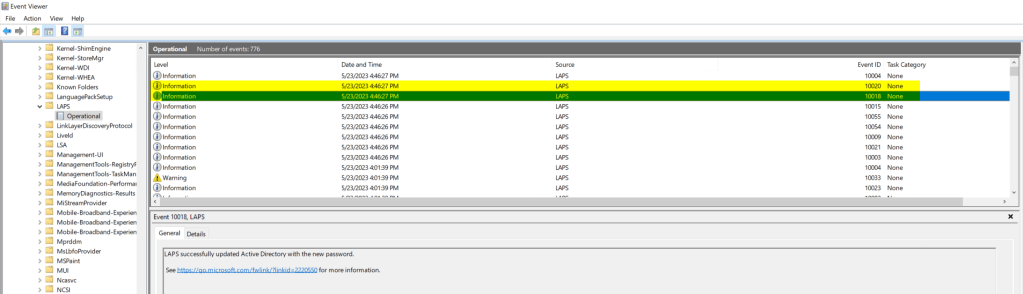
Other ways of verifying the successful transition to Windows LAPS include:
- Checking the new Windows LAPS tab on each computer object via the Active Directory Users and Computers tool
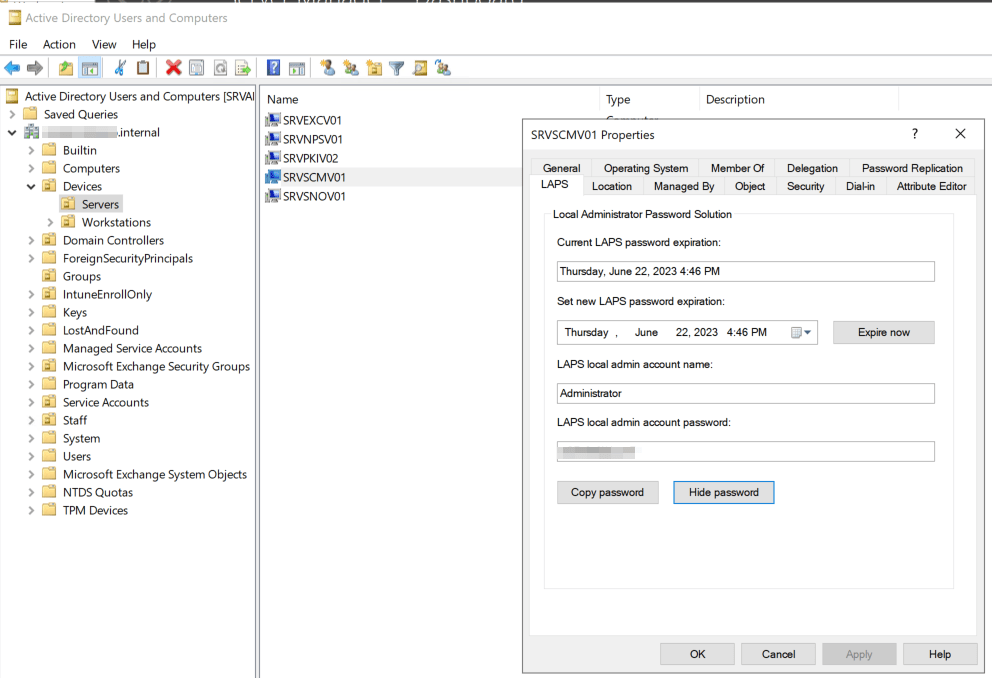
- Check individual computers with the Get-LapsADPassword ServerName powershell command.
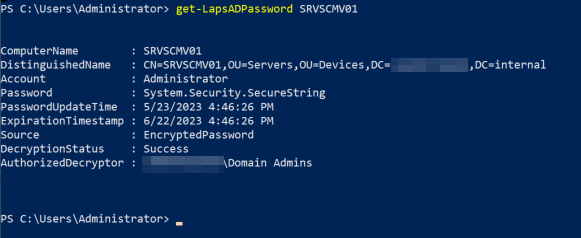
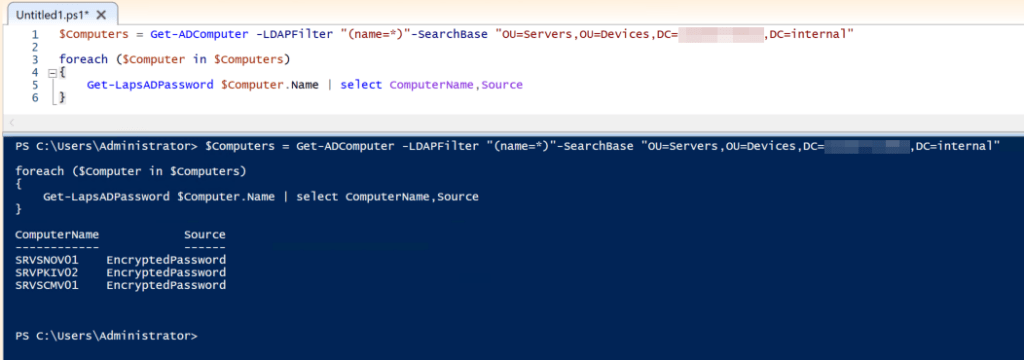
- Script the evaluation of each computer object in a particular OU with a Powershell script such as the following:
$Computers = Get-ADComputer -LDAPFilter "(name=*)"-SearchBase "OU=Servers,OU=Devices,DC=domainname,DC=domainsuffix"

foreach ($Computer in $Computers)
{
Get-LapsADPassword $Computer.Name | select ComputerName,Source
}
Remove Microsoft LAPS (legacy) Agent from Endpoints
When all devices have successfully transitioned to the new Windows LAPS policy, you will need to remove the legacy Microsoft LAPS client-side extension from the devices using the following uninstall command: msiexec.exe /q /uninstall {97E2CA7B-B657-4FF7-A6DB-30ECC73E1E28} For environments that may not have a device management platform capable of pushing this uninstallation command, here’s the process I used leveraging scheduled tasks and group policy:
- Create a new group policy object named RemoveLegacyLAPSAgent or something similar.
- Right-Click on the new policy and Edit.
- Navigate to Computer Configuration > Preferences > Control Panel Settings > Scheduled Tasks and create a New Scheduled Task (At least Windows 7)
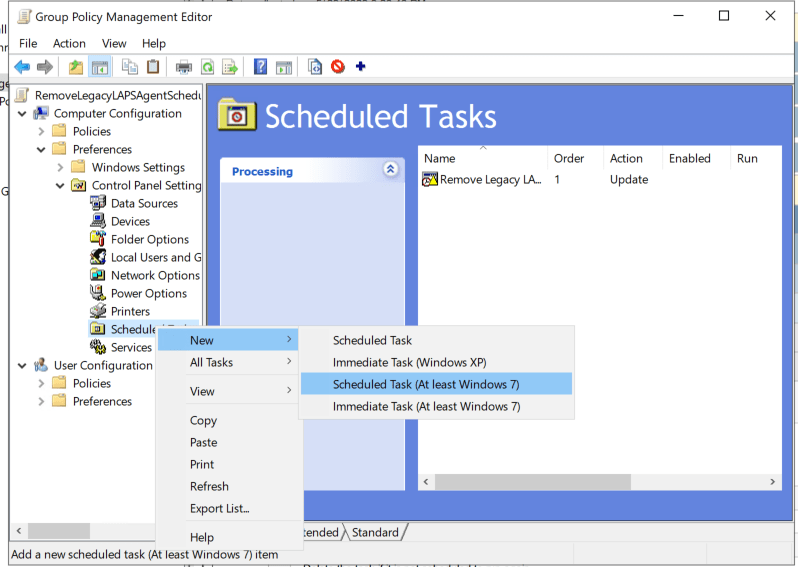
Configure the scheduled task with the exact parameters in these screenshots:
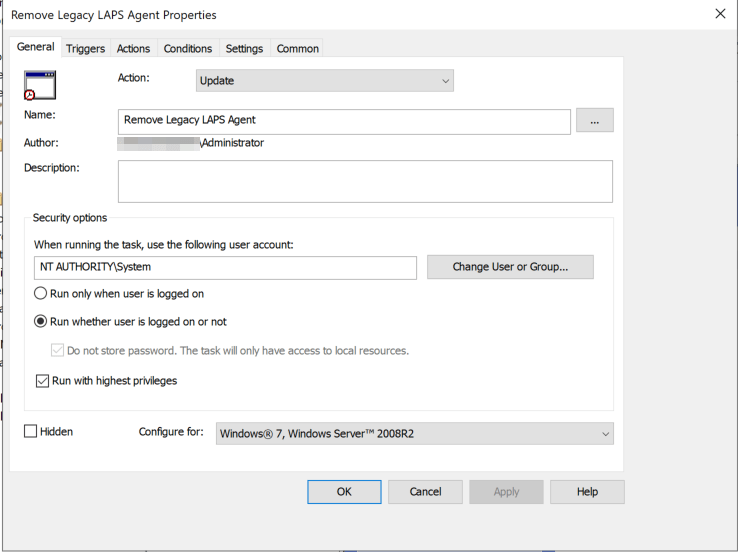
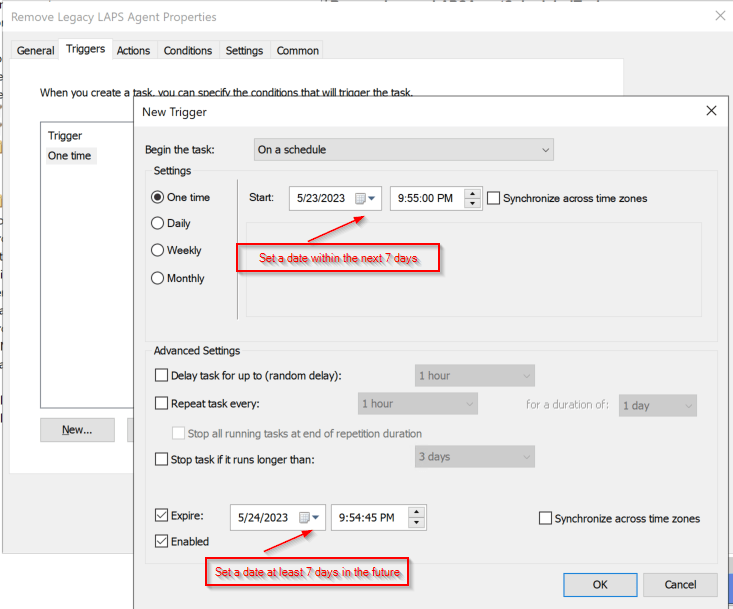
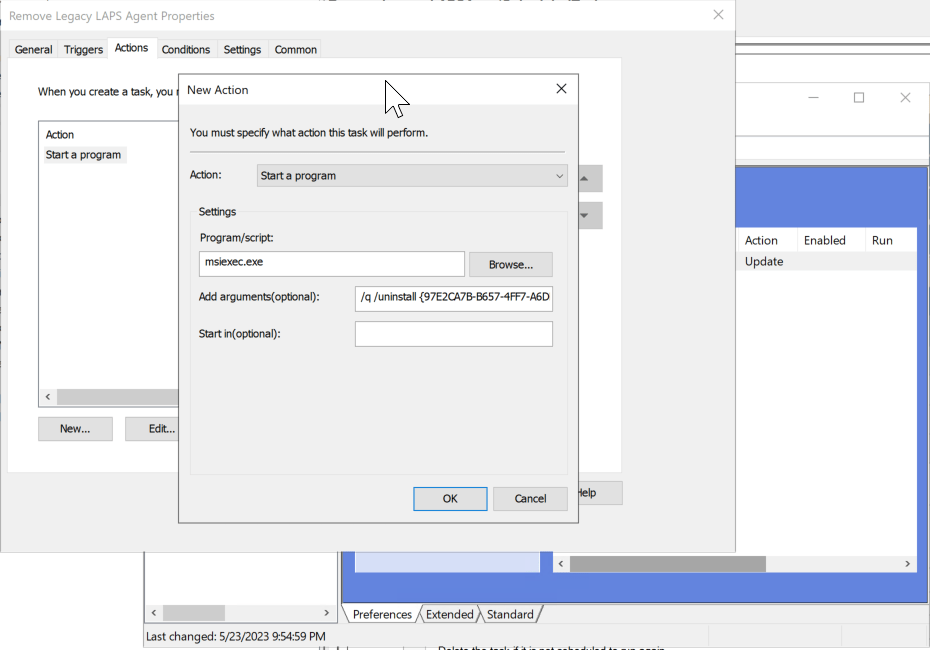
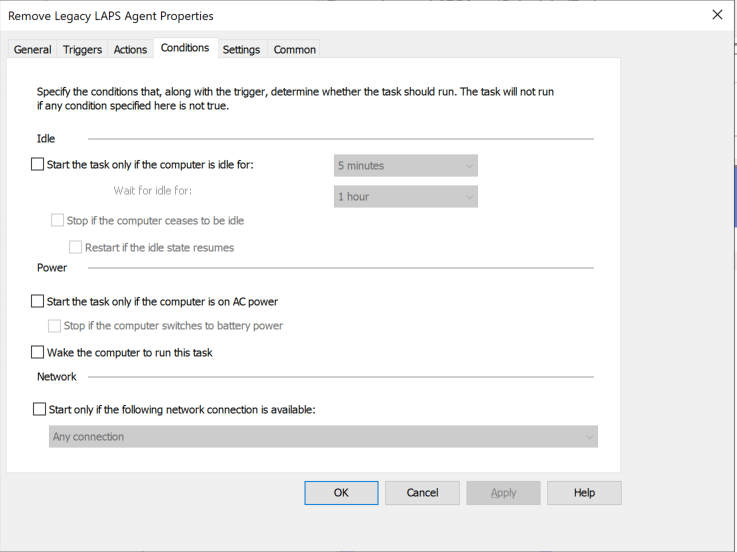
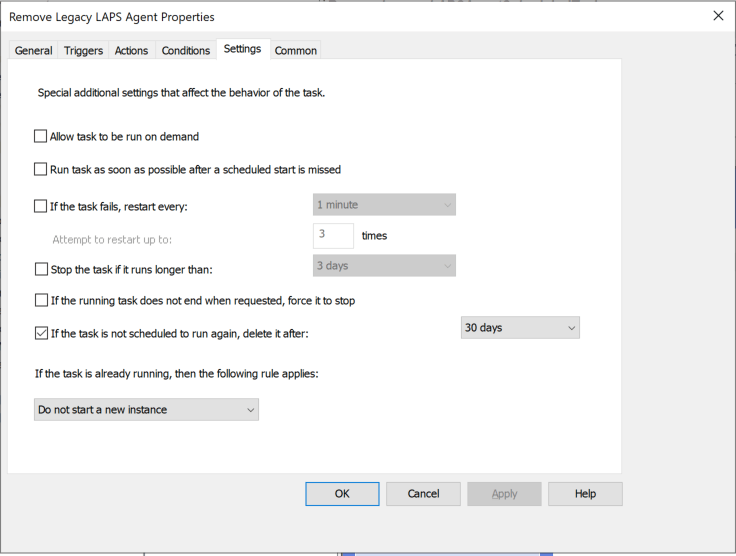
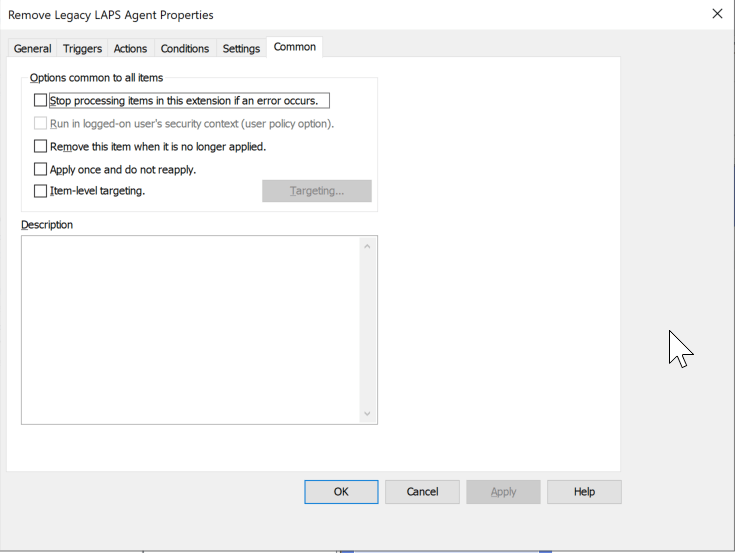
4. Link the new group policy object to the OU that contains the devices in which you wish to remove the Microsoft LAPS (legacy) agent. Within 7 days the new scheduled task will execute and remove the legacy LAPS software from the device. Within 30 days of running, the task will automatically be deleted from scheduled tasks so as not to leave any artifacts from the migration behind.
5. Once the LAPS software has been removed from all devices, delete the group policy object links and the policy itself to clean up.
We’ve now migrated all the Windows Server AD only backed client devices to Windows LAPS. In Part 3, we will migrate the Hybrid Azure AD joined clients that are capable of using Azure AD for password escrow.
Are you finding the content on my site particularly helpful? Please consider donating to help me offset the costs of maintaining this site. Your support is greatly appreciated!

 Mike Shellenberger's blog
Leave a comment